
外掛程式工作流程
BetaGrade and clean up a set of photos in Photoshop
Finish a set of selected shoot photos in Photoshop: one consistent grade as adjustment layers, small distractions you pick removed on masked layers of their own, a layered PSD of each and web JPEGs.
Runs in Photoshop on your computer
- 最適合
- Delivering a set of selects that reads as one shoot, with every change still editable.
- 執行環境
- Photoshop 25.0 or later
- 時間
- 15 to 40 min
- 費用
- With your own agent, like Claude or Cursor, the work in Photoshop is free. With NOLGIA Agent, turns cost from 10 credits each. Anything it generates with NOLGIA is priced as usual.
從你的 AI 代理開始
開著 Photoshop,把這段貼到 Claude Code、Claude Desktop、Cursor 或任何已連接 NOLGIA 的 AI 代理。AI 代理會逐步依照這個工作流程進行,做出任何重大修改前都會先詢問你。
Use NOLGIA to finish my selected shoot photos in Photoshop: one consistent grade, remove small distractions like signs and stray gear, keep every change on its own layer, save layered PSDs and export web JPEGs.
在 Claude Code 中,它也是一道指令:/mcp__nolgia__photoshop-photo-set-grade。「在 Claude 中開啟」需要先把 NOLGIA 新增為 Claude 的連接器。
功能說明
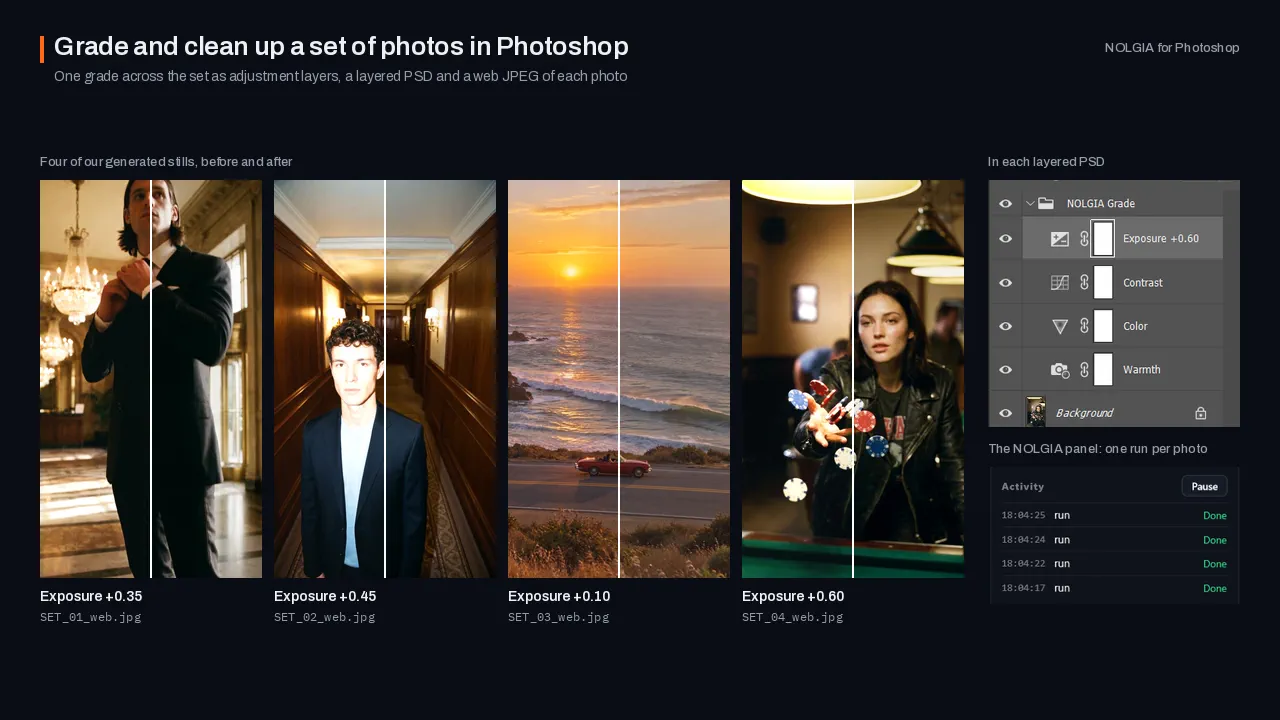
The NOLGIA assistant looks at each of your selected photos in Photoshop and measures how bright it is. Then, one photo at a time, it saves a layered PSD (your original file is never written), adds a NOLGIA Grade group of adjustment layers (exposure scaled to the photo's brightness, the same contrast, color and warmth across the set so it reads as one shoot), and exports a web JPEG (2048 px on the long side by default).
For cleanup it lists what it would remove in each photo, such as exit signs, wall fixtures, stray gear or a crew member cut by the frame edge, and removes only what you pick, each on a masked layer of its own made with Content-Aware Fill. It never retouches skin, faces, bodies or clothing. Every value stays editable in the adjustment layers. Camera raw files open through Camera Raw: you open them, or it works from 16-bit TIFFs of them.
You need Photoshop 25.0 or later and NOLGIA for Photoshop.
使用情境
- Delivering a shoot's selects the same night
- One consistent grade across a set before posting
- Removing exit signs and stray gear from behind-the-scenes photos
工作流程
你的 AI 代理在 Photoshop 中依照的書面步驟,對每個 AI 代理都相同:先是每個 Photoshop 工作流程都遵守的規則(先建立安全副本、所有內容保持可編輯、每次修改後都產生預覽),接著是這個預設集本身的步驟。
閱讀工作流程
Rules for every Photoshop workflow
These instructions are served to the agent with every Photoshop preset in the Film assistant category. The agent works through the NOLGIA Bridge tools (nolgia_app_*) on Photoshop running on the person's own computer. Code for nolgia_app_run is UXP JavaScript (language: "uxp").
Before anything changes
- Call
nolgia_app_status. If Photoshop is not listed, stop and tell the person in two lines: install NOLGIA for Photoshop from nolgia.ai/plugins/photoshop, then open the NOLGIA panel from Photoshop's Plugins menu and sign in. Do not guess or continue without it. - Call
nolgia_app_info. Read what is really open: the documents, the active one's size, resolution, colour mode and bit depth, its layers (groups, masks, what is hidden or locked), the selected layer and any selection. Describe it back in one sentence so the person can correct you. If the image to work on is in the NOLGIA library instead, bring it in withnolgia_app_import: it opens as a new document when none is open. - If the document has a path, make a safety copy first:
nolgia_app_exportwithformat: "psd"saves<name>-copy.psdnext to it and never overwrites a file. If it was never saved (an image imported from NOLGIA, a new document), ask where to keep the working PSD, offer a default next to the person's other project files, and save it there with anolgia_app_runthat callsdoc.saveAs.psd(...)(see below), or ask the person to use File > Save As, and wait. - Ask only the questions the workflow lists. Offer a sensible default for each so the person can just say "go".
While working
- Change the document in small steps: one
nolgia_app_runper logical step, each settingresultto a short summary (layer names and ids, counts, bounds). Each run is one step in Photoshop's History, named "NOLGIA: run code", so the person can undo it in one go; a run that fails is undone for you. - Never delete, merge, flatten, rasterize or rename the person's own layers unless they asked. Work on copies and new layers, and put everything you add in a group named after the workflow (for example
NOLGIA Cleanup). - Keep everything editable: retouching on its own layers with layer masks, placed images as Smart Objects, colour and light as adjustment layers. No destructive filters on the original pixels.
- After each visible change, call
nolgia_app_previewand look at the image before moving on. If it looks wrong, fix it before the next step. Do not describe a result you have not seen. The preview shows the whole active document; to look closely at one area, duplicate a crop of it into a temporary document in a run, preview that, then close it without saving. - If code fails, read
error(it names the line of your code), fix it and try once more. After two failures on the same step, explain what failed in plain words and ask how to proceed.
Photoshop UXP that bites
- Every run already runs inside
core.executeAsModal, so edits work as they are. Do not wrap code incore.executeAsModalyourself: an error thrown inside it comes back as bare text with no line number. If you need a nested modal scope, use themodal(async (ctx) => ...)helper. batchPlaydoes not throw when a step fails; it returns{_obj: "error", message}and carries on. Use theplay([...])helper, which throws on the first failed step. Check what a step did (for example read the layer back) before relying on it.doc.layers.add()anddoc.createLayer()put the new layer at the top of the stack, inside the top group when the top item is a group, whatever layer is selected. To put a layer where you mean, select the layer it should sit above withplay([{ _obj: "select", _target: [{ _ref: "layer", _id: id }], makeVisible: false }])and make it withplay([{ _obj: "make", _target: [{ _ref: "layer" }], using: { _obj: "layer", name } }]), or move it afterwards withlayer.move(target, constants.ElementPlacement.PLACEBEFORE)(above) orPLACEAFTER(below);PLACEINSIDEputs it in a group.doc.createLayerGroup({ name })makes the group at the top of the stack, but when the top item is itself a group the new group lands inside it (Photoshop 2026, 27.5). To keep groups side by side, checkdoc.layers[0].id === group.idand otherwiseawait group.move(doc.layers[0], constants.ElementPlacement.PLACEBEFORE). To nest groups on purpose, move them in withgroup.move(parent, constants.ElementPlacement.PLACEINSIDE), which puts the moved layer at the top of the parent: move them bottom one first.- Deleting a group with
group.delete()removes only the group: its layers stay in the document where the group was. Delete them first if they should go too. - Deleting a layer leaves no layer selected; select one before the next step.
nolgia_app_importplaces the image right above the selected layer (inside its group), or at the top of the stack when none is selected. With a group itself selected it lands above the group, not in it: move it in afterwards. - Photoshop hands out a new object each time you read a layer, so compare layers by
id, never with===, and keep ids (not objects) between runs. The same goes for documents: keep the document'sidand find it withapp.documents.find((d) => d.id === id), because opening, duplicating or importing changesapp.activeDocument. - Fill, Content-Aware Fill, filters and adjustments act on the selected layer, inside the selection when there is one. Content-Aware Fill needs pixels on that layer (it does nothing on an empty layer): duplicate the source layer, fill inside the selection on the copy, then give the copy a mask of just the patch.
- In descriptors,
RGBColortakesred,grain(green) andblue, 0 to 255. - A layer's
boundsare what its mask lets through. A layer whose mask hides everything reports zero bounds. - Placing an image clears the selection (
nolgia_app_importputs it back). Keep a selection you need across steps in a channel, or rebuild it. - Code runs on Photoshop's one JavaScript thread. A loop that never awaits freezes Photoshop and nothing can stop it.
timeout_secondsonly stops NOLGIA waiting; keep each run short. - While a dialog is open in Photoshop (a save prompt, a filter's settings, the Graphics Processor notice at startup) Photoshop is busy: changes fail, and
runsays so and runs your code outside the modal scope, where it can only read. Ask the person to close the dialog, then run the step again. await app.documents.add(...)makes the document and makes it active, but what it returns is not reliable:null, or even the document that was active before. Useapp.activeDocumentright after it (check its name).doc.pathis empty until the document is saved. Save withdoc.save()ordoc.saveAs.psd(entry, options, asCopy);nolgia_app_runhasfs(the UXP local file system, full access) to get entries:await fs.getEntryWithUrl("file:/C:/Projects/shot.psd")for an existing file,await (await fs.getEntryWithUrl("file:/C:/Projects")).createFile("shot.psd", { overwrite: true })for a new one.
Recipes that work (Photoshop 2026)
- Select a layer:
play([{ _obj: "select", _target: [{ _ref: "layer", _id: id }], makeVisible: false }]). - Copy the original into a group:
await original.duplicate(group, constants.ElementPlacement.PLACEINSIDE, "Remove: cone"). - Selections:
doc.selection.selectRectangle({ left, top, right, bottom }),selectEllipse(...),selectPolygon([{ x, y }, ...]); passconstants.SelectionType.EXTENDas the second argument to add to it. Grow it withplay([{ _obj: "expand", by: { _unit: "pixelsUnit", _value: 5 }, selectionModifyEffectAtCanvasBounds: false }])and soften it with the same step as{ _obj: "feather", radius: { _unit: "pixelsUnit", _value: 2 }, ... }. - Content-Aware Fill inside the selection, on the selected layer:
play([{ _obj: "fill", using: { _enum: "fillContents", _value: "contentAware" }, contentAwareColorAdaptationFill: true, opacity: { _unit: "percentUnit", _value: 100 }, mode: { _enum: "blendMode", _value: "normal" } }]). The samefillwith_value: "black","gray"(50% gray) or"color"pluscolor: { _obj: "RGBColor", red, grain, blue }fills plainly;play([{ _obj: "delete" }])clears the selection on a normal layer. - Mask the selected layer to the selection:
play([{ _obj: "make", new: { _class: "channel" }, at: { _ref: "channel", _enum: "channel", _value: "mask" }, using: { _enum: "userMaskEnabled", _value: "revealSelection" } }]); remove a mask withplay([{ _obj: "delete", _target: [{ _ref: "channel", _enum: "channel", _value: "mask" }] }]). - An adjustment layer, right above the selected layer:
play([{ _obj: "make", _target: [{ _ref: "adjustmentLayer" }], using: { _obj: "adjustmentLayer", name, type } }])withtypesuch as{ _obj: "curves", presetKind: { _enum: "presetKindType", _value: "presetKindCustom" }, adjustment: [{ _obj: "curvesAdjustment", channel: { _ref: "channel", _enum: "channel", _value: "composite" }, curve: [{ _obj: "paint", horizontal: 0, vertical: 0 }, { _obj: "paint", horizontal: 128, vertical: 121 }, { _obj: "paint", horizontal: 255, vertical: 255 }] }] }or{ _obj: "photoFilter", color: { _obj: "RGBColor", red: 236, grain: 138, blue: 0 }, density: 18, preserveLuminosity: true }(warming). Made while a selection is active, it takes the selection as its mask. Clip it to the layer below withplay([{ _obj: "groupEvent", _target: [{ _ref: "layer", _enum: "ordinal", _value: "targetEnum" }] }]). - Noise on the selected layer:
play([{ _obj: "addNoise", distort: { _enum: "distort", _value: "gaussianDistribution" }, noise: { _unit: "percentUnit", _value: 4 }, monochromatic: true }]). - Blend mode and opacity:
layer.blendMode = constants.BlendMode.OVERLAY,layer.opacity = 55.
Using NOLGIA where it helps
- Photoshop's own tools come first: Content-Aware Fill for small removals, healing on a copy layer, adjustment layers for light and colour. They are free and stay on the person's computer.
- For a larger change (repainting part of the scene, a new sky, a surface that needs real detail) use a NOLGIA masked edit: export the document with
nolgia_app_export(png), make a mask PNG the same size whose transparent pixels mark the area to repaint (a new document with a transparent background, filled black, with the area deleted;pngexport keeps the transparency), export that too, then callnolgia_image_to_imagewith the first asimage_url(its signed URL fromnolgia_get_asset) and the mask asmask_asset_idon a model that publishesimage.inpaint_mask(gpt-image-2.5-flareorgpt-image-2.5-sunburst; checknolgia_list_models). The model redraws the whole picture (sharper and often a little brighter, at a larger size) but keeps it aligned. Bring the result in withnolgia_app_import: an image with the document's shape lines up with the canvas exactly. Mask it to just the repaired things so everything else stays the person's original pixels. - These generations cost credits: say what you are about to make and roughly what it costs (read it from
nolgia_list_modelsor the tool's estimate) before you run it. Work in Photoshop itself is free. - Photoshop's Generative Fill uses the person's Adobe generative credits and has no scripting interface NOLGIA supports. If they prefer it, make the selection and the target layer ready, ask them to click Generative Fill and type the prompt you suggest, and continue once they say it is done.
Finishing
- Save the document with a
nolgia_app_runthat callsawait doc.save(), never over a different file. - Export a
pngorjpgwithnolgia_app_exportso the person has the result in their NOLGIA library, and show it. - Tell the person, in a few lines: what you changed, where it lives in the document (group and layer names), how to switch a fix off (hide the layer or paint its mask), and the path of the safety copy.
Grade and clean up a set of photos in Photoshop
Take a set of selected photos from a shoot to finished, consistent pictures: the same grade on every photo as a group of adjustment layers, small distractions removed on masked layers of their own, a layered PSD per photo to keep working in, and a web JPEG of each. The person decides what is a distraction; nothing about a person's face or body is changed.
Ask
- Which photos: a folder of selects (default), or the open documents. Camera raw files open through Camera Raw; if its dialog appears it holds every script (see the dialog rule), so either the person opens them, or work from 16-bit TIFFs of them. Say which.
- The look: natural and clean (default), warmer, cooler, moodier, punchier.
- Cleanup on which photos: none, the ones they name (default), or your suggestions after you have looked. List what you would remove, per photo, and let them pick: exit signs and wall fixtures, stray gear, a crew member cut by the frame edge. Never retouch skin, faces, bodies or clothing.
- Where the PSDs and web JPEGs go (default: next to the photos, in
PSDandWEBfolders), and the web size (default 2048 px on the long side, quality 10).
Build
- Look first.
nolgia_app_previeweach photo you will touch (or the first few of a long set) and note its brightness and color. Measure, do not guess: a quick mean of the preview's pixels tells a dark photo from a bright one. - Per photo, one `nolgia_app_run`: open it (
app.open(entry)), save it as<name>_NOLGIA.psd(the original file is never written), add the grade, save, export the web copy, close. Keeping one run per photo makes every photo one row in the panel's Activity and one step in History. - The grade is a group
NOLGIA Gradeof adjustment layers, made withplay([{ _obj: "make", _target: [{ _ref: "adjustmentLayer" }], using: { _obj: "adjustmentLayer", name, type } }])and moved into the group: Exposure ({ _obj: "exposure", exposure, offset: 0, gammaCorrection }), Contrast (curves, a gentle S), Color (vibrance), Warmth (photoFilter, density 8 to 12). Scale the exposure by the measured brightness: a dark flash-lit interior needed about +1.0 stop, a bright one +0.2. Use the same contrast, color and warmth across the set so it reads as one shoot. - Cleanup follows the rules above: a group
NOLGIA Cleanup, a copy of the photo per removal named for what it removes (Remove: EXIT sign), the selection made a little larger than the object (6 to 10 px), Content-Aware Fill on the copy, then a mask of just the patch. Take the whole object: an exit sign's lamp heads and mounting count, and stopping a few pixels short of a door frame keeps the fill from inventing a new fixture. - The web copy:
doc.duplicate(name, true), flatten,convertModeto 8 bits,resizeImageto the long side,saveAs.jpg, thencloseWithoutSaving()on the copy and make the PSD active again.
Check
- Before and after preview of every photo you cleaned up, and a few from the batch, looked at side by side. A fill that left a lighter or darker patch, or invented an object, is redone with a better selection.
nolgia_app_infoon a PSD: the person's Background is untouched, the two groups hold only your layers.- Count the files: one PSD and one JPEG per photo.
Deliver
Tell the person: how many photos were graded, which were cleaned up and what was removed, the exposure used per brightness band, and where the PSDs and JPEGs are. Every value can be changed by opening the adjustment layers.
在 Photoshop 中試試。
安裝免費的 Photoshop 版 NOLGIA 外掛程式並登入,然後問你的 AI 代理。