

Plugin workflow
BetaCut a behind-the-scenes edit in Premiere Pro
Turn a day of camera clips into a 30 to 60 second behind-the-scenes edit in Premiere Pro, built around what people say: whole lines from the clips' transcripts, the strongest seconds of the other clips between them, on a new sequence, plus a 9:16 copy made with Premiere's Auto Reframe.
Runs in Premiere Pro on your computer
- Best for
- A first cut of a shoot day that you finish yourself, ready for socials the same day.
- Runs in
- Premiere Pro 25.0 or later
- Time
- 10 to 25 min
- Cost
- With your own agent, like Claude or Cursor, the work in Premiere Pro is free. With NOLGIA Agent, turns cost from 10 credits each. Anything it generates with NOLGIA is priced as usual.
Already have an account? Sign in
Create a free account and NOLGIA Agent opens with this workflow. It works in Premiere Pro through the NOLGIA plugin.
Start it from your agent
Paste this into Claude Code, Claude Desktop, Cursor or any agent with NOLGIA connected, with Premiere Pro open. The agent follows this workflow step by step, and asks before it changes anything big.
Use NOLGIA to cut a 45 second behind-the-scenes edit in Premiere Pro from my shoot, built around what people say: read the transcripts, keep whole lines and exchanges, put the best atmosphere between them, lay it out on a new sequence, and make a 9:16 version for Reels and TikTok, without touching my clips or my sequences.
In Claude Code it is also a command: /mcp__nolgia__premiere-bts-cut. Open in Claude needs NOLGIA added to Claude as a connector.
What it does
The NOLGIA assistant first reads what the people in your clips say. The transcripts come from Premiere's own Speech to Text, free and on your computer, through NOLGIA Transcripts (click Install transcripts in the NOLGIA panel once): Premiere Pro 26.5 and later makes them when the assistant asks, and 25.6 to 26.4 reads the ones Premiere already made. For clips without one, it can offer NOLGIA's transcription at 1 credit per started minute of each clip, and only runs it after you agree. You tell it who is who.
Then it looks at the clips, a few frames from each, in a temporary sequence it removes afterwards, and plans a cut of 30 to 60 seconds around whole lines and exchanges, never cutting inside a sentence, with the strongest two or three seconds of the other clips between them, opening on something that says "on set" and ending on a still image. It shows you the shot list (clip, in, out, what it shows, the words said) and waits for your yes.
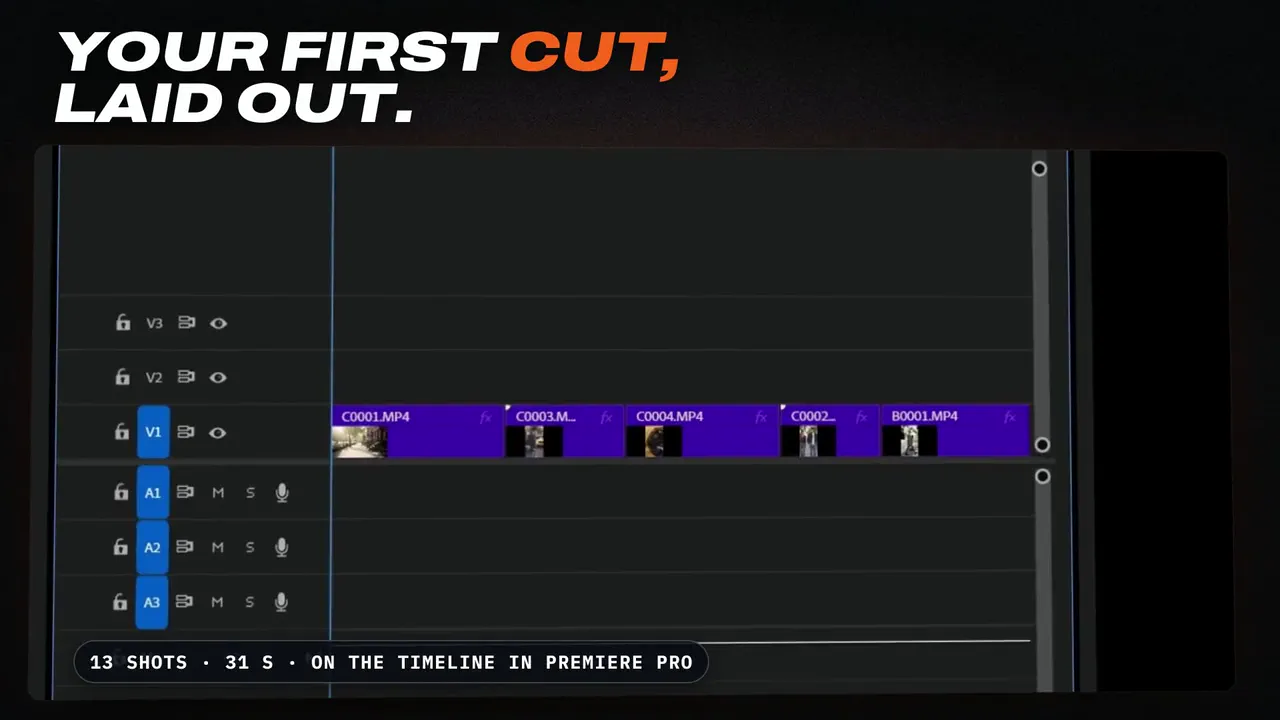
It lays the cut out on a new sequence one shot at a time, so each shot is a step in the NOLGIA panel's Activity and every pick is a normal clip you can trim, swap or delete. A 9:16 copy for Reels and TikTok comes from Premiere's own Auto Reframe, and it tells you which vertical shots to check. Sound is your clips' own, or a music track you bring; it never invents a song. Your clips, their frame rates and your existing sequences are never changed. It exports both cuts on your computer.
You need Premiere Pro 25.0 or later and NOLGIA for Premiere Pro; transcripts need NOLGIA for Premiere Pro 0.1.4 and Premiere Pro 25.6 or later.
Use cases
- A same-day behind-the-scenes reel built on what your cast and crew said
- A 9:16 cut for Reels and TikTok next to the 16:9
- A selects stringout of the best lines to start your own edit from
The workflow
The written steps your agent follows in Premiere Pro, the same for every agent: the rules every Premiere Pro workflow keeps (a safety copy first, everything stays editable, a preview after each change), then this preset's own steps.
Read the workflow
Rules for every Premiere Pro workflow
These instructions are served to the agent with every Premiere Pro preset in the Film assistant category. The agent works through the NOLGIA Bridge tools (nolgia_app_*) on Premiere Pro running on the person's own computer. Code for nolgia_app_run is ExtendScript.
Before anything changes
- Call
nolgia_app_status. If Premiere Pro is not listed, stop and tell the person in two lines: install NOLGIA for Adobe from nolgia.ai/plugins, then open Window > Extensions > NOLGIA in Premiere Pro and sign in. Do not guess or continue without it. - Call
nolgia_app_info. Read what is really open: the project file, its bins with item counts, the sequences (size, frame rate, length, tracks) and the active one. If it says no project is open (Premiere's Home screen), ask the person to open the project and wait. Describe what you see in one sentence so the person can correct you. - Make a safety copy first with
nolgia_app_exportformatprproj(it copies the project as last saved, next to it, and never overwrites a file). Premiere does not report unsaved changes to scripts, so ask the person to save first (or save withnolgia_app_saveonce they agree), then copy. - Ask only the questions the workflow lists. Offer a sensible default for each so the person can just say "go".
While working
- Work in small steps: one
nolgia_app_runper logical step, each returning a short summary inresult(bin paths, item counts, sequence names). Premiere has no undo group for scripts, so each step should be easy to reverse by hand: prefer making new bins and sequences over changing existing ones. - Never delete media, never relink, rename or re-time the person's clips, and never edit an existing sequence. To work from an existing sequence, duplicate it (
sequence.clone()) and work on the copy. - Media files stay where they are: bins organise the project, not the disk.
- After each visible change, check it:
nolgia_app_infofor bins and sequences,nolgia_app_preview(withsequenceandframe) for pictures. Do not describe a result you have not seen. - Exports run on the person's computer:
nolgia_app_exportmp4renders a sequence with the H.264 Match Source preset and can take minutes. If a tool hands back acommand_id, follow it withnolgia_app_commandinstead of starting it again. - If code fails, read the error (it names the line and shows it), fix the code and try once more. After two failures on the same step, explain what failed in plain words and ask how to proceed.
ExtendScript that bites (Premiere Pro)
- It is ES3: no
let,const, arrow functions, template strings,Array.prototype.indexOf,maporforEach, and noJSONobject. Words ES3 reserves (short,int,class,char,final,native...) cannot be variable names. Return data by settingresult(or as the last expression). - Collections count from 0 and use
numItems(bins, clips, track items) ornumSequences/numTracks:bin.children[i]for i <bin.children.numItems. - Times are Time objects:
.seconds, and.ticksas a string, 254016000000 ticks per second. A sequence's frame length in ticks issequence.timebase. Without in and out points,getInPointAsTime()answers a large negative time. app.project.importFiles(paths, true, bin, false)answers only true or false. Find what it imported by path afterwards (item.getMediaPath()).bin.createBin(name)makes a bin;item.moveBin(bin)moves an item. Sequences are project items too (item.isSequence()).- Read clip facts from the project item:
getMediaPath(),getFootageInterpretation()(frame rate),startTime()(the media's start timecode as a Time: a camera's timecode track, or a sound recorder's BWF time), and the XMP ingetXMPMetadata()(text to search with a regular expression:xmp:CreateDatefor video; WAV files usually have none). A file's modified date (new File(path).modified) changes when media is copied: use it only when nothing better exists, and say so. - Colour labels are numbers into the person's label set: in Premiere's defaults 1 is Iris (blue, what video clips get), 6 Rose (red), 7 Mango (orange, bins). Read
getColorLabel()before you rely on one. - Premiere cannot merge clips or run "Synchronize" from a script. To sync picture and sound, place them on a sequence at positions computed from their timecode (
track.overwriteClip(item, seconds)), then select the pair andsequence.linkSelection(). app.project.createNewSequenceFromClips(name, items, bin)takes its settings from the first clip. The QE DOM (app.enableQE(),qe.*) is unofficial: use it only for what the regular DOM cannot do.- A modal dialog in Premiere (a missing media prompt, a conversion question) holds every script until someone closes it. If a command sits in
runningfor no reason, ask the person to look at Premiere Pro.
Using NOLGIA where it helps
- Premiere work is mostly organising and cutting the person's own media; generation is rarely needed. When it is (a missing establishing shot, room tone, a temp music bed), make it with
nolgia_text_to_video,nolgia_text_to_audioornolgia_text_to_imageand bring it in withnolgia_app_import. - These generations cost credits: say what you are about to make and roughly what it costs before you run it. Work in Premiere itself is free.
Finishing
- Save the project (
nolgia_app_save), never over a different file. - Export what the workflow asks for with
nolgia_app_export(mp4of a sequence, orpngof a frame) so the person has it in their NOLGIA library. - Tell the person, in a few lines: what you built, where it lives (bin and sequence names), anything that needs their eyes, and the path of the safety copy.
Cut a behind-the-scenes edit in Premiere Pro
Turn a day of loose camera clips into a short edit the person can finish: built around what the people in it say (whole lines and exchanges, read from transcripts), with the strongest two or three seconds of the other clips between them, in an order that tells the day (getting ready, the set, the work, a closing image), on a new 16:9 sequence, plus a 9:16 copy reframed by Premiere's own Auto Reframe. The person keeps the creative calls: every pick is a normal clip on the timeline that they can trim, swap or delete.
Ask
- Which clips: a bin (default: the video bin of the day, as the "Organize a Premiere Pro project" workflow leaves it), or clips they select.
- How long: 30 to 60 seconds (default 45). Shots of 1.5 to 3 seconds.
- Formats: 16:9 and a 9:16 copy (default both), or one of them.
- Sound: the clips' own sound (default), or a music track from their project or NOLGIA library on A2 (they bring it; never invent a song).
- Anything that must be in it, or must stay out (a person, a product, a moment that is not public yet).
- Who is talking: the names of the main people, so the cut can center on what they say and how they talk to each other (default: yes, whenever the clips have speech). Transcripts label voices Speaker 1, Speaker 2: the person tells you who is who. Never name anyone from their face.
Build
- Take stock. One
nolgia_app_runlisting the chosen clips: name, media path, duration, frame rate (getFootageInterpretation().frameRate), start timecode, and the color label. Clips the organize workflow marked Rose (a frame rate that differs from the day's) are fine to use: in a sequence at the day's rate they play at real time. Never change a clip's frame rate or interpretation to make slow motion; offer it as a step for the person. - Find what people say first.
nolgia_app_transcribewith the chosen clips (clipsas a list of their names). Premiere's own Speech to Text comes first: it is free and stays on the person's computer. For clips it has no transcript of, the answer hasmissing(with what the person can do, such as Text > Transcript > Transcribe in Premiere) andneeds_credits: offer NOLGIA's transcription at that price (1 credit per started minute of each clip) and send the call again withallow_credits: trueonly when they agree. Follow ajob_idwithaction: "status". Then read every transcript: mark complete lines and exchanges between the people they named, reactions and laughs, and lines that say what is happening on set. A clip with no speech is atmosphere. With NOLGIA for Premiere Pro older than 0.1.4 (notranscribe), say so and pick from the pictures only. - Look at the clips. You cannot judge a clip you have not seen.
nolgia_app_previewneeds a sequence: make a temporary sequenceNOLGIA Lookfrom the clips (app.project.createNewSequenceFromClips), preview a frame from the middle of each clip first, then four to eight frames across each promising clip. Keep a short note per clip: what happens, where it is sharp and steady, whether a face or a hand is doing something. Remove the Look sequence when you are done (app.project.deleteSequence). - Plan the cut, then wait. A table: shot number, clip, in and out in seconds, what it shows, and the words said in it. Build it around the spoken moments, each one whole: in at its first word's start less up to 0.2 s, out at its last word's end plus up to 0.2 s (the
sentencestimes), but never into the word before or after: when the next sentence starts right away, cut exactly at the word's end. Premiere puts in and out points on whole frames, so round the in down and the out up. With NOLGIA's transcripts, which come in pause-cut chunks of up to about 24 seconds without word times (a short take is often one chunk), take whole chunks. Never cut inside a sentence. Between them, 1.5 to 3 second shots of atmosphere and detail; vary wide, close and detail; open on something that says "on set" (a monitor, a light, a camera), end on a still image. Total it. Wait for a yes (or "go"). - Lay it out, one shot per step. Make the sequence from the first clip's settings (
createNewSequenceFromClips(name, [firstClip], sequencesBin)), remove what it placed, then per shot:item.setInPoint(inSeconds, 4); item.setOutPoint(outSeconds, 4);track.insertClip(item, endOfTrackSeconds);item.clearInPoint(4); item.clearOutPoint(4);(4 is all media types; clearing keeps the person's master clip unmarked). Onenolgia_app_runper shot, so each lands in the panel's Activity and can be undone by hand. - The 9:16 copy.
sequence.autoReframeSequence(9, 16, "default", "<name> 9x16", false)makes a new reframed sequence (Premiere puts it in anAuto Reframed Sequencesbin; at 4K it comes out 1215 x 2160). It returns quickly and keeps the effects already on the clips, so grade first if a grade is wanted (the "Grade camera log footage in Premiere Pro" workflow).
Check
nolgia_app_info: the new sequences exist, the shot count and length match the plan, and no existing sequence changed.- Every spoken shot starts and ends on whole words: compare its in and out with the transcript times, and fix any shot that clips a word.
- Preview the first frame, a middle frame and the last frame of each new sequence. On the 9:16 copy, look for heads cut off and for a subject Auto Reframe lost; name those shots so the person can adjust Position in Effect Controls.
Deliver
Save the project. Export both sequences with nolgia_app_export mp4 (it renders on the person's computer with Match Source; a minute of 4K takes about half a minute here). Tell the person the sequence names, the shot list, the length, which lines are in it, which shots to look at first, and where the transcripts are saved (nolgia_transcripts next to the project).
Try it in Premiere Pro.
Install the free NOLGIA plugin for Premiere Pro, sign in, then ask your agent.