
NOLGIA for Premiere Pro
Let NOLGIA Agent work in Premiere Pro.
The free NOLGIA extension for Premiere Pro connects the project you have open to NOLGIA, so NOLGIA Agent can read it, run ExtendScript, render frames into your Library and bring in your NOLGIA media. Your project files stay on your computer.
Version 0.3.1 · nolgia-adobe-0.3.1.zxp · Free · Premiere Pro 2025 or later · Available on Windows and macOS
One install covers After Effects, Premiere Pro and Illustrator.
What you need
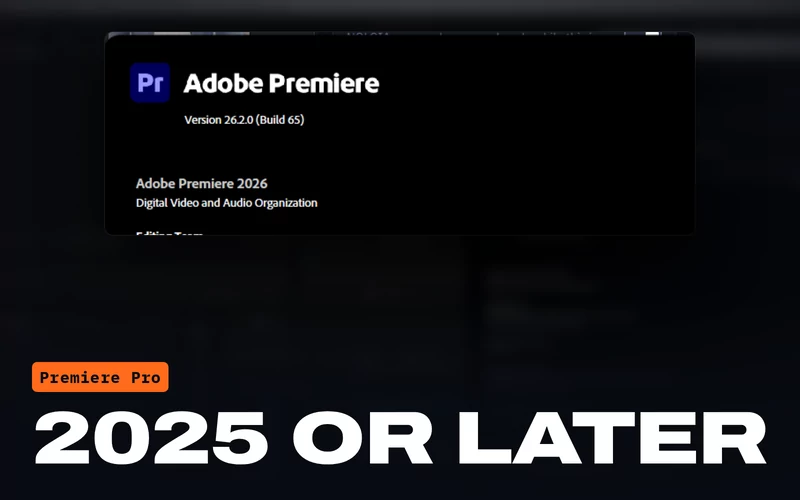 Premiere Pro 2025 or laterVersion 25.0 or later, on Windows or macOS. The same extension works in After Effects and Illustrator 2025 and later.
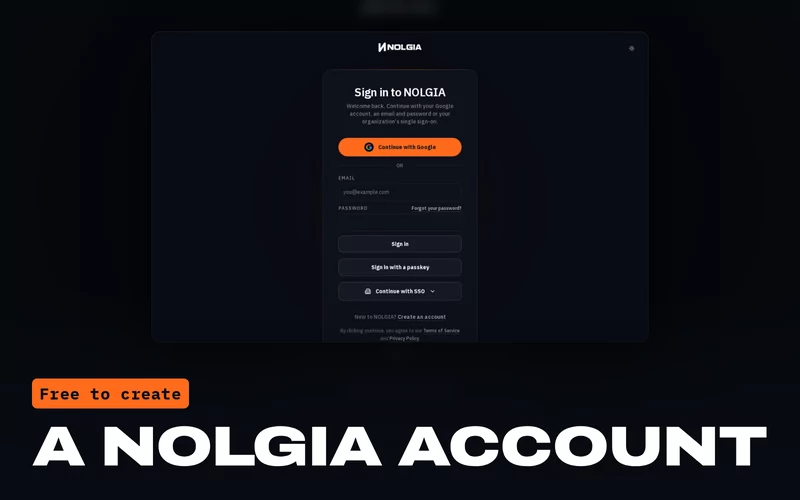 A NOLGIA accountFree to create. The extension signs in with it.
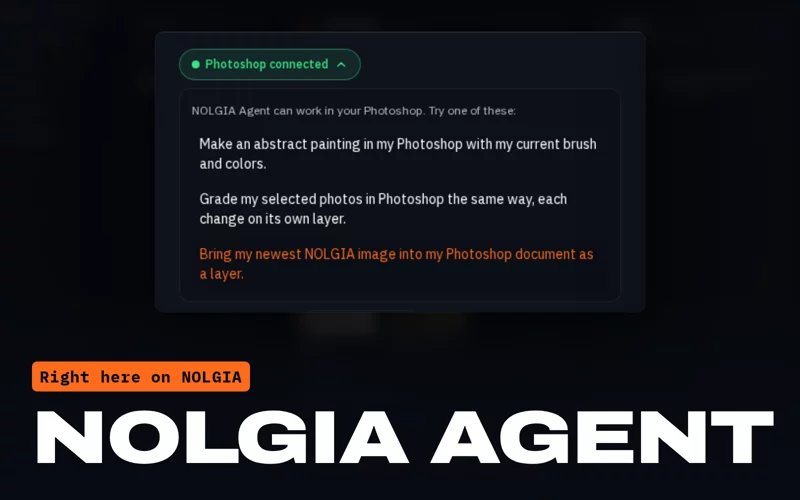 NOLGIA AgentIt works in your app right from NOLGIA, so you never need to leave. You can also use Claude, Cursor, Codex or another agent with NOLGIA connected.
What your agent can do
Real hands in your project.
NOLGIA Agent works through NOLGIA's app tools, and every command shows in the panel's Activity list.
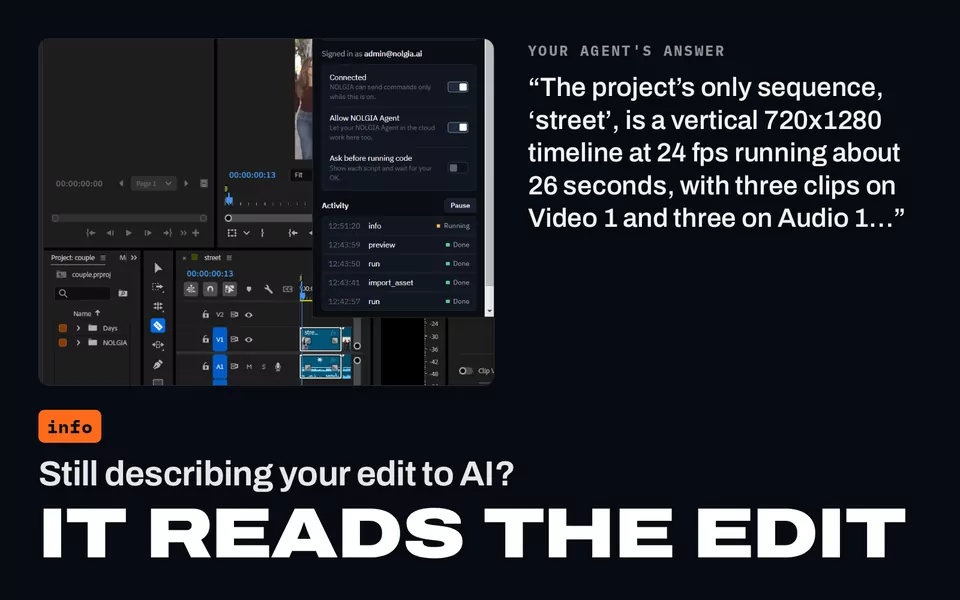
Read the project
The project file, its bins and what is in them, every sequence's size, frame rate, length and tracks, and the active sequence's playhead, in and out points and selected clips.
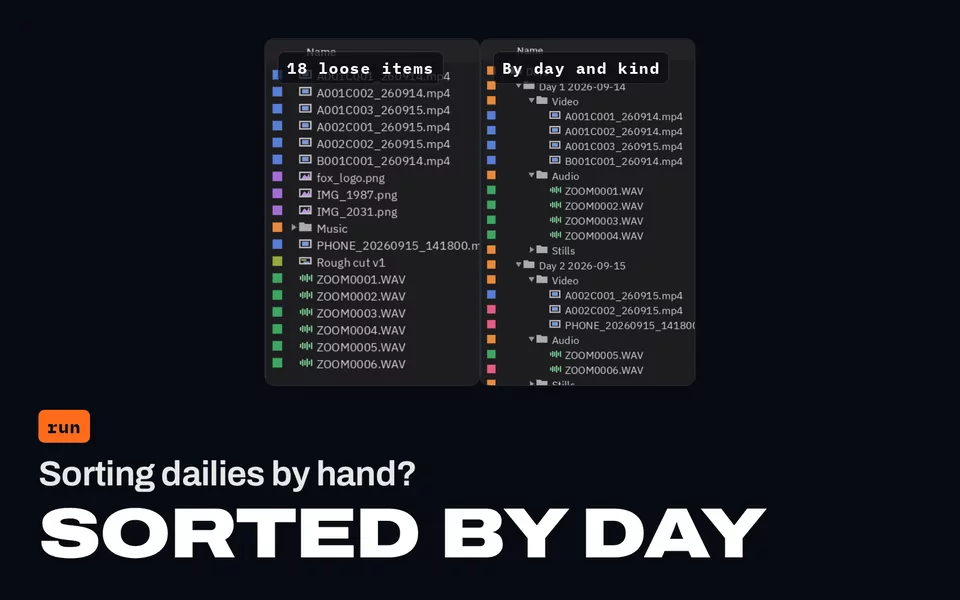
Run ExtendScript
Change the project step by step with Premiere Pro's own scripting, and get back what each step did. Ask before running code shows you each script first.
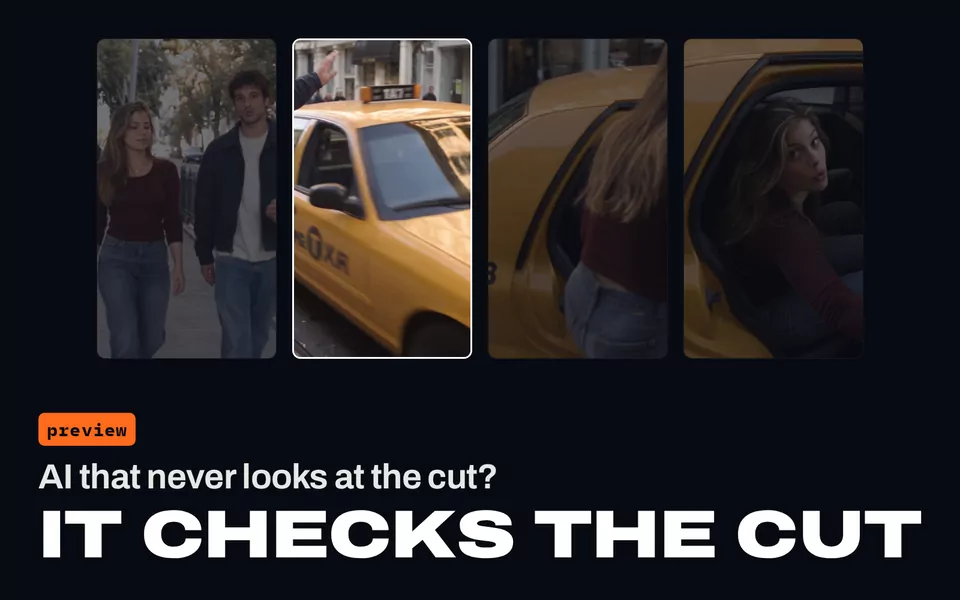
Render frames into your Library
Any frame of a sequence, so your agent can look at its own cut.
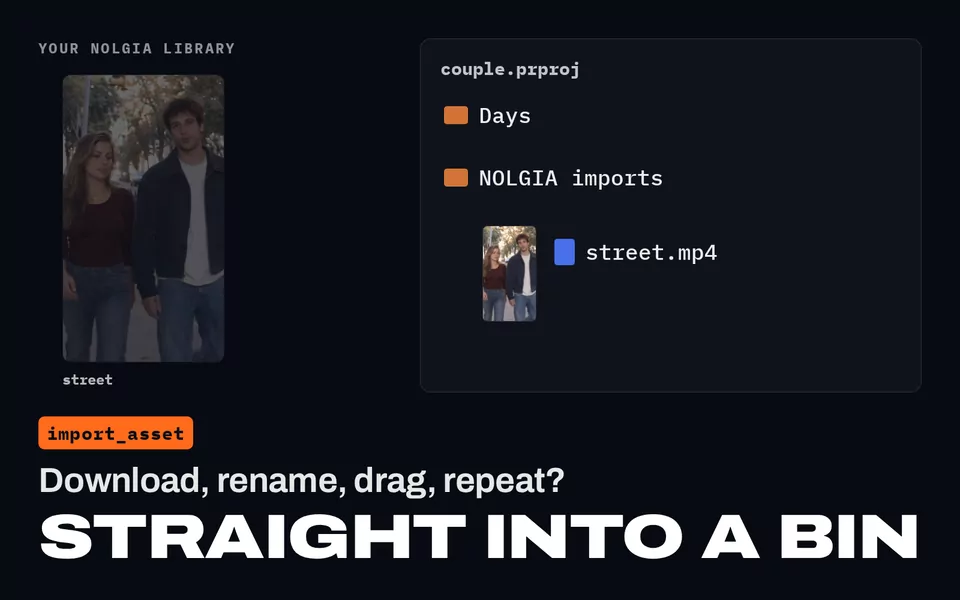
Import your NOLGIA media
Images, videos and audio from your Library, in a NOLGIA imports bin.
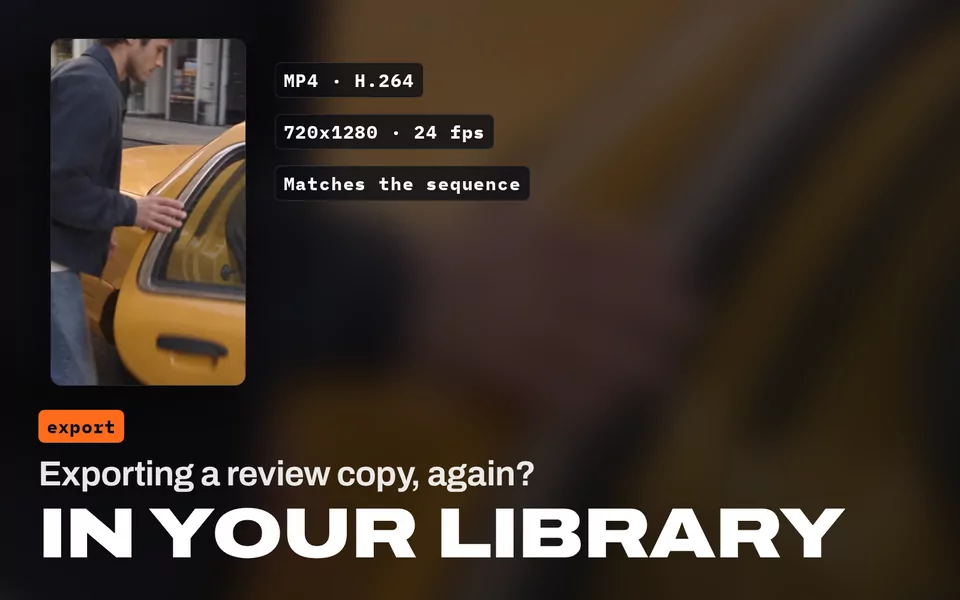
Export to your Library
MP4 video (H.264, matching the sequence) and PNG frames, uploaded to your NOLGIA Library. A copy of the project is saved next to it, on your computer.
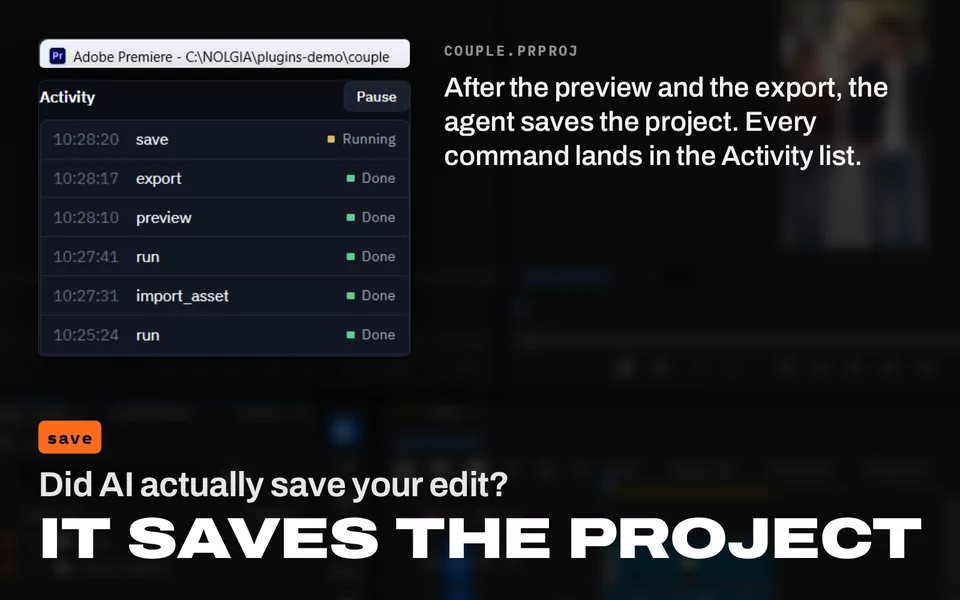
Save and open projects
Save the project, or open another project beside it.
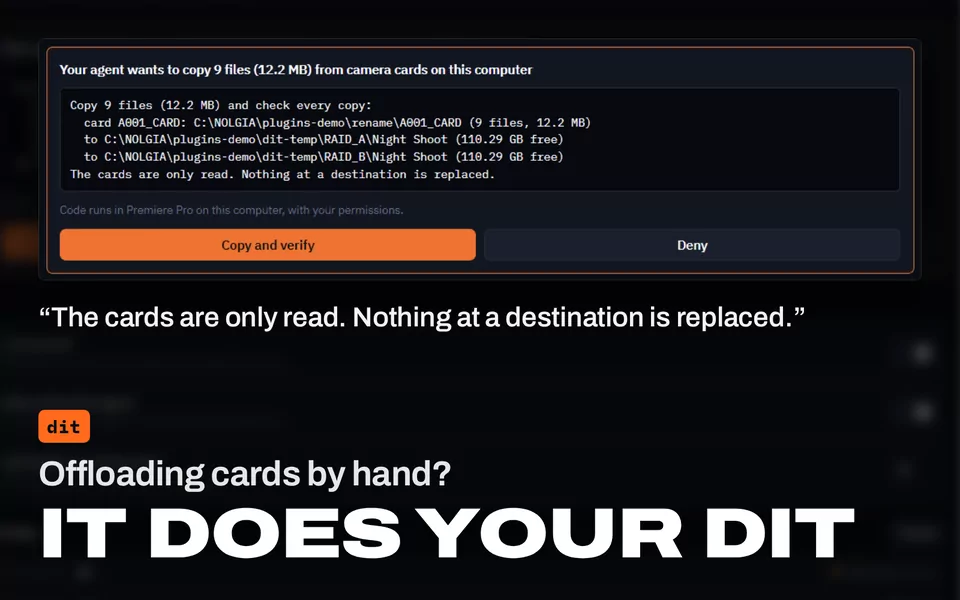
NOLGIA does your DIT
Copies your camera cards to one to three drives, reads every copy back to prove it matches the card, and writes ASC MHL manifests and a DIT report. It lists what was shot by camera and can name the files by shoot, date, time and camera. It runs the free NOLGIA CLI on your computer, the cards are only read, and every copy or rename waits for your Approve in the panel.
Your project files stay on your computer. Premiere Pro projects and your footage are never uploaded to NOLGIA; only the frames and exports you ask for go to your Library.
On the timeline
Edits on your timeline.
NOLGIA Agent edits sequences with Premiere Pro's own scripting, one step at a time, and every step shows in the panel's Activity list. The pictures are from a real run on our own footage.
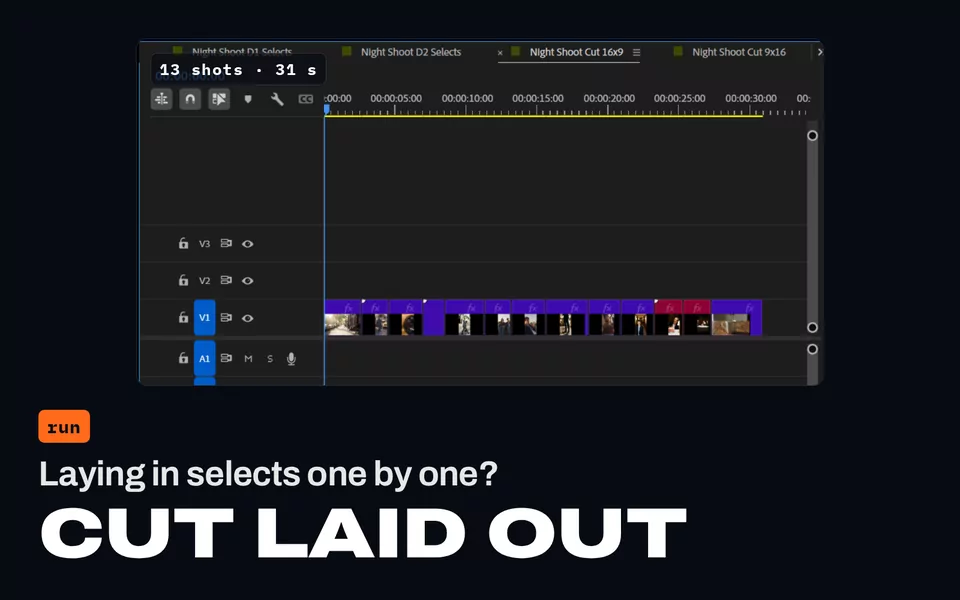
Lay out a cut
Your selects go onto a new sequence one shot at a time, in the order you agree to. With transcripts it cuts on whole sentences, so nobody is cut off mid-word. Premiere Pro's own transcripts are free and stay on your computer.
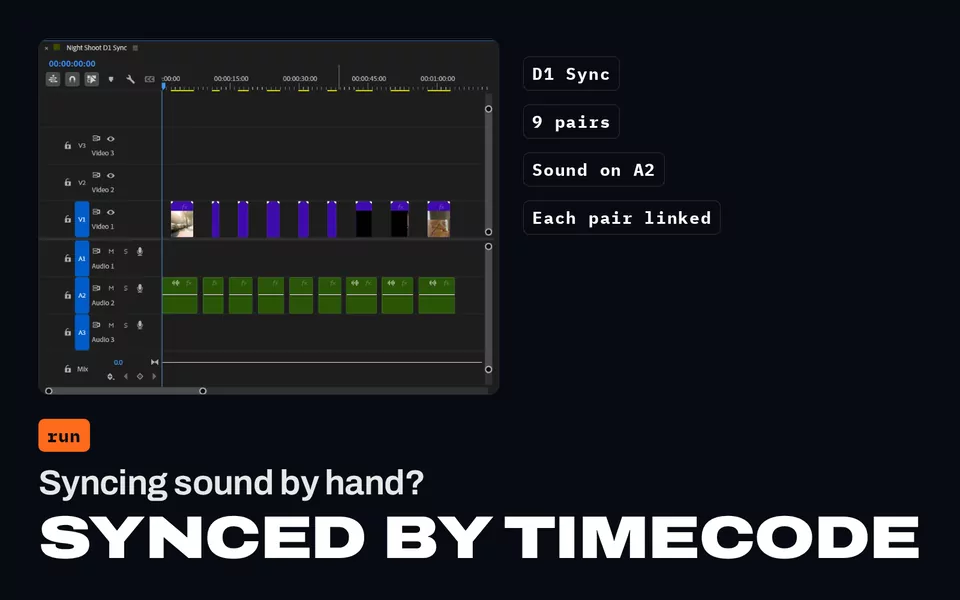
Sync picture and sound
Camera clips and recorder sound are lined up by timecode on a sync sequence, and each pair is linked. Clips with no timecode or a different frame rate get a red label, so you know which to check.
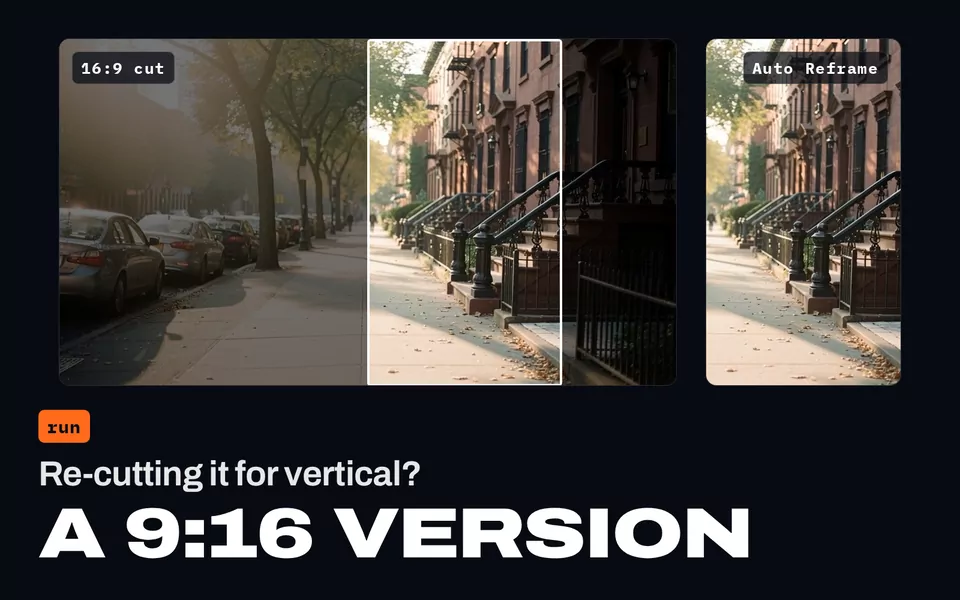
Make a 9:16 version
Premiere Pro's own Auto Reframe makes a vertical copy of the cut as a new sequence. The 16:9 cut stays as it is.
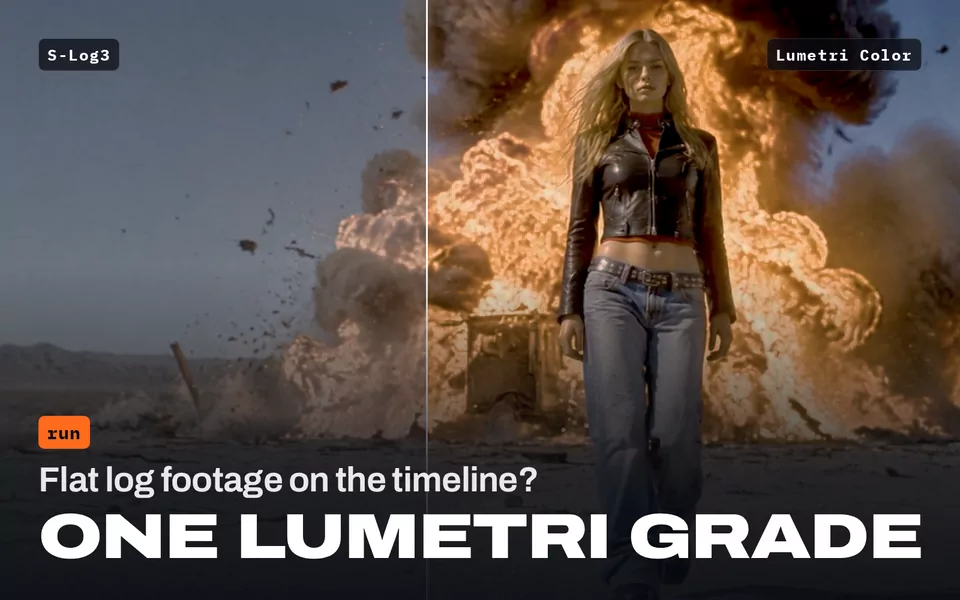
Grade with Lumetri
One Lumetri Color per clip, each value set by name, so every value stays where you can change it in Effect Controls.
Install
Six steps, a few minutes.
One install adds NOLGIA to After Effects, Premiere Pro and Illustrator. The extension remembers your sign in, and reconnects when Premiere Pro starts if you left Connected on.
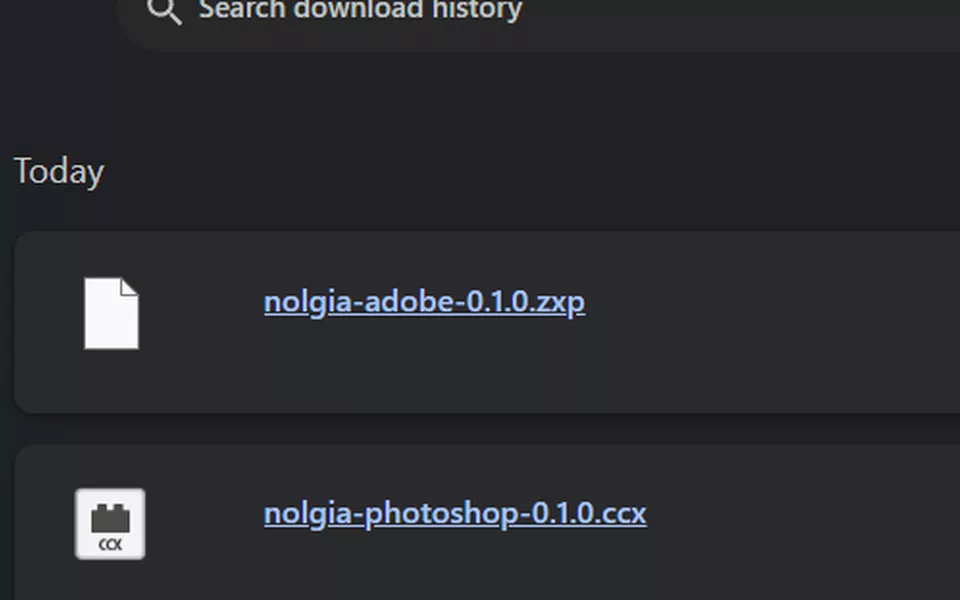
Download the extension
Download nolgia-adobe-0.3.1.zxp and leave it in your Downloads folder. It is one file for After Effects, Premiere Pro and Illustrator.
Quit the Adobe apps
Quit After Effects, Premiere Pro and Illustrator, whichever are open. An app that is open during the install does not show NOLGIA until you restart it.
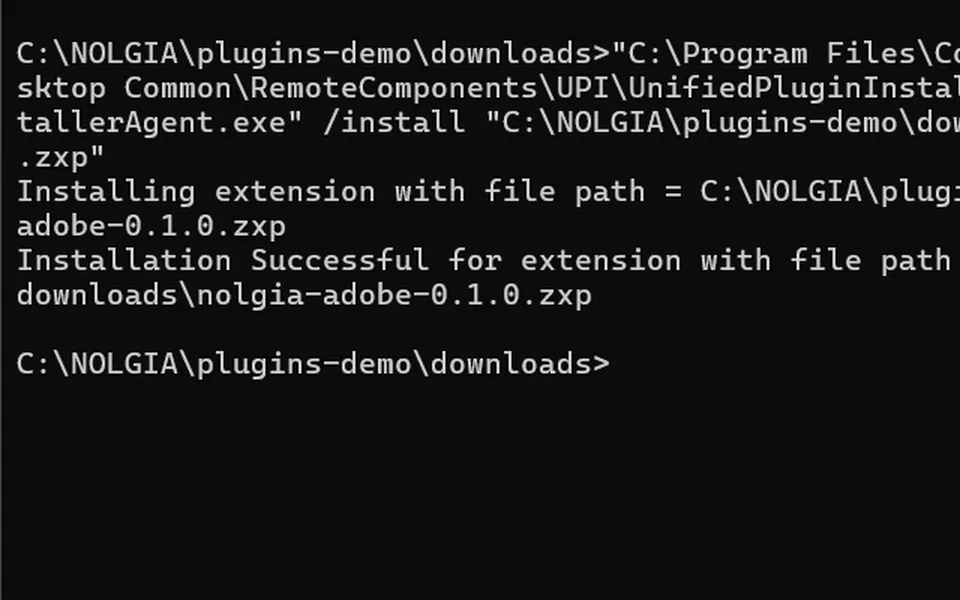
Install it with Adobe's installer
A .zxp file does not install with a double-click. Adobe's own installer comes with the Creative Cloud app: open Command Prompt on Windows (press the Windows key, type cmd, press Enter) or Terminal on macOS, paste the command for your computer and press Enter.
Command Prompt "C:\Program Files\Common Files\Adobe\Adobe Desktop Common\RemoteComponents\UPI\UnifiedPluginInstallerAgent\UnifiedPluginInstallerAgent.exe" /install "%USERPROFILE%\Downloads\nolgia-adobe-0.3.1.zxp"Terminal "/Library/Application Support/Adobe/Adobe Desktop Common/RemoteComponents/UPI/UnifiedPluginInstallerAgent/UnifiedPluginInstallerAgent.app/Contents/MacOS/UnifiedPluginInstallerAgent" --install ~/Downloads/nolgia-adobe-0.3.1.zxpIt prints Installation Successful. Saved the file somewhere else? Change the path at the end of the command. A ZXP installer app installs the same file too. The extension is signed, so there is no debug setting to change.
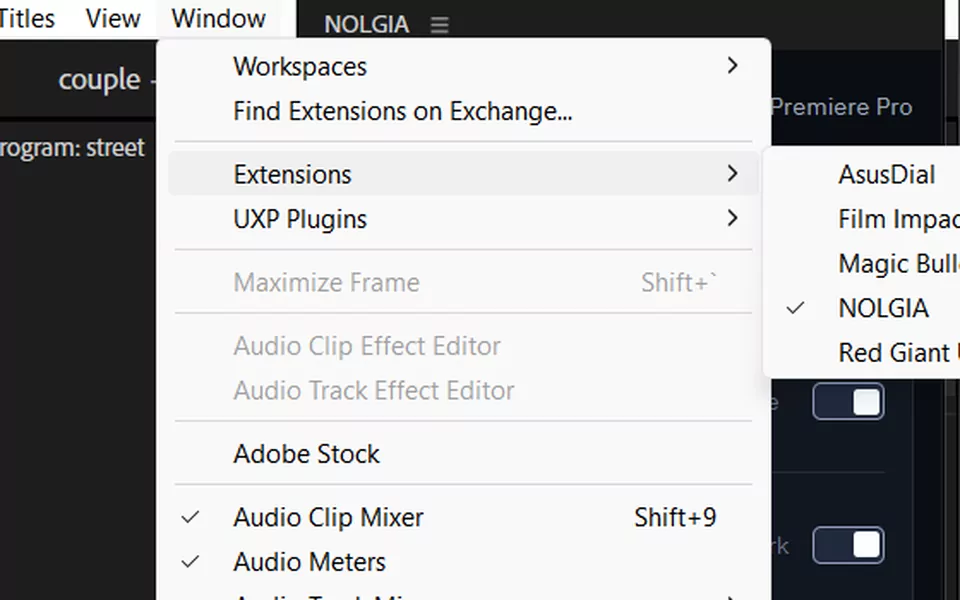
Open the NOLGIA panel
Start Premiere Pro and choose Window > Extensions > NOLGIA.
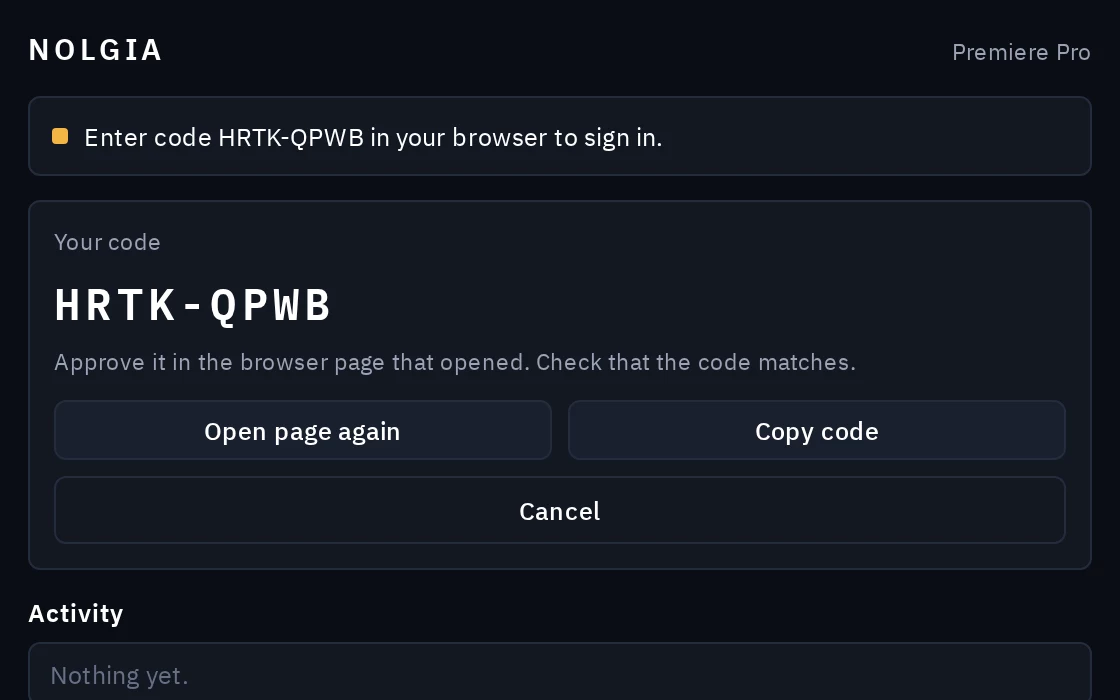
Sign in with the code
Click Sign in. Your browser opens a NOLGIA page: check that the code matches the one in the panel, then click Connect. Each app signs in on its own, so do this once in every app you use.
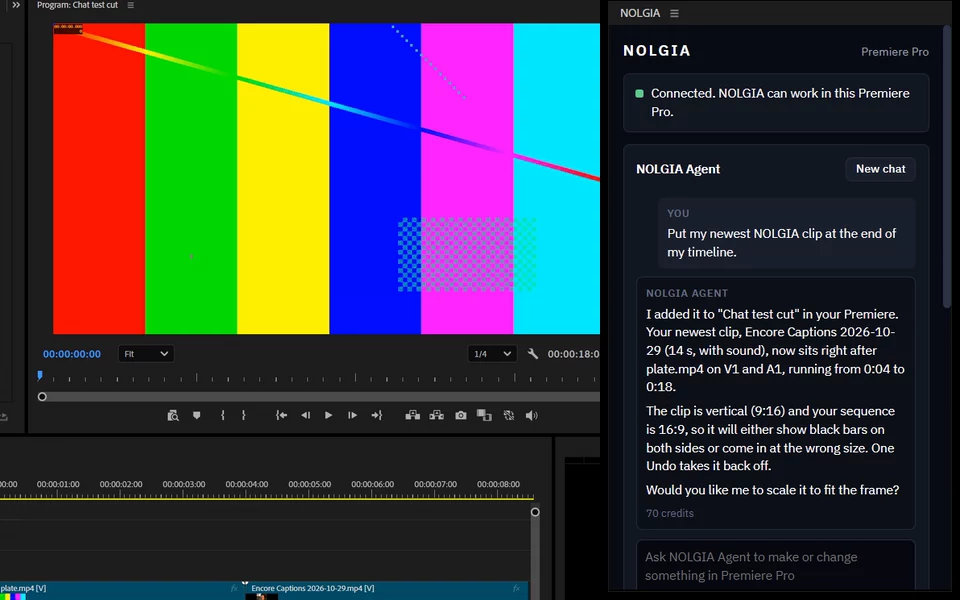
Keep Connected on
The panel reads “Connected. NOLGIA can work in this Premiere Pro.” Type what you want in the NOLGIA panel and NOLGIA Agent does it in Premiere Pro, or tell NOLGIA Agent on nolgia.ai what to do in your project; you never need to leave NOLGIA. You can also use Claude, Cursor, Codex or another agent with NOLGIA connected. Closing the panel does not disconnect.
The NOLGIA panel
You decide what it may do.
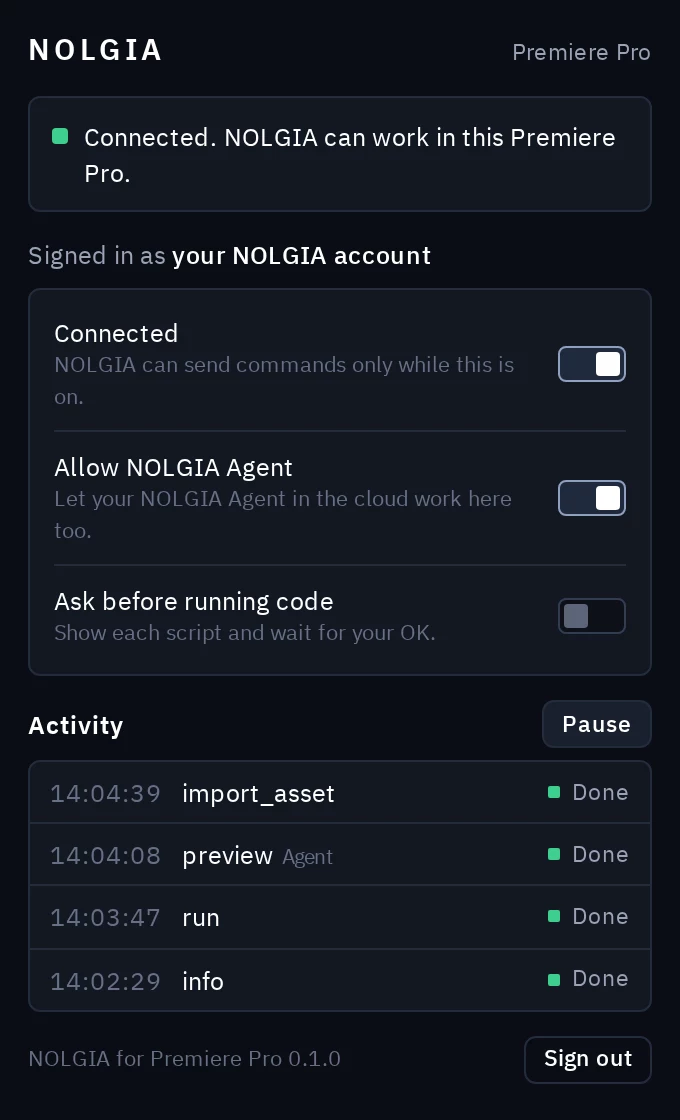
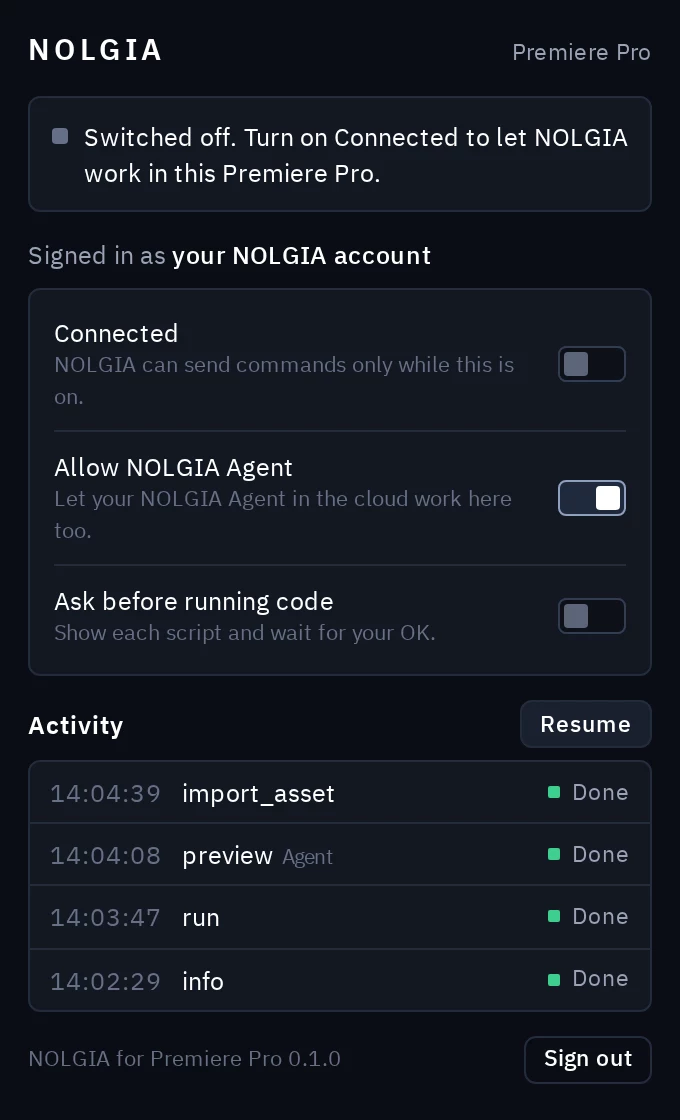
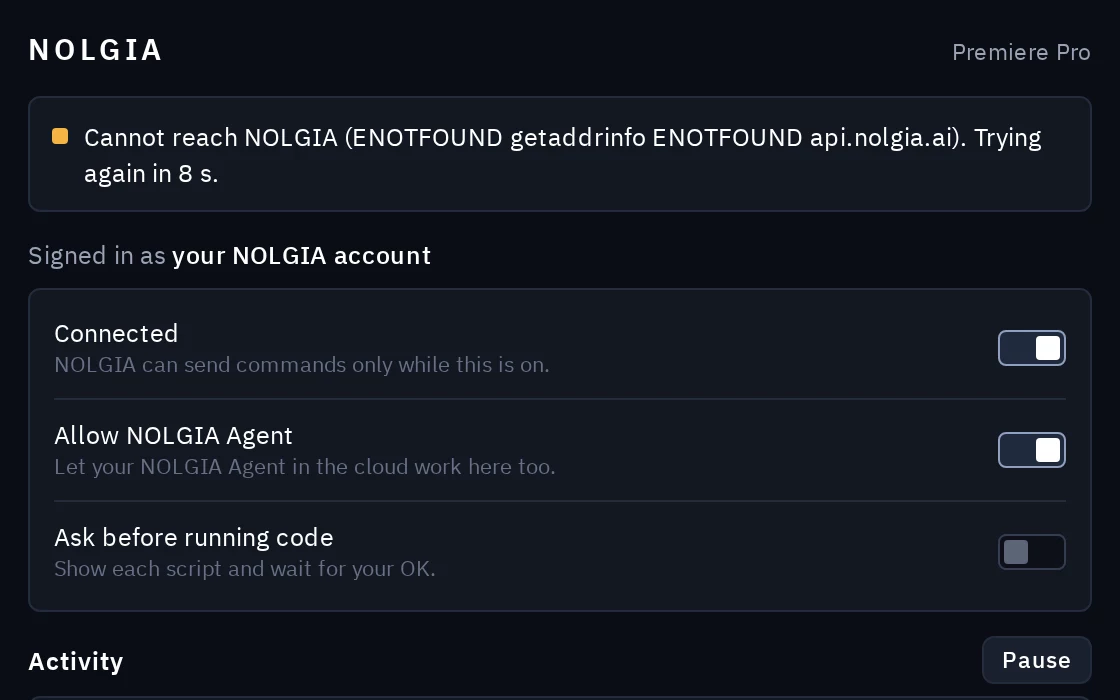
Everything lives in the NOLGIA panel (Window > Extensions > NOLGIA). Closing the panel does not disconnect: a hidden part of the extension keeps the connection while the app is open.
- Connected
- NOLGIA can send commands to this Premiere Pro only while this is on. It stays on the next time Premiere Pro starts.
- NOLGIA Agent chat
- Type what you want in the NOLGIA panel and NOLGIA Agent does it in Premiere Pro, one step at a time, with each command in Activity and each reply's cost under it. The chat needs Allow NOLGIA Agent on. Available on Windows and macOS.
- Activity and Pause
- Every command your agent sends, with its status. Pause stops it at any time; Resume picks up again.
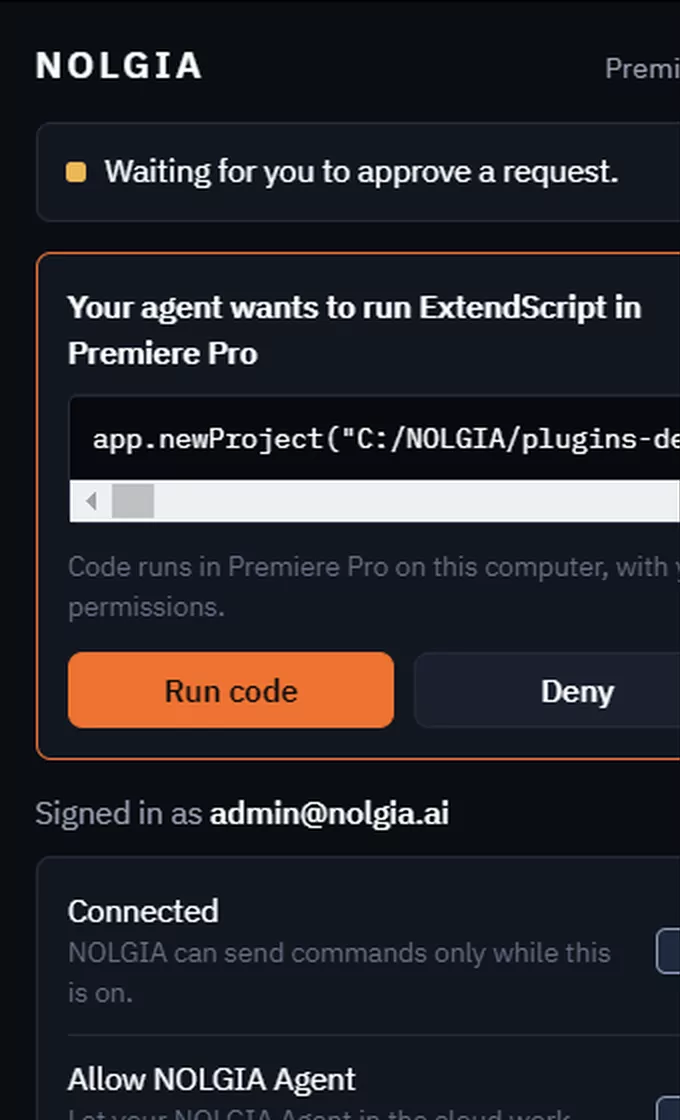
- Ask before running code
- Shows every script first (the panel opens by itself) and waits for Run code or Deny.
- Allow NOLGIA Agent
- Also lets your NOLGIA Agent in the cloud work here, not only the agents you run yourself.
- Sign out
- Disconnects and forgets the sign in for Premiere Pro on this computer.
ExtendScript your agent runs in Premiere Pro runs on your computer with your permissions, like any script. Turn on Ask before running code to see it first, and only connect agents you trust.
Plugin workflows
Workflows made for Premiere Pro.
Each workflow is written steps NOLGIA Agent follows in your own project. NOLGIA Agent does the work in Premiere Pro for you, right from NOLGIA, so you never need to leave. Each turn costs about 10 to 120 credits, depending on the Agent model you choose, and never more than 200 for the Agent's own work. Anything it makes with NOLGIA is priced as usual. You can also use Claude, Cursor, Codex or another agent with NOLGIA connected.
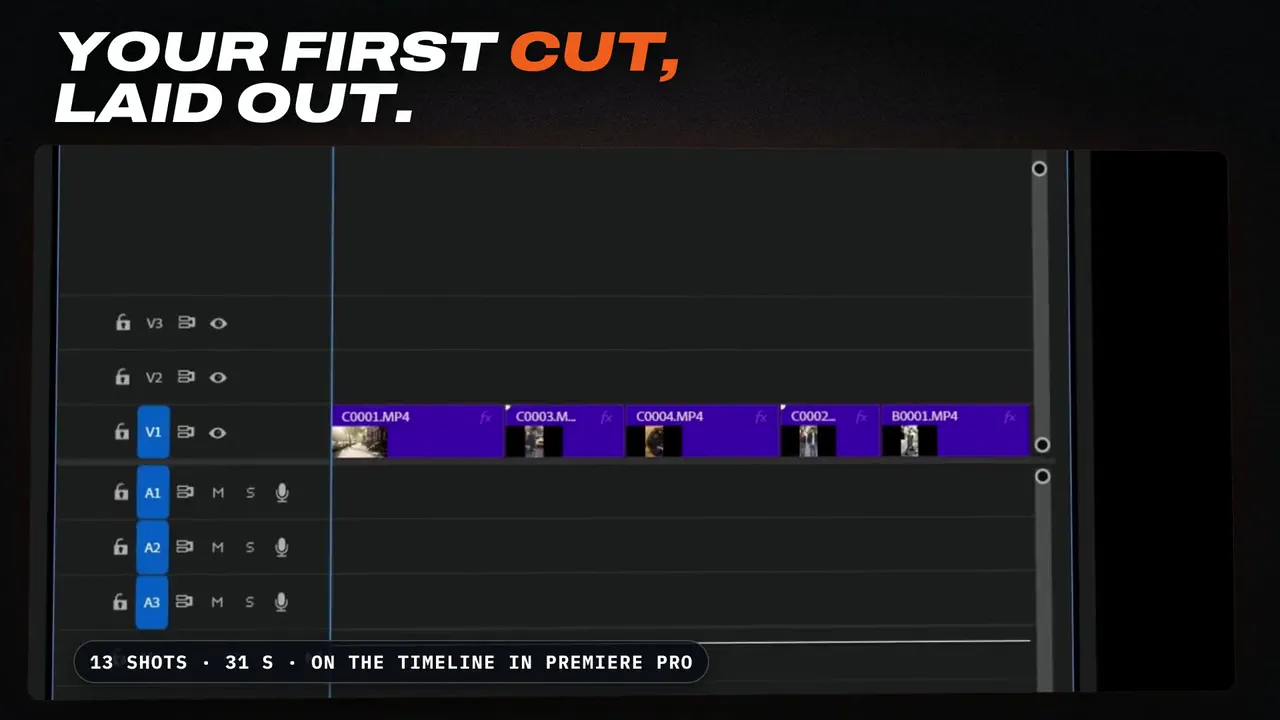
Turn a day of camera clips into a 30 to 60 second behind-the-scenes edit in Premiere Pro, built around what people say: whole lines from the clips' transcripts, the strongest seconds of the other clips between them, on a new sequence, plus a 9:16 copy made with Premiere's Auto Reframe.
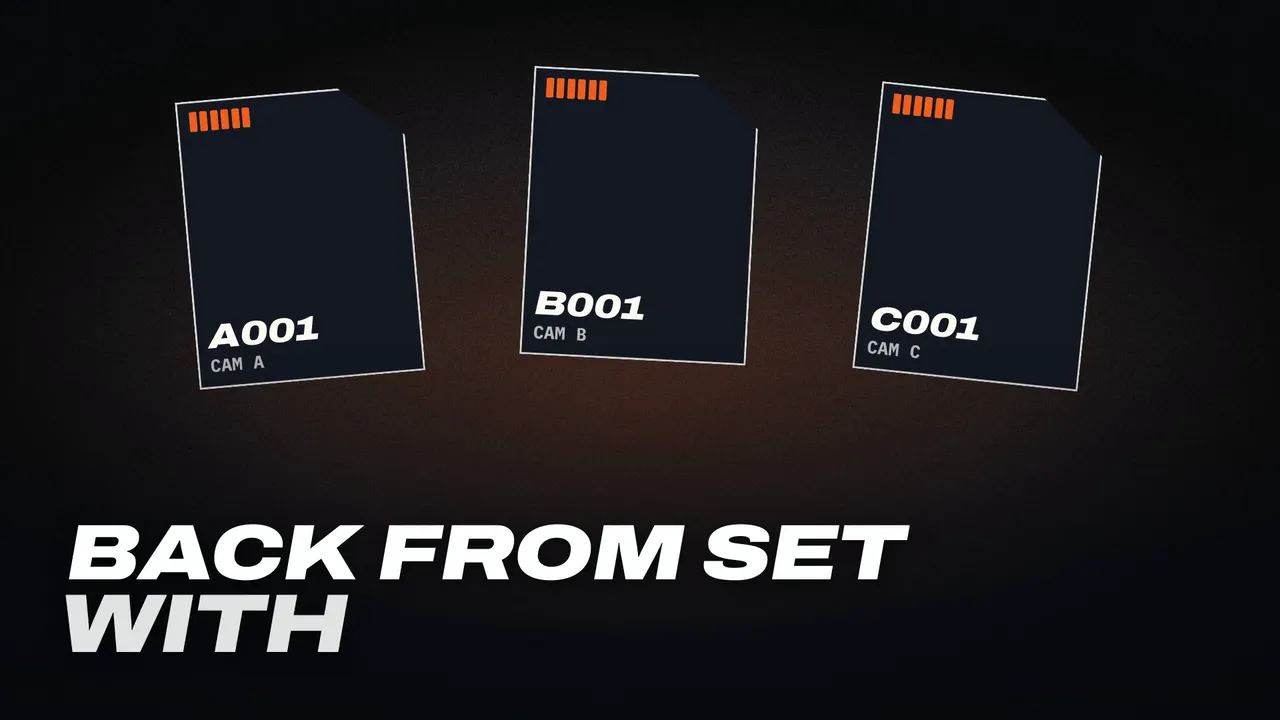
NOLGIA does your DIT: copies your camera cards to your drives, checks every copy against the card, names the files and writes the DIT report. Then the footage comes into Premiere Pro, ready to sort by day with the Organize workflow.
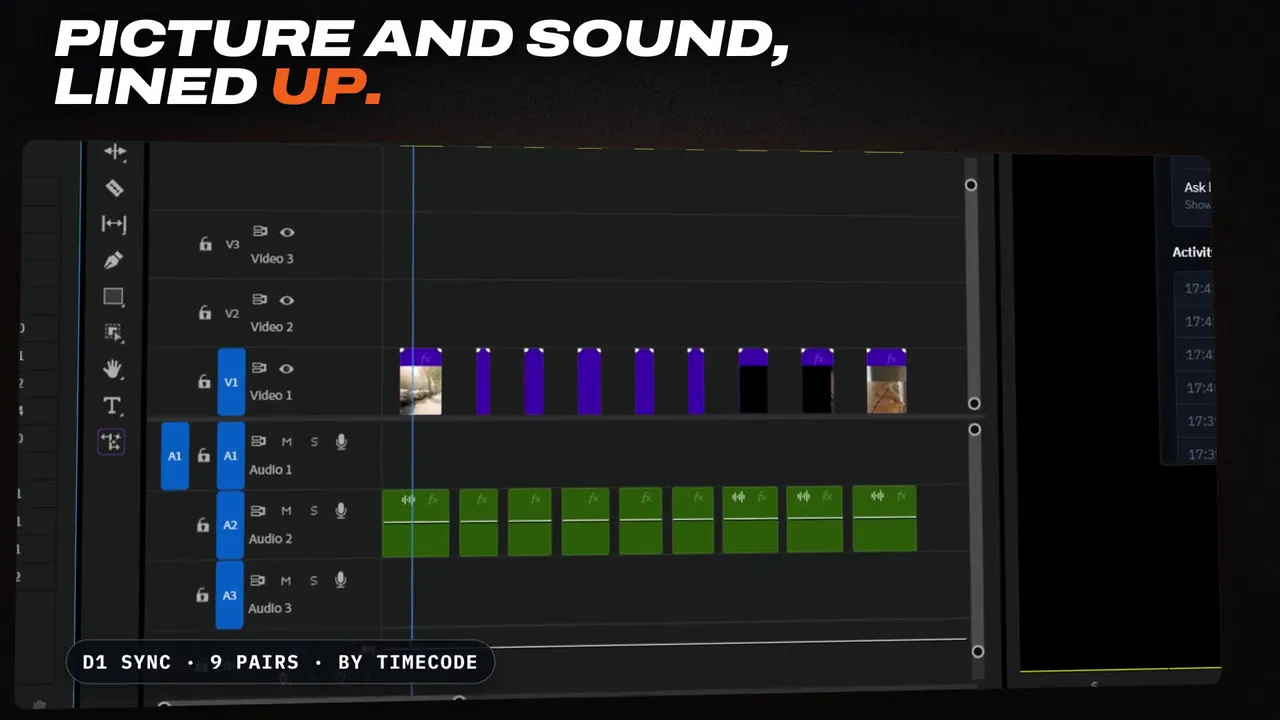
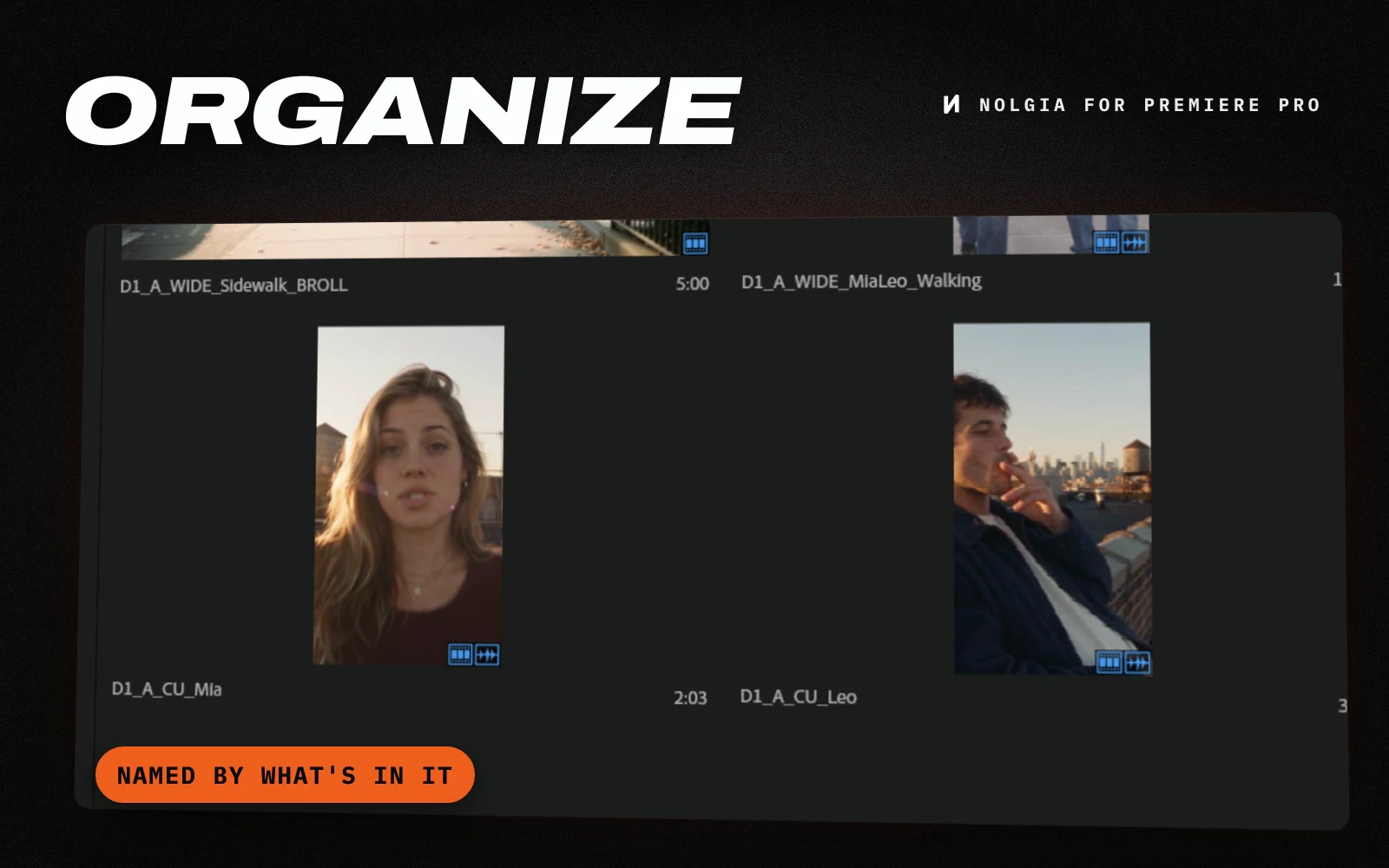
Sort the loose media in your Premiere Pro project into bins by shooting day and type, line up picture and sound by timecode, and make clearly named sequences.
Troubleshooting
If something is not working.
- My agent says Premiere Pro is not connected.
- Open the NOLGIA panel (Extensions in the Window menu, then NOLGIA). It should read “Connected. NOLGIA can work in this Premiere Pro.” If it says Switched off, turn Connected on. If it asks you to sign in again, click Sign in. Each app signs in on its own, so signing in to After Effects does not sign in Premiere Pro. Your agent has to use the same NOLGIA account as the extension, and NOLGIA Agent can only reach Premiere Pro while Allow NOLGIA Agent is on.
- NOLGIA is not in the Extensions list of the Window menu.
- Usually Premiere Pro was open while the extension installed. Quit it completely and start it again. If NOLGIA is still missing, quit the app, run the install command again and check that it prints Installation Successful. The installer skips a version that is already installed: to install the same version again, first run the command with /remove NOLGIA (on macOS, --remove NOLGIA) in place of the install part.
- Does it work with my version of Premiere Pro?
- It needs Premiere Pro 2025 (version 25.0) or later, on Windows or macOS. The About Premiere Pro window shows your version: it is in the Help menu on Windows and in the Premiere Pro menu on macOS. Older versions do not list NOLGIA.
- The panel says it cannot reach NOLGIA.
- The extension connects out to api.nolgia.ai over HTTPS, the same way your browser does, and keeps trying on its own. Previews and exports upload to NOLGIA's file storage at storage.googleapis.com. Nothing connects in to your computer, so no port needs opening. On a work or school network a firewall or proxy may block it: ask for api.nolgia.ai and storage.googleapis.com to be allowed.
- My agent is waiting and nothing happens.
- With Ask before running code on, the extension waits for you: the NOLGIA panel opens by itself with the script, so click Run code or Deny. A paused extension runs nothing until you click Resume. A script that is still running keeps the app busy until it finishes, because ExtendScript cannot be stopped from outside.
Open source.
The NOLGIA extension for After Effects, Premiere Pro and Illustrator is free software under the GPL-3.0-or-later license. Read every line on GitHub.