
Plugin workflow
BetaOffload and verify your cards (DIT) in Premiere Pro
NOLGIA does your DIT: copies your camera cards to your drives, checks every copy against the card, names the files and writes the DIT report. Then the footage comes into Premiere Pro, ready to sort by day with the Organize workflow.
Runs in Premiere Pro on your computer
- Best for
- The end of every shoot day: cards to two drives, every copy proven, before anyone reformats a card.
- Runs in
- Premiere Pro 25.0 or later
- Time
- About as long as copying the cards, plus a few minutes
- Cost
- With your own agent, like Claude or Cursor, the work in Premiere Pro is free. With NOLGIA Agent, turns cost from 10 credits each. Anything it generates with NOLGIA is priced as usual.
Already have an account? Sign in
Create a free account and NOLGIA Agent opens with this workflow. It works in Premiere Pro through the NOLGIA plugin.
Start it from your agent
Paste this into Claude Code, Claude Desktop, Cursor or any agent with NOLGIA connected, with Premiere Pro open. The agent follows this workflow step by step, and asks before it changes anything big.
Use NOLGIA to do my DIT: copy my camera cards to my drives, check every copy, name the files by shoot, day and camera, and give me the DIT report. Then bring the footage into Premiere Pro, organized by day.
In Claude Code it is also a command: /mcp__nolgia__premiere-dit. Open in Claude needs NOLGIA added to Claude as a connector.
What it does
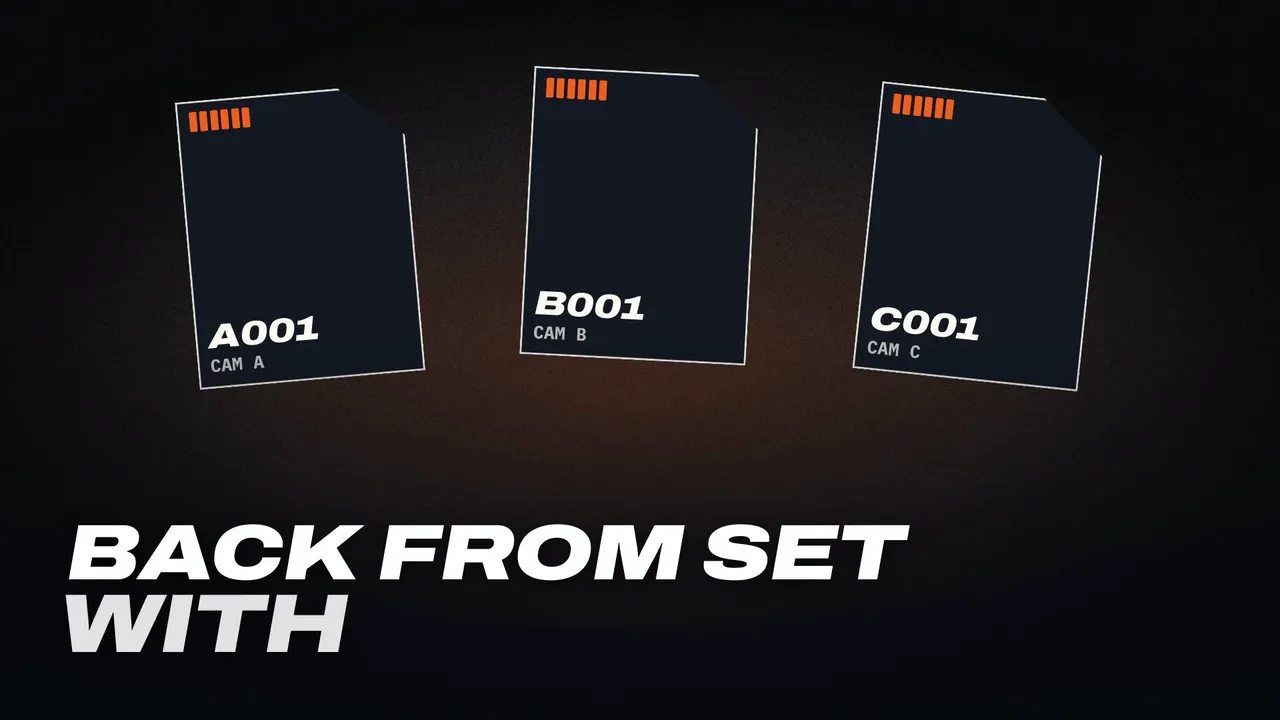
Plug in your camera cards and ask. NOLGIA copies each card to one to three drives, reads every copy back from the drive and checks it against the card, and writes the manifests and a DIT report. The cards are only read, and a file already on a drive is never replaced. If the copy stops halfway, run it again and it picks up where it left off.
Then it tells you what was shot: cameras, dates, frame rates, log profiles like S-Log3, and lenses. It flags a camera whose clock was set hours off. If you want, it names every file by shoot, date, time and camera, keeping the camera's own name inside, with a lookup sheet and a one-step undo.
The manifests are ASC MHL, the industry format Silverstack, ShotPut and Hedge read, plus a spreadsheet-friendly TSV. You approve every copy and every rename in the NOLGIA panel before it happens.
Then the footage comes into Premiere Pro, ready to sort by day with the Organize workflow.
You need Premiere Pro 2025 or later, NOLGIA for Adobe 0.1.3 or later, and the NOLGIA CLI 0.3.1 or later (one install line, shown when it's missing). DIT costs no credits.
Use cases
- Copying a shoot day's cards to a working drive and a backup
- Proving every copy before a card is reformatted
- Naming footage by shoot, day and camera for the edit
The workflow
The written steps your agent follows in Premiere Pro, the same for every agent: the rules every Premiere Pro workflow keeps (a safety copy first, everything stays editable, a preview after each change), then this preset's own steps.
Read the workflow
Rules for every Premiere Pro workflow
These instructions are served to the agent with every Premiere Pro preset in the Film assistant category. The agent works through the NOLGIA Bridge tools (nolgia_app_*) on Premiere Pro running on the person's own computer. Code for nolgia_app_run is ExtendScript.
Before anything changes
- Call
nolgia_app_status. If Premiere Pro is not listed, stop and tell the person in two lines: install NOLGIA for Adobe from nolgia.ai/plugins, then open Window > Extensions > NOLGIA in Premiere Pro and sign in. Do not guess or continue without it. - Call
nolgia_app_info. Read what is really open: the project file, its bins with item counts, the sequences (size, frame rate, length, tracks) and the active one. If it says no project is open (Premiere's Home screen), ask the person to open the project and wait. Describe what you see in one sentence so the person can correct you. - Make a safety copy first with
nolgia_app_exportformatprproj(it copies the project as last saved, next to it, and never overwrites a file). Premiere does not report unsaved changes to scripts, so ask the person to save first (or save withnolgia_app_saveonce they agree), then copy. - Ask only the questions the workflow lists. Offer a sensible default for each so the person can just say "go".
While working
- Work in small steps: one
nolgia_app_runper logical step, each returning a short summary inresult(bin paths, item counts, sequence names). Premiere has no undo group for scripts, so each step should be easy to reverse by hand: prefer making new bins and sequences over changing existing ones. - Never delete media, never relink, rename or re-time the person's clips, and never edit an existing sequence. To work from an existing sequence, duplicate it (
sequence.clone()) and work on the copy. - Media files stay where they are: bins organise the project, not the disk.
- After each visible change, check it:
nolgia_app_infofor bins and sequences,nolgia_app_preview(withsequenceandframe) for pictures. Do not describe a result you have not seen. - Exports run on the person's computer:
nolgia_app_exportmp4renders a sequence with the H.264 Match Source preset and can take minutes. If a tool hands back acommand_id, follow it withnolgia_app_commandinstead of starting it again. - If code fails, read the error (it names the line and shows it), fix the code and try once more. After two failures on the same step, explain what failed in plain words and ask how to proceed.
ExtendScript that bites (Premiere Pro)
- It is ES3: no
let,const, arrow functions, template strings,Array.prototype.indexOf,maporforEach, and noJSONobject. Words ES3 reserves (short,int,class,char,final,native...) cannot be variable names. Return data by settingresult(or as the last expression). - Collections count from 0 and use
numItems(bins, clips, track items) ornumSequences/numTracks:bin.children[i]for i <bin.children.numItems. - Times are Time objects:
.seconds, and.ticksas a string, 254016000000 ticks per second. A sequence's frame length in ticks issequence.timebase. Without in and out points,getInPointAsTime()answers a large negative time. app.project.importFiles(paths, true, bin, false)answers only true or false. Find what it imported by path afterwards (item.getMediaPath()).bin.createBin(name)makes a bin;item.moveBin(bin)moves an item. Sequences are project items too (item.isSequence()).- Read clip facts from the project item:
getMediaPath(),getFootageInterpretation()(frame rate),startTime()(the media's start timecode as a Time: a camera's timecode track, or a sound recorder's BWF time), and the XMP ingetXMPMetadata()(text to search with a regular expression:xmp:CreateDatefor video; WAV files usually have none). A file's modified date (new File(path).modified) changes when media is copied: use it only when nothing better exists, and say so. - Colour labels are numbers into the person's label set: in Premiere's defaults 1 is Iris (blue, what video clips get), 6 Rose (red), 7 Mango (orange, bins). Read
getColorLabel()before you rely on one. - Premiere cannot merge clips or run "Synchronize" from a script. To sync picture and sound, place them on a sequence at positions computed from their timecode (
track.overwriteClip(item, seconds)), then select the pair andsequence.linkSelection(). app.project.createNewSequenceFromClips(name, items, bin)takes its settings from the first clip. The QE DOM (app.enableQE(),qe.*) is unofficial: use it only for what the regular DOM cannot do.- A modal dialog in Premiere (a missing media prompt, a conversion question) holds every script until someone closes it. If a command sits in
runningfor no reason, ask the person to look at Premiere Pro.
Using NOLGIA where it helps
- Premiere work is mostly organising and cutting the person's own media; generation is rarely needed. When it is (a missing establishing shot, room tone, a temp music bed), make it with
nolgia_text_to_video,nolgia_text_to_audioornolgia_text_to_imageand bring it in withnolgia_app_import. - These generations cost credits: say what you are about to make and roughly what it costs before you run it. Work in Premiere itself is free.
Finishing
- Save the project (
nolgia_app_save), never over a different file. - Export what the workflow asks for with
nolgia_app_export(mp4of a sequence, orpngof a frame) so the person has it in their NOLGIA library. - Tell the person, in a few lines: what you built, where it lives (bin and sequence names), anything that needs their eyes, and the path of the safety copy.
Rules for this workflow
NOLGIA does the DIT on the person's own computer. The agent works through the NOLGIA Bridge tool nolgia_app_dit, which reaches NOLGIA for Adobe (0.1.3 or later) in Premiere Pro. The plugin drives the NOLGIA CLI on that computer (nolgia dit). An agent with a shell on the same computer (Claude Code, Codex) may run nolgia --json dit ... directly instead, with the same rules.
Before anything changes
- Call
nolgia_app_status. Premiere Pro must be listed withditamong its commands. If it isn't listed, tell the person to install NOLGIA for Adobe from nolgia.ai/plugins/premiere, open Window > Extensions > NOLGIA and sign in. If it's listed withoutdit, the plugin is older than 0.1.3: they update it from the same page. Don't continue without it. - If any
nolgia_app_ditanswer says the NOLGIA CLI is not installed, pass on its install line word for word and wait until they've done it. This workflow needs the NOLGIA CLI 0.3.1 or later: if areportorverifyon the shoot folder answers "no manifest found", their CLI is older. Ask them to update it (npm install -g @nolgia/cli, orbrew upgrade nolgiaon a Mac) and run that step again. - NOLGIA Agent (the cloud agent) works here only when Allow NOLGIA Agent is on in the NOLGIA panel. If an answer says the app does not allow it, ask the person to switch it on.
- Ask only the questions below, each with a default so the person can just say "go".
Always
- The cards are only read. Nothing at a destination is ever replaced, and you never work around a conflict: tell the person and let them decide.
offload,renamewithapply: trueandundowait in Premiere Pro for the person's Approve. Tell them to look at the NOLGIA panel. If the tool hands back acommand_id, follow it withnolgia_app_command.- Long work comes back as
{job_id, running: true}. Callnolgia_app_ditwithaction: "status"and thejob_iduntilrunningis false. exit_code0 means everything matched. 68 means a copy or file does not match, is missing, or a destination file was in the way:resultnames each one, so say exactly that and never call that copy safe. 130 means it stopped: start the same offload again and it resumes.- Paths are full paths on the person's computer:
E:\on Windows,/Volumes/A001on a Mac. - Work in Premiere Pro itself is free. DIT costs no credits.
Offload and verify your cards (DIT)
NOLGIA does the DIT. It copies each camera card to one to three drives, reads every copy back to prove it matches the card, writes industry manifests (ASC MHL, which Silverstack, ShotPut and Hedge read too) and a DIT report, and can name the files by shoot, date, time and camera. Then the footage comes into Premiere Pro, organized by day.
Ask
- Which cards or folders to copy: one full path per card.
- Where to copy them: one to three destinations, usually a working drive plus a backup.
- The shoot's name, which becomes the folder on each drive (
Brand film D1), and a name per card if theirs are unclear (A001,B001). Default: the card's own name. - A client or post house hash requirement. xxh64 is always made; add
"xxh64,md5"or"xxh64,sha1"only when asked. - Whether to rename the files after the copy (default: no). If yes: a short shoot code and a label per camera model (
ILME-FX3A=A-FX3A).
Build
- Plan.
nolgia_app_ditwithapp: "premiere",subcommand: "offload",sources,destinations,shoot(andcards,hash) anddry_run: true. Show the plan in a few lines: cards, files, size, each destination with its free space. Ifconflictsis not empty, stop and tell the person which files are in the way. - Copy and verify. The same call without
dry_run. The person approves the plan in the panel. Follow the job until it finishes. Every copy is read back from disk and compared with the card, sostatus: "complete"means every copy matched. - What was shot.
subcommand: "inventory"withdirset to the shoot folder at the first destination (<destination>\<shoot>). Read the cameras, dates, footage length, frame rates, sizes, gamma (S-Log3 ...) and lenses. A camera whose times are file times has no capture time in its files: say so. If it warns that a camera's clock looks hours off, ask whether it was one shoot; if yes, use that offset asclock_offsets("ILME-FX3A=-12h") below. - Rename (only if asked).
subcommand: "rename"withdir,shoot,camerasandclock_offsets, withoutapply. Show a few of the new names. Then the same call withapply: true; the person approves in the panel. Each new name keeps the camera's own name, card-structure files keep theirs, andsubcommand: "undo"restores everything. Afterwards runsubcommand: "manifest"on each card folder, so its ASC MHL records the new names as renames and the copies still verify. - The report.
subcommand: "report"on the shoot folder withverify: true. It re-reads every file, which takes about as long as the copy. Follow itsjob_idthe same way. - Into Premiere Pro. List the media with the inventory call of step 3 plus
files: true(each file's path under the shoot folder). Then onenolgia_app_runthat makes a bin per card (app.project.rootItem.createBin("A001")) and imports that card's media into it (app.project.importFiles([...], true, bin, false)with full paths), and setsresultto the count per bin. Then offer the "Organize a Premiere Pro project" workflow to sort it by day.
Check
- The offload:
statuscomplete, and for every destinationverifiedplusalready_thereplusresumedequals the card's file count. - The report's verification: every file matches, none missing.
- In Premiere Pro, the number of imported clips matches the inventory's video count.
Deliver
Tell the person, in a few lines:
- what was copied where (files, size, each destination);
- that every copy was read back and matched;
- where the report and manifests are (
_DITin the shoot folder, andascmhlin each card folder); - the cameras and dates from the inventory, and any clock offset you corrected.
Remind them the cards were only read. Once they have two verified copies, reformatting a card is their call.
Try it in Premiere Pro.
Install the free NOLGIA plugin for Premiere Pro, sign in, then ask your agent.