

Creating Playboi Carti in Yeezy Season 12 in the Backrooms
One clip for the moves, one sheet for the look, one sheet for the place. Miroge kept the dance and the camera, and moved everything else into an endless yellow corridor.
- 11 min read
- Preset: Miroge: recast your clip
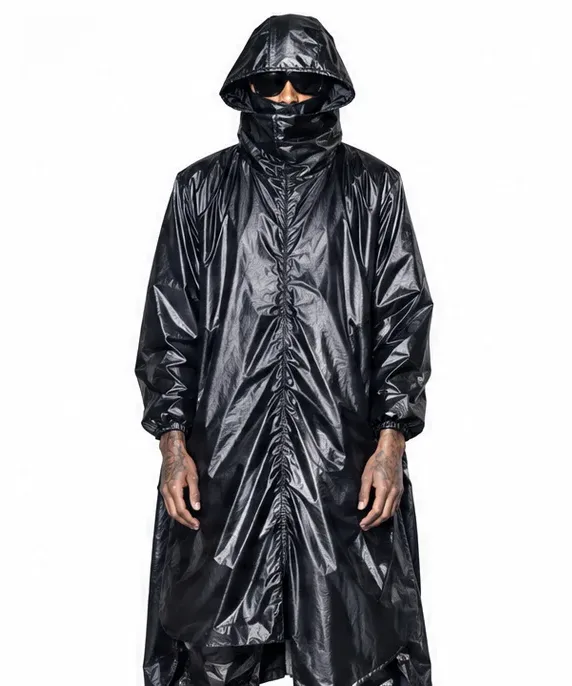
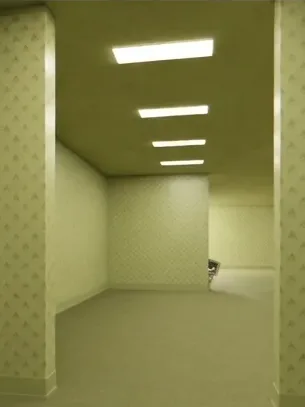
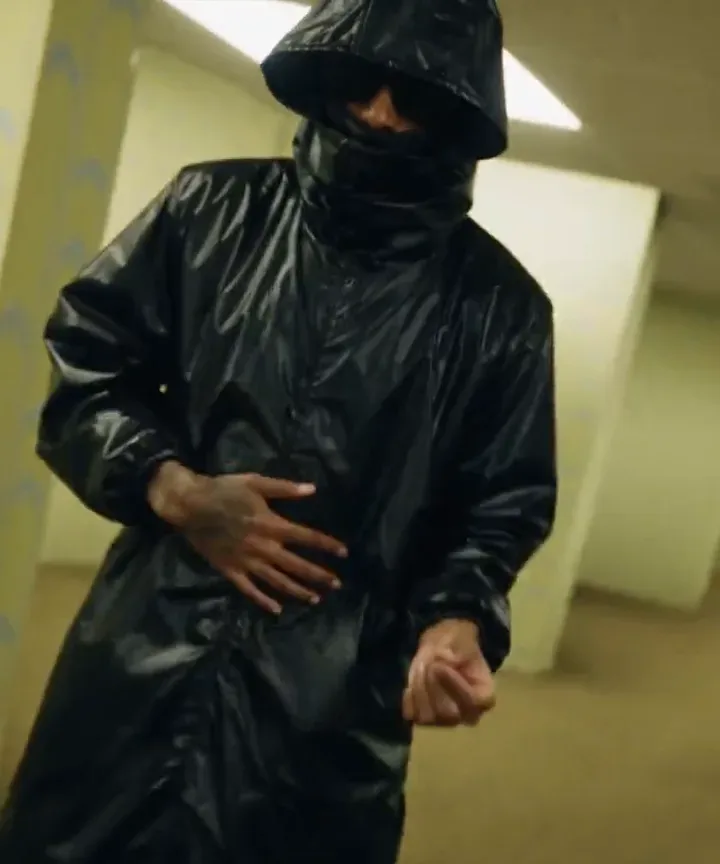
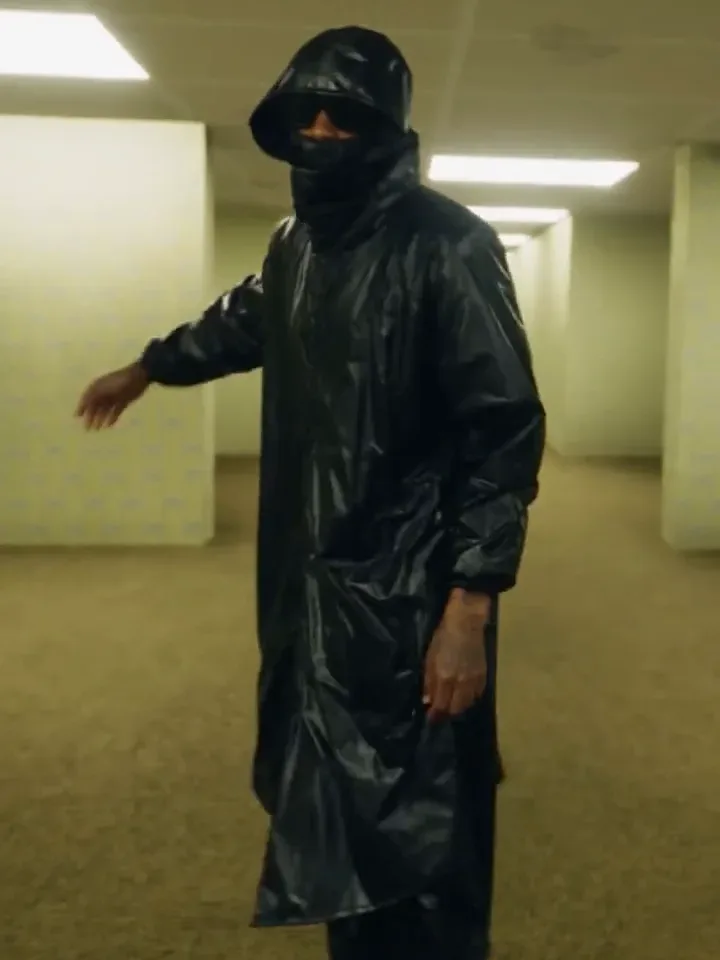
This guide follows the runs behind the clips below: a glossy black hooded raincoat, a wrapped face covering and dark glasses, dancing through Backrooms Level 0, the endless yellow office corridors. Every shot was made in Miroge on Seedance 2.5 from three things: a clip that gave the moves and the camera, a character sheet that fixed the look, and a location sheet that fixed the place.
Everything is shown: the clip we started from beside what Miroge made from it, the two sheets, the prompt we typed and the final cut from the render.
What we made
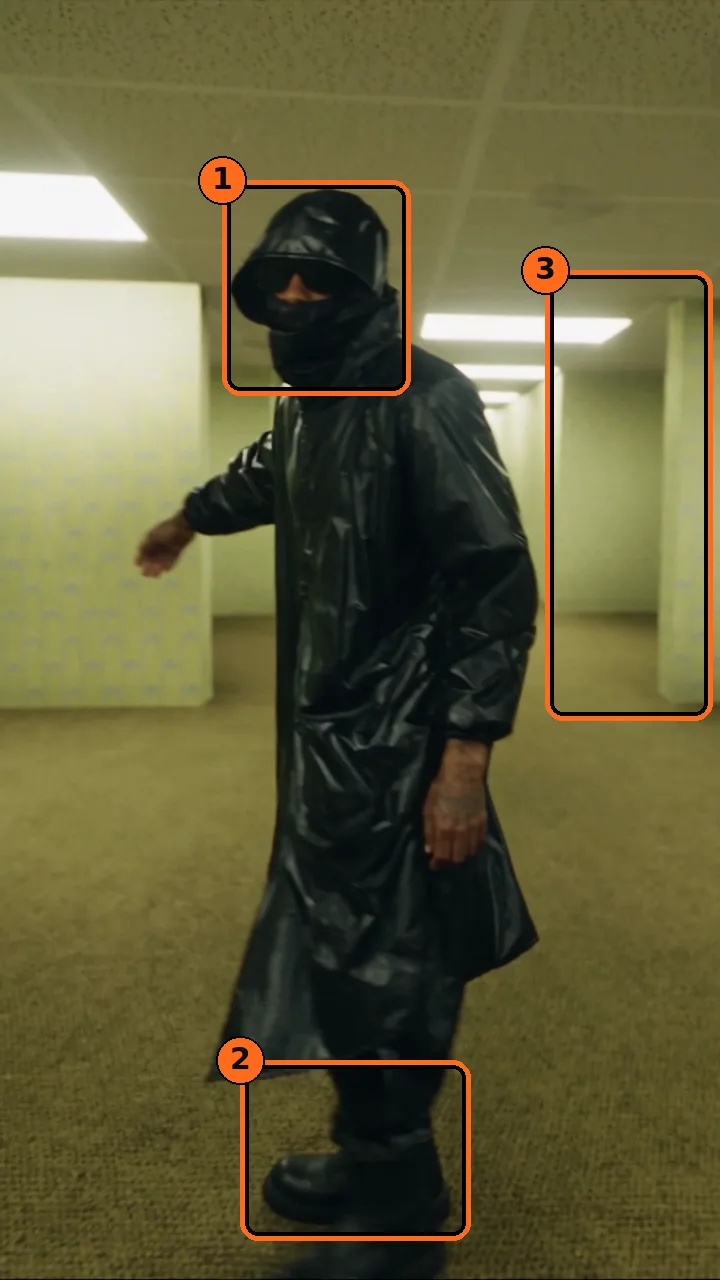
The final, cut from the Miroge render below in the Timeline editor and exported at 1080x1920 for vertical feeds.
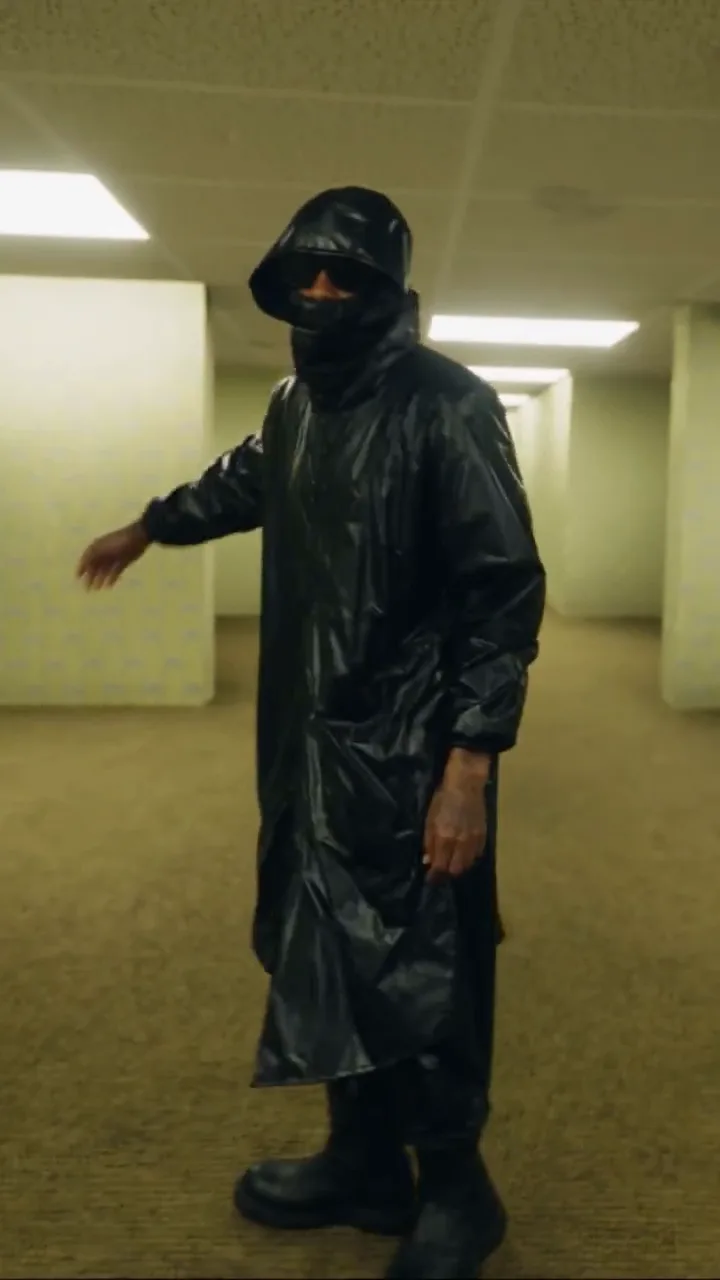
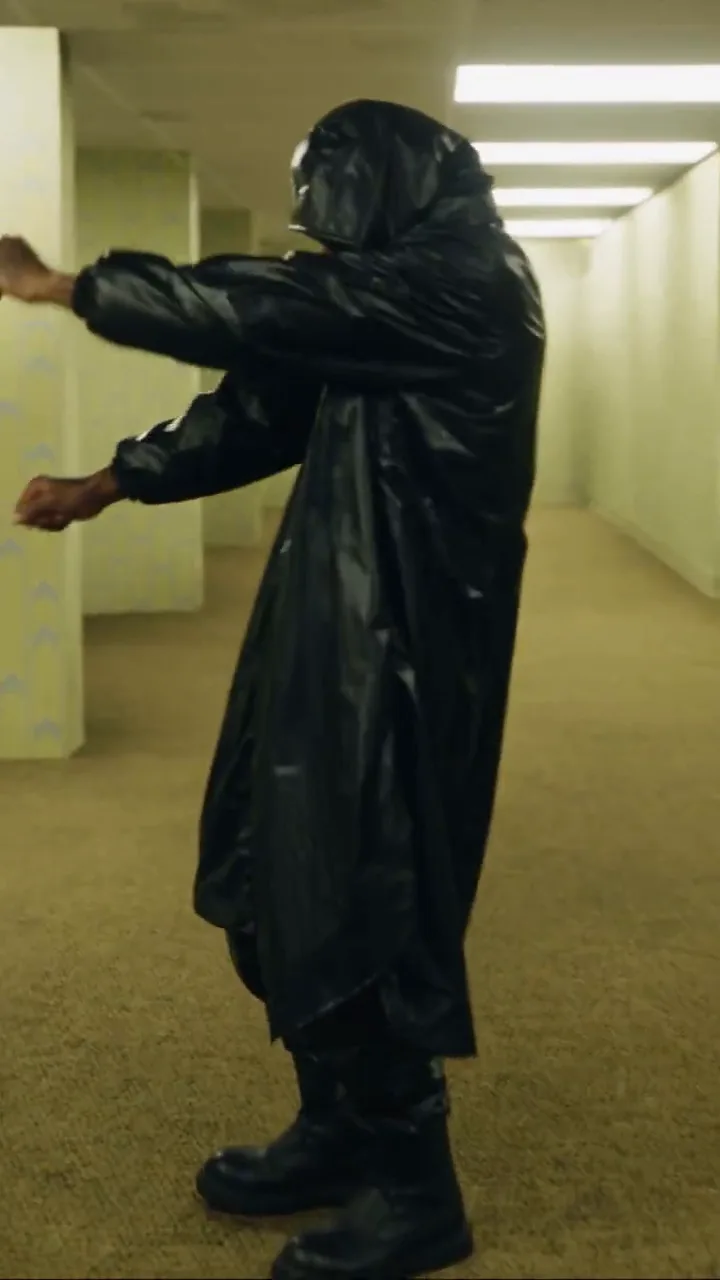
And the clip we started from, beside what Miroge made from it, second for second:
Your clip
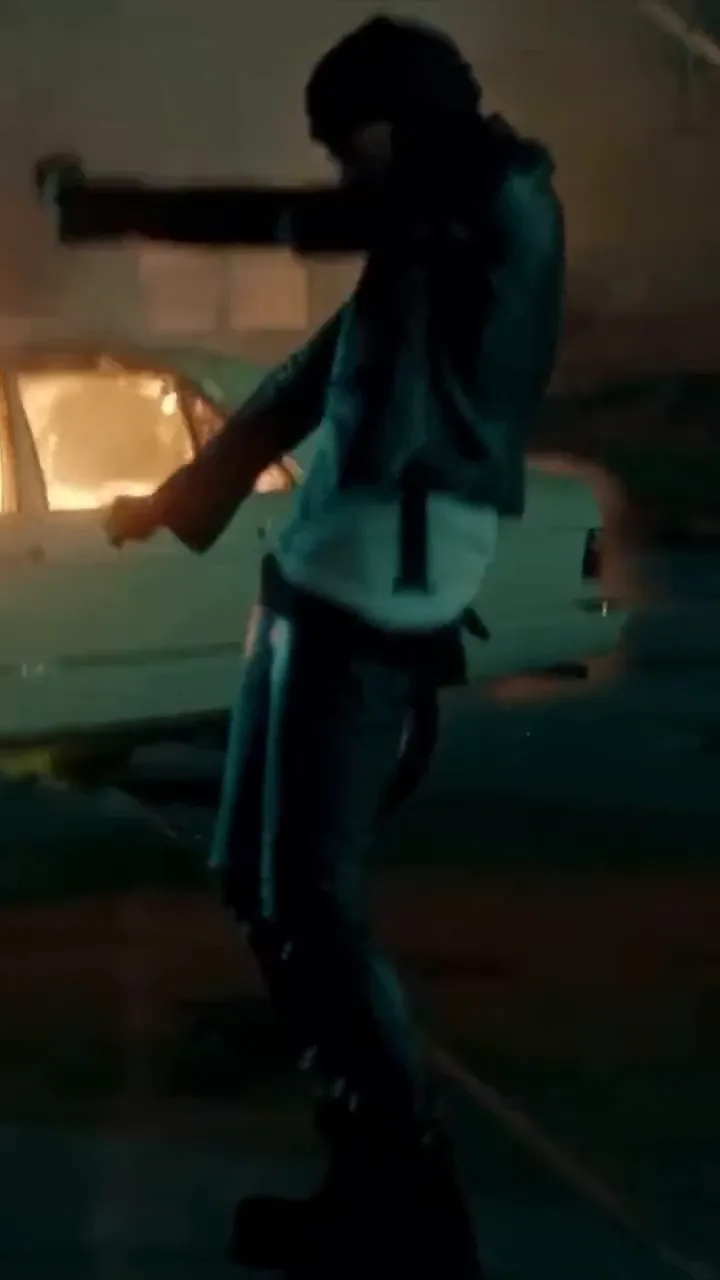
Miroge
Make a character sheet of the look
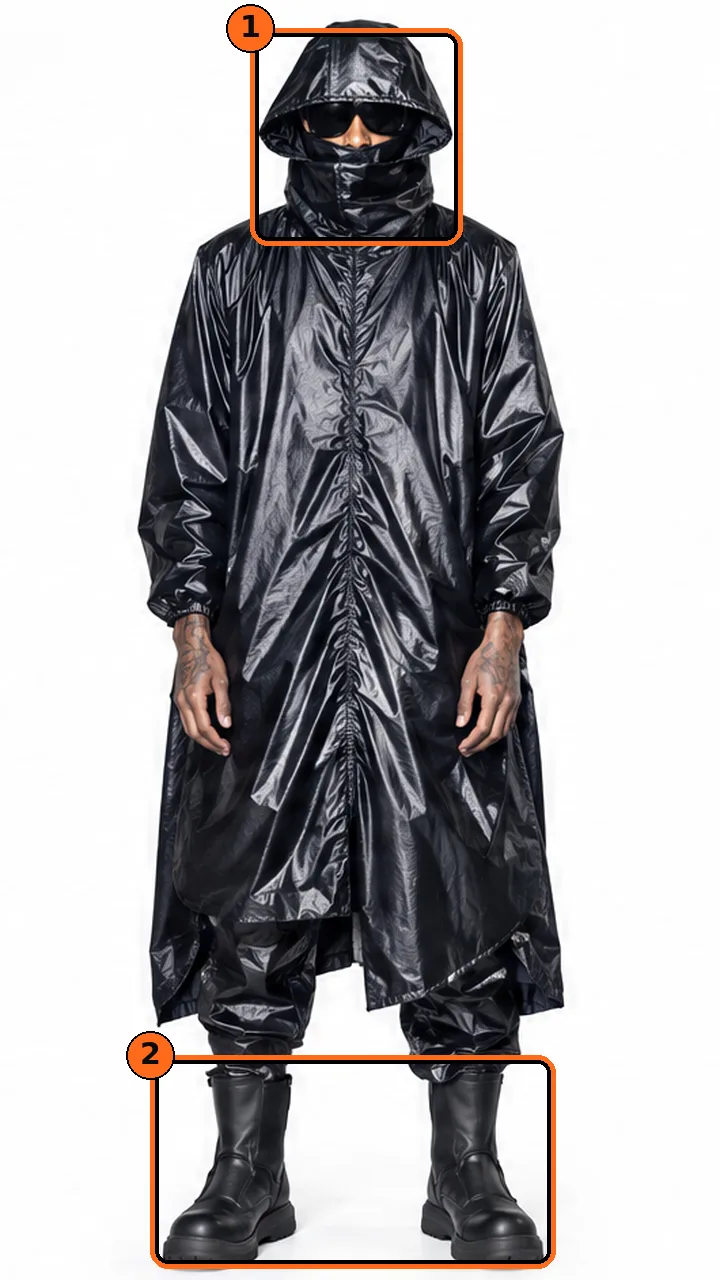
The character sheet tells Miroge who goes into the clip. Ours shows the whole look from five sides, front, three-quarter, both profiles and back, plus three close-ups of the hood, all on plain white.
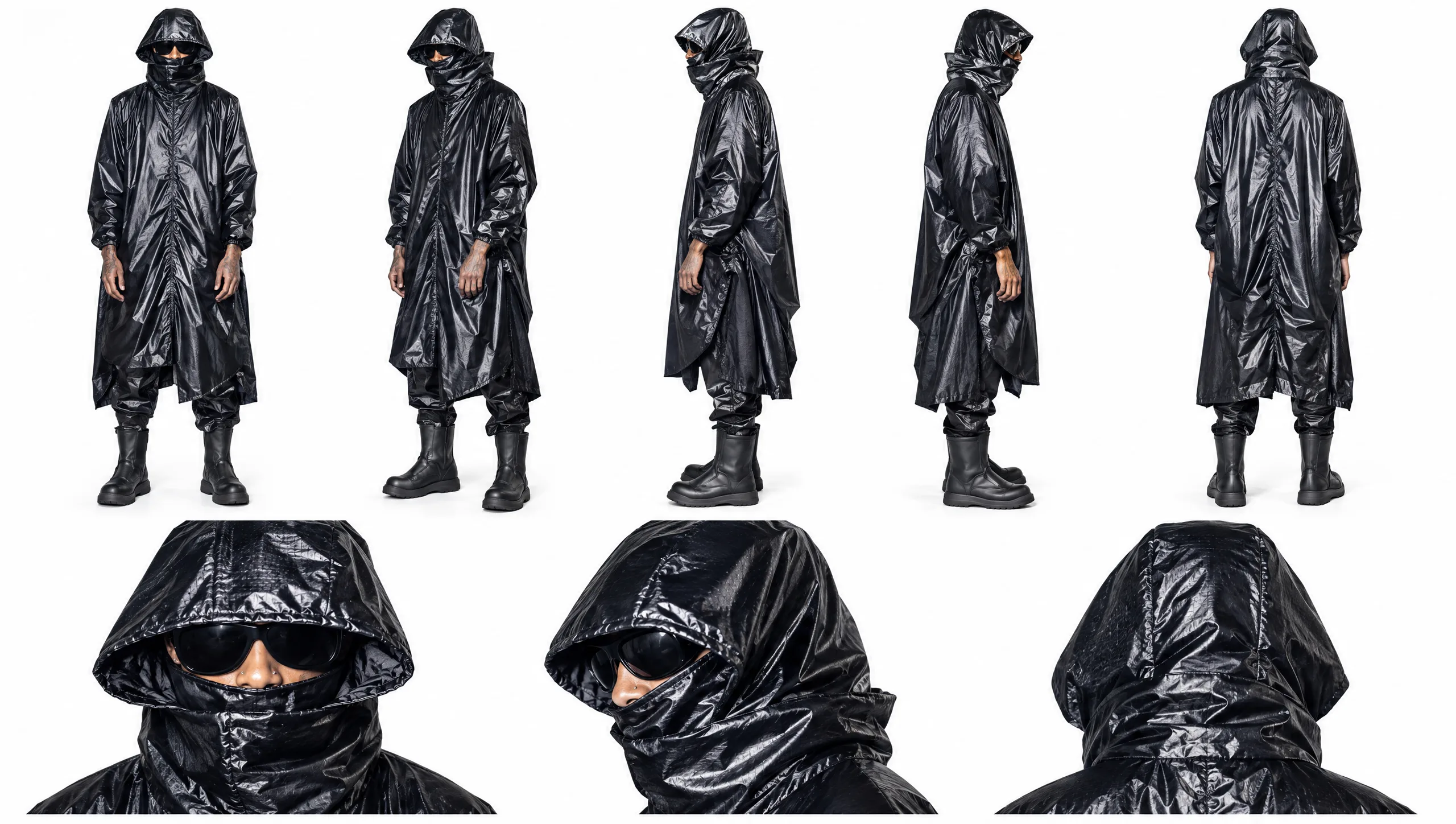
- One person and one outfit, the same in every view.
- A tall, very slim, lanky build.
- A long, loose, glossy black hooded raincoat.
- A black face covering and dark sunglasses.
- Loose black trousers and chunky black boots.
Tip:Keep the look the same in every view. The hood, the face covering and the glasses are on every view, so the look reads the same from any angle the clip turns to. A sheet with two versions of the outfit gives the model two answers.
You can make a sheet like this in Image, or use photos of a look you have the rights to. Keep the background plain so nothing but the character carries over.
Make a location sheet of the Backrooms
The location sheet tells Miroge where the clip happens now. Ours is Backrooms Level 0: a wide view of the main corridor, a corner, an alcove, a close look at the wallpaper and a pillar, and swatches of the colors and textures.
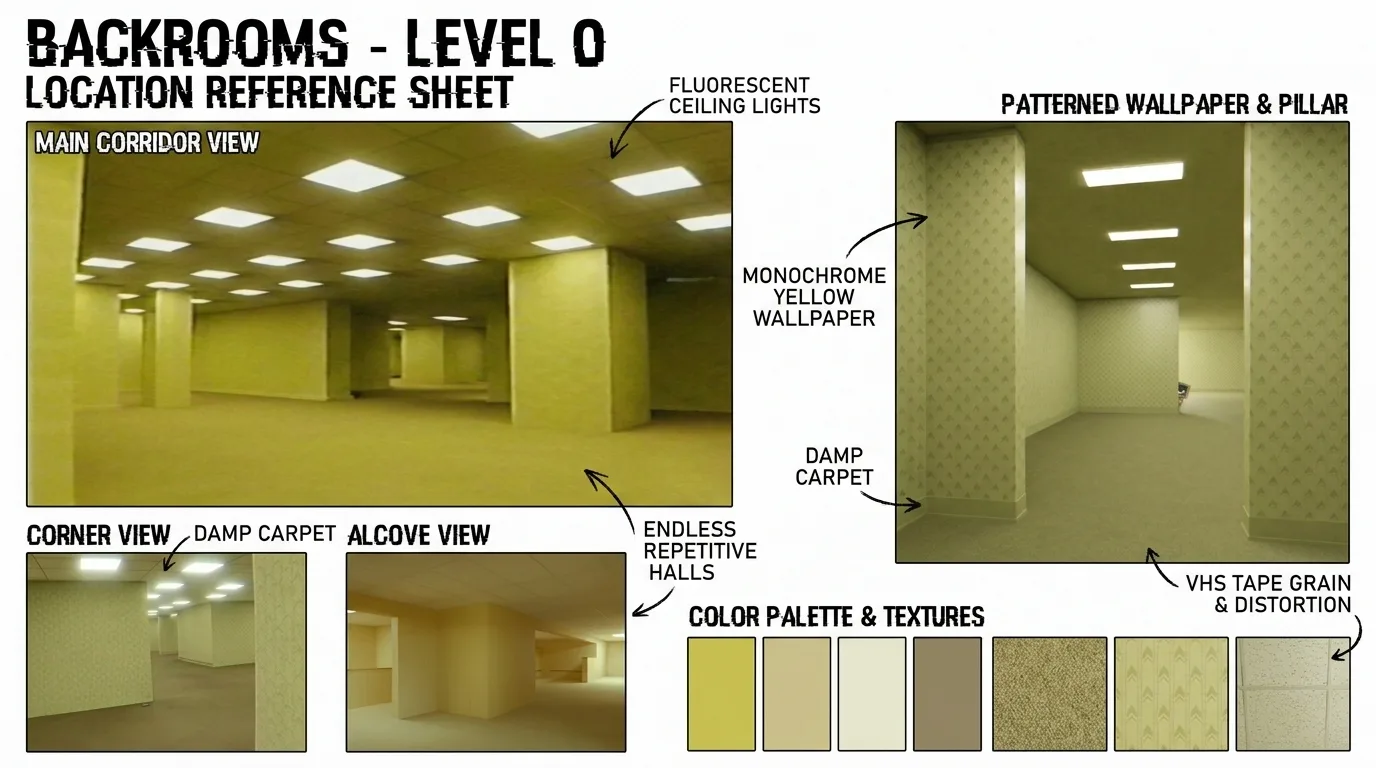
- Endless, repeating corridors with square pillars and alcoves.
- Monochrome yellow, patterned wallpaper.
- Damp beige carpet and a low tiled ceiling.
- Flat fluorescent ceiling panels and an empty, eerie feel.
- Subtle VHS grain and analog softness, with no text or recording overlays.
Pick the clip whose moves you want
The clip gives everything that moves: the dance, the timing, the framing and the camera. The look and the place come from your two sheets.
- Length: 2 to 30 seconds on Seedance 2.5. The render keeps your clip's length: our 18.5 and 29.3 second clips came back as 19 and 29 seconds.
- Size: up to 50 MB. MP4 and MOV both work.
- Shape: the render starts at your clip's shape, so a vertical clip gives a vertical result. All of ours were vertical.
- One performer in view: our prompt asks for one person only, so pick a clip where the performer stays in frame.
Watch for this:Use footage you have the rights to. Ours was used with permission. If the model refuses a clip, the run stops and the credits come back.
Open Miroge and add the clip
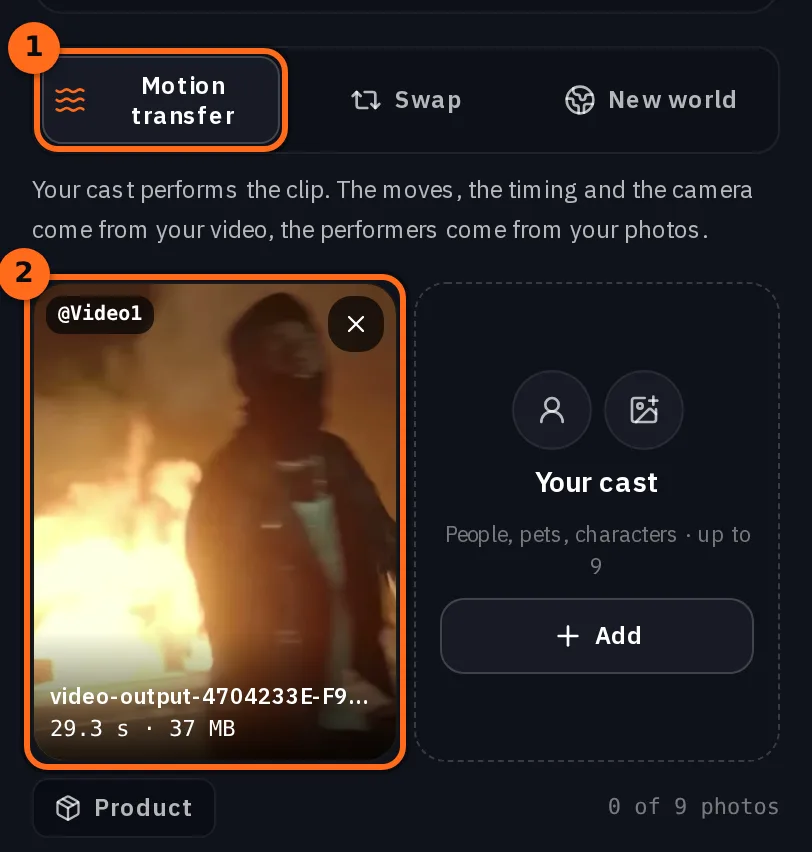
Open Miroge and keep the mode on Motion transfer, so the clip drives a new render. The model is Seedance 2.5, the default for this mode. It needs a Pro plan or above.
Put the clip in the Motion video tile with Upload or Library. Once it is in, it is tagged @Video1.
Add the sheets to Your cast
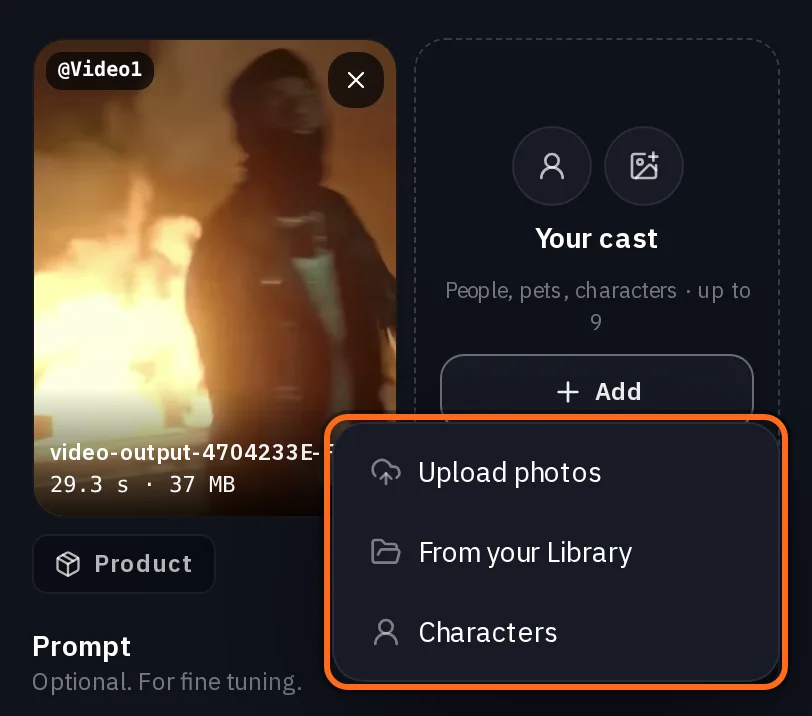
In Your cast, press Add and choose Upload photos, From your Library or Characters. Each picture is tagged in the order you add it, so add the character sheet first and the location sheet second.
- @Video1 is the clip: the moves, the timing and the camera.
- @Image1 is the character sheet: the look.
- @Image2 is the location sheet: the place.
- @Image3 and @Image4 are more pictures of the same corridors, if you have them.
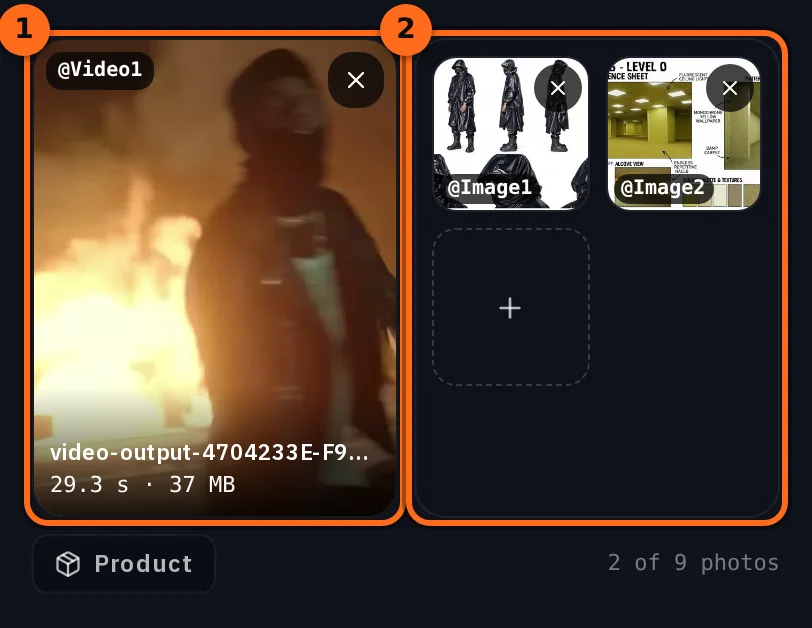
Seedance 2.5 takes up to nine pictures beside the clip. Our runs used five: the character sheet and four pictures of the Backrooms, the location sheet among them.
Write the prompt and tag every input
Switch Prompt on and type @ to insert a tag: pick the video or a picture from the list and it becomes a chip. Name every input by its tag and say what it is for. This is the prompt from our runs, with the tags in the order above.
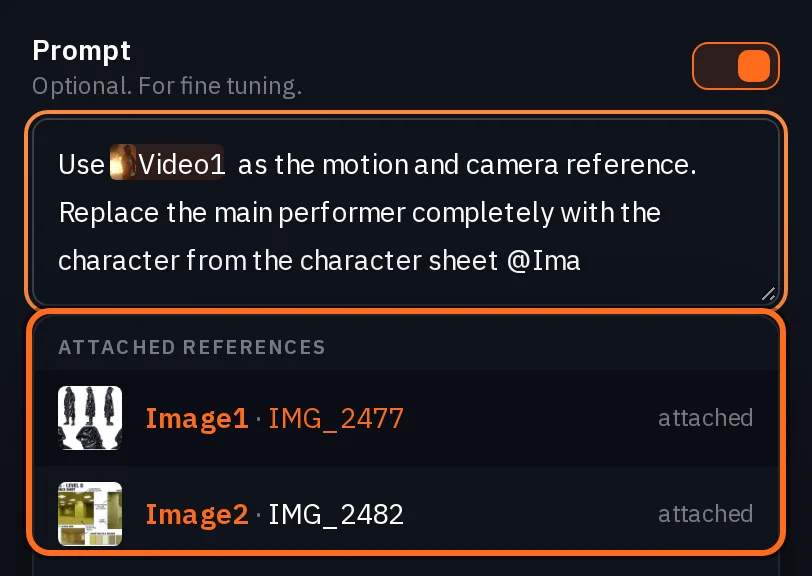
Use @Video1 as the motion and camera reference. Replace the main performer completely with the tall, very slim, lanky black-clad character from the character sheet @Image1. Keep the character exactly as the sheet shows: slim proportions, glossy black oversized hooded raincoat, wrapped black face covering, black sunglasses, loose black trousers and chunky black boots, the same in every frame.

Only one person appears in the whole video: this character. If @Video1 has other people, background figures or crowds, remove them and do not recreate them. Where they were, rebuild the Backrooms behind them. No duplicates, clones, extra silhouettes or person-like reflections.

Replace the original location with Backrooms Level 0 from @Image2, @Image3 and @Image4: endless liminal corridors, monochrome yellow patterned wallpaper, square pillars, damp beige carpet, a low tiled ceiling and repeating fluorescent ceiling lights. Follow the sickly yellow-green palette, the flat fluorescent light, subtle VHS grain, analog softness and the empty, unsettling atmosphere.

Keep the camera moves, shot timing, framing, perspective and actions of @Video1 as closely as possible, with realistic body mechanics, consistent scale, grounded foot contact, natural shadows and fluorescent reflections on the glossy raincoat. Keep the character and the corridor layout consistent between cuts.

Found-footage look, as if shot on an old consumer camcorder: subtle handheld shake, imperfect framing, mild autofocus hunting, analog noise. Flat, eerie fluorescent light, not polished cinematography. No extra people, no wardrobe changes, no warped architecture, no strong fisheye, no text, subtitles, timestamps or recording overlays.
- First paragraph: who replaces the performer, and what stays fixed about the look.
- Second: one person only, and what fills the space where other people were.
- Third: the new place, from the location pictures.
- Fourth: keep the clip's moves, timing and camera.
- Fifth: the camcorder feel, and what must not appear.
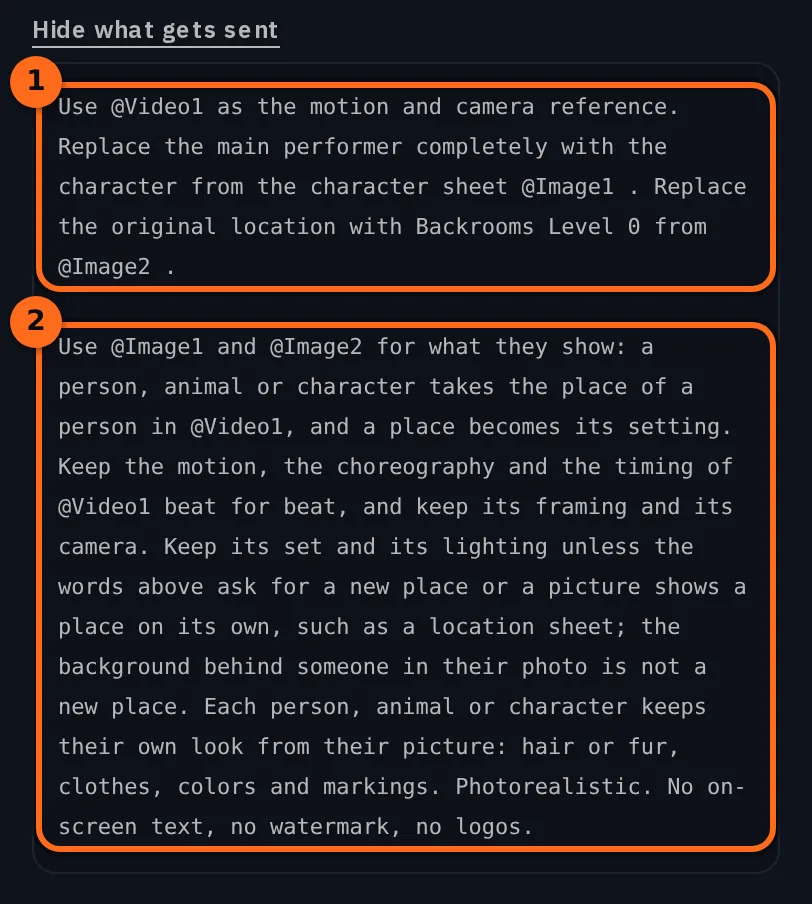
Tip:Say plainly that the place changes. Miroge adds its own paragraph after your prompt. It keeps the clip's moves, framing and camera, and it keeps the clip's set and lighting unless your words ask for a new place or a picture shows a place on its own, like a location sheet. Our prompt does both, and in all three of our runs the corridors replaced the original location. See what gets sent, under the prompt, shows the whole text before you generate.
Pick the quality and generate
Under the prompt, pick the Quality. We used 720p, the default, and 480p and 1080p are there too. Length starts at your clip's length.
The price is on the Generate button before you press it, worked out for your clip's length, the model and the quality. Our renders took 5 to 10 minutes, and each one lands in your Library too.
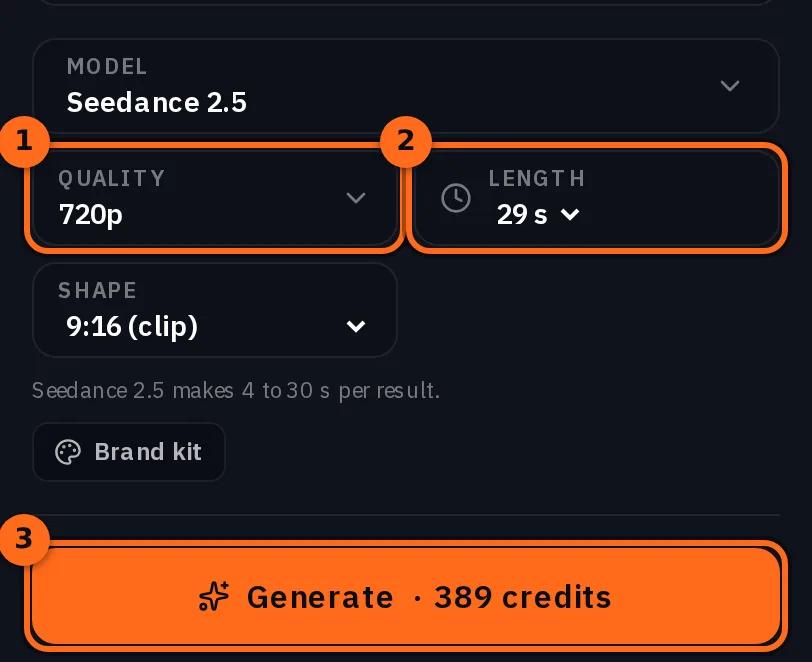
The render beside the source clip at the top of this guide is straight out of Miroge: 720p, 29 seconds, from a 29.3 second clip.
Check the take
Watch the whole render before you change anything, and check:
- The shape and the length against your clip.
- That only one person appears, from start to finish.
- The coat, the boots, the face covering and the glasses against the sheet, shot by shot.
- That the moves, the timing and the camera follow the clip.
- That nothing of the original location is left, and there are no warped walls, extra limbs or copies.
The sheet
The take
If something is off, the fix is usually one line:
- The result is the wrong shape: use a clip in the shape you want. A vertical clip gives a vertical result.
- The look drifts or the outfit changes: use a cleaner sheet with more views, and keep the look in the first paragraph.
- Other people stay in: keep the one-person paragraph, and ask to remove every other person and rebuild the corridor behind them.
- The corridors change between cuts: add more pictures of the same corridors, and ask for the same layout between cuts.
Change only the line that failed, then press Recreate. Each run is a new render, so two runs with the same inputs come out different.
Cut the final in the Timeline editor
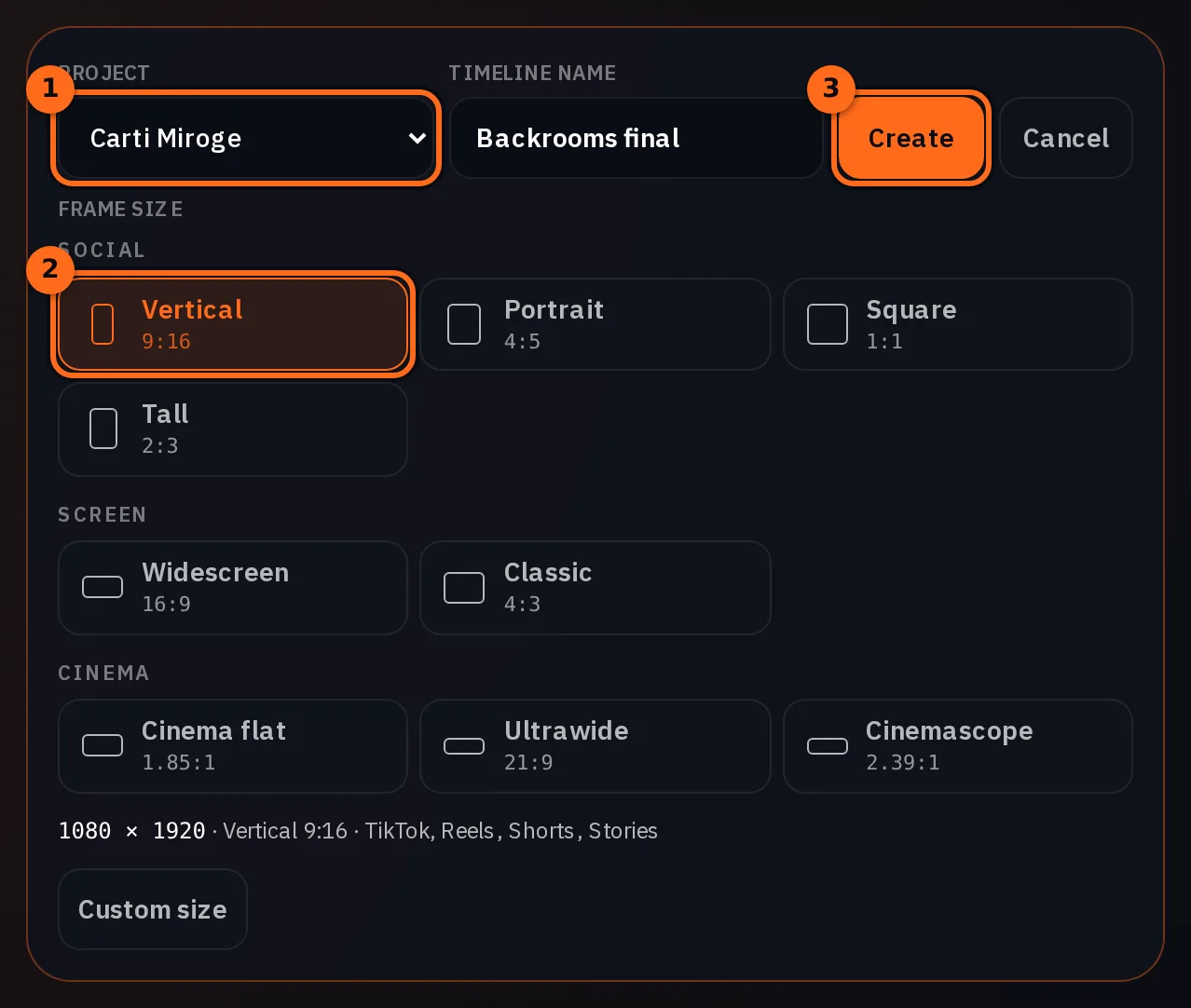
Our final was made in NOLGIA's Timeline editor from the 29 second render. Open Timeline from the menu at the top of the app and press New timeline: choose a project, name the timeline, pick Vertical under Frame size, 9:16 at 1080x1920 for TikTok, Reels, Shorts and Stories, and press Create.
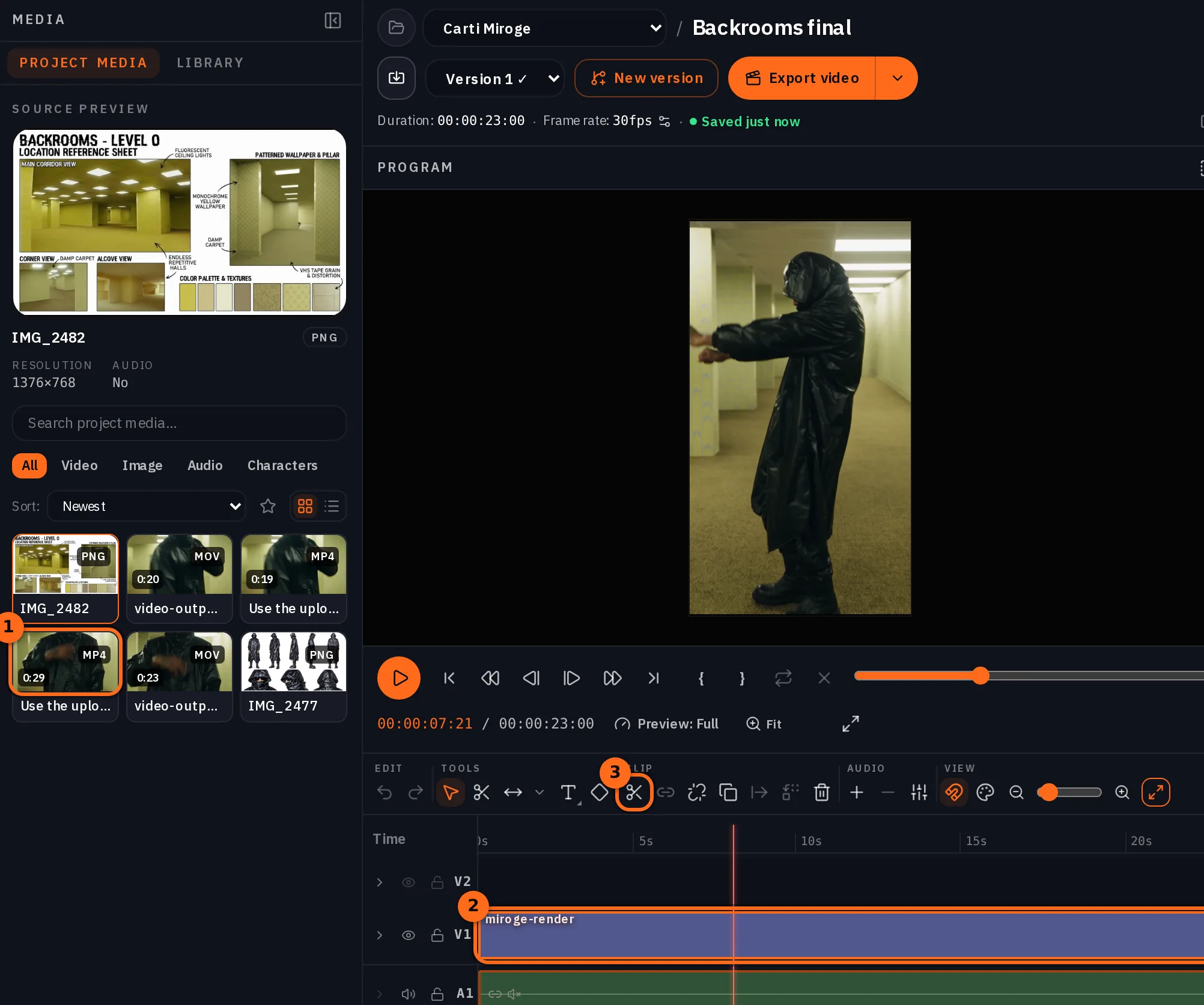
- In the media column, open Library, or Project Media if the render is in the timeline's project, and find your Miroge render. Drag it onto a lane, or press its + button to add it at the playhead.
- Move the playhead to where a cut belongs and press Split, the scissors. Select the piece you don't want and press Delete, and keep the moves you like.
- Press Export video. Video (MP4) renders the whole timeline at full quality, at the timeline's 1080x1920.
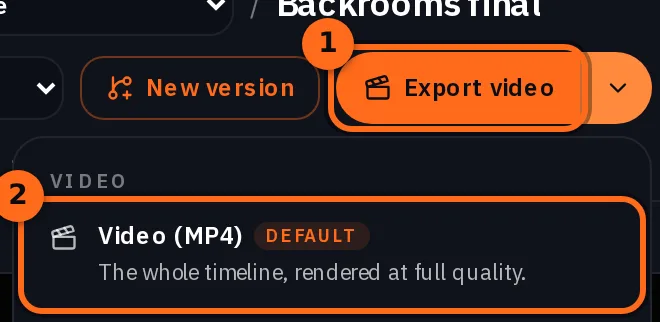
That is how the final at the top of this guide was made: the 29 second render, cut to 23 seconds and exported at 1080x1920.
What it costs
Seedance 2.5 is priced by the length of the render, and a higher quality costs more. The rates below are for a render made from words alone; a render that carries your clip, like every Miroge render, costs a little more per second. The Generate button shows the exact price for your clip before anything runs.
Seedance 2.5Pro and up
Per 5s clip
480p 26 credits · 720p 56 credits · 1080p 137 credits
1080p renders at 16:9 and 9:16
Read live from the catalog when this page loads. Every price is shown before you generate. See every rate.
Questions and answers
- Do I need a paid plan?
- Yes. Seedance 2.5, the model behind this guide, needs a Pro plan or above.
- How long can my clip be?
- From 2 to 30 seconds on Seedance 2.5, and the render keeps that length. Even a fraction of a second over 30 counts, so trim the clip first.
- Can I save the look as a Character?
- Yes. Save it in your Characters library, then in Your cast press Add, then Characters. It joins the cast beside your pictures, and you point at it with @ and its name.
- What if the model refuses my clip?
- The run stops and the credits come back. Use footage you have the rights to.
- Will I get exactly the same result with the same inputs?
- Not frame for frame. Every run is a new render. If a take is not right, change one line of the prompt and press Recreate.
Put your own look into your own clip.
Open MirogeRelated guides
Video editing
Put your own character and your dog into any video
Pick a video, add a photo of a person and one of a dog, and Miroge recasts the clip with them: the same moves, the same set, the same camera. Every step, on a computer and a phone.
· 10 min read
Video editing
Keep the subject, change the world around it
Keep the legs, hands or product in a clip and redraw the place around them. The prompt order that held in 6 of 6 tests, and where it breaks.
· 9 min read
Video editing
Encore: remake an edit you love with you in it, or start from ten styles
Remake an edit you have the rights to with you in it, on the same cuts and word timing, or start from one of ten Encore styles.
· 24 min read