

A clip came out wrong: fix it or make it again
Before you press Generate again, name what is actually wrong. Most of the time it is one thing, and there is a tool for that one thing.
- 5 min read
- Preset: Miroge: recast your clip
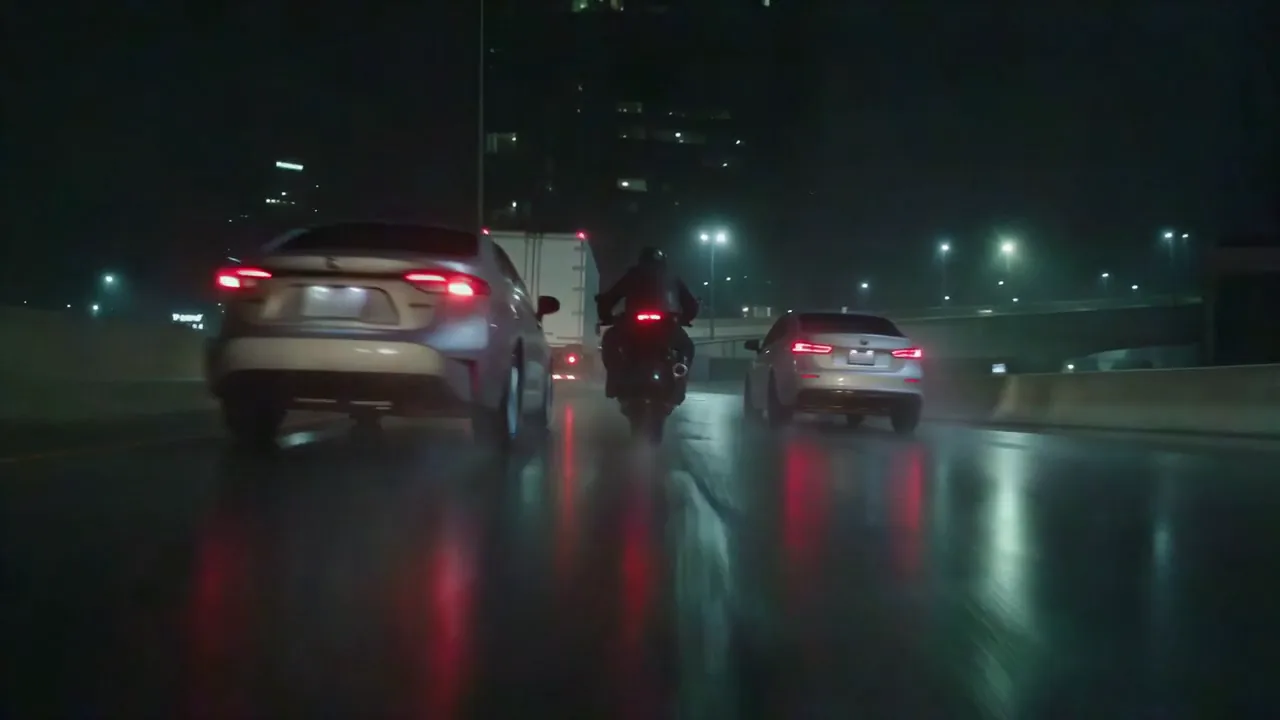
A clip that is almost right is worth keeping. If the move, the timing and the framing work, fix the part that does not, and keep the rest. Make it again only when the shot itself is wrong: the wrong move, the wrong framing, the wrong idea.
Every example on this page is a real NOLGIA output, made from clips generated for our guides.
Name what is wrong
| What is wrong | Fix it with | What you keep |
|---|---|---|
| One thing in the shot: a prop, a product, an animal | Miroge, Swap | The rest of the shot and the move |
| The place or the light | Miroge, New world | The subject and its movement |
| Who is performing | Miroge, Motion transfer | The moves, the timing and the camera |
| Soft, noisy, blocky or too small | Restore Video | The whole shot, cleaned up |
| It ends too soon | Extend clip | The clip, continued past its last frame |
| The camera move, the framing or the idea | A new render with a better prompt | Nothing, so change one thing at a time |
Change one thing, keep the shot
When one thing in the shot is wrong, open Miroge, choose Swap, add the clip and a photo of what should be there instead. The price is on the Generate button, and your version comes back next to the original with Compare.
The clip
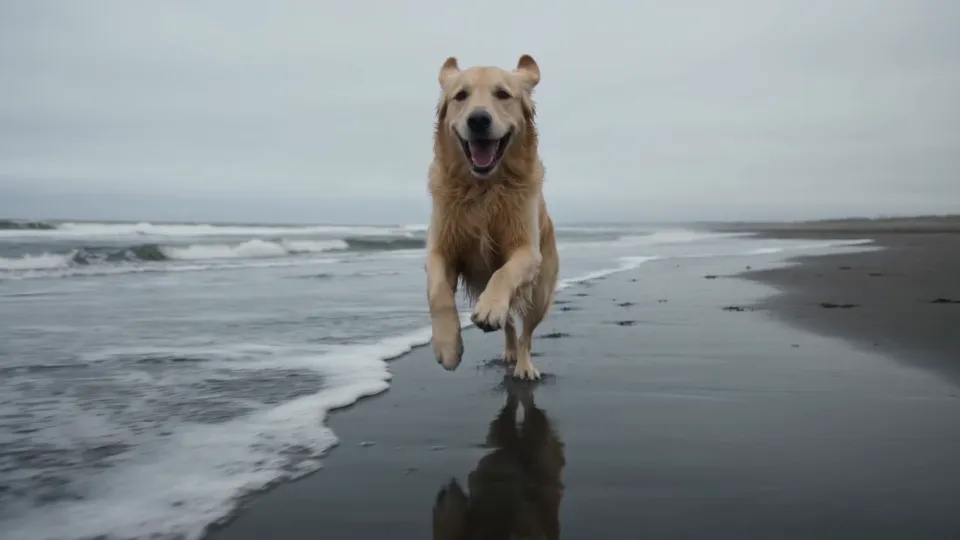
Swap
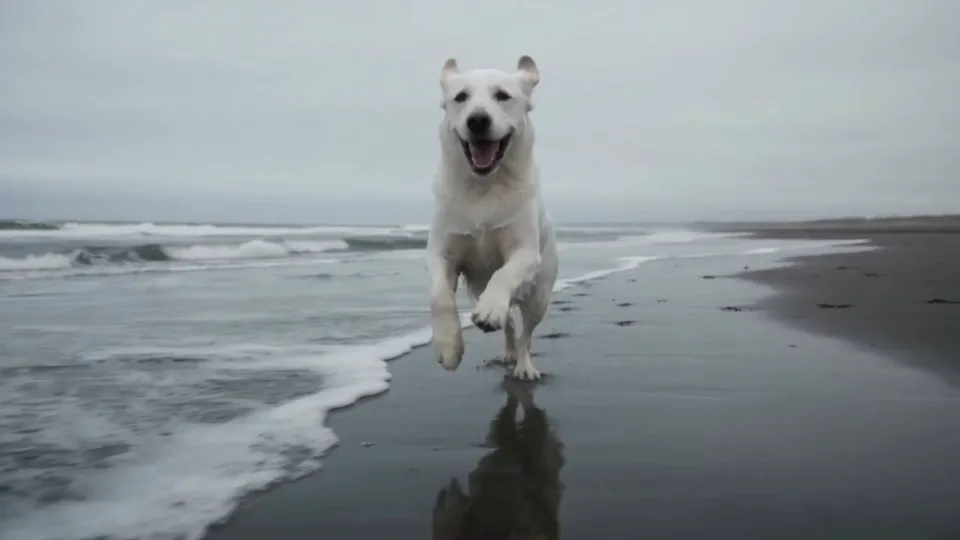
Watch for this:Every run is a new render. Swap keeps the shot as far as the model can, not pixel for pixel. Check the result against your clip before you use it.
Move the scene somewhere else
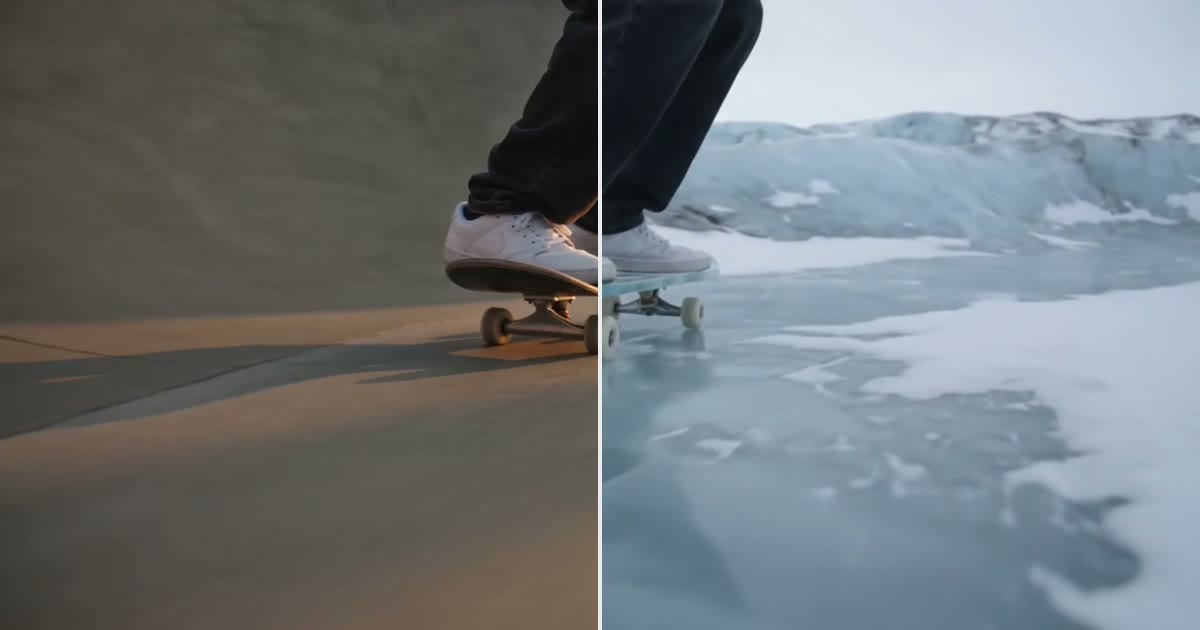
When the move is right but the place is wrong, New world keeps the subject and its movement and redraws everything around it. Say what stays first, then describe the new place.
The clip
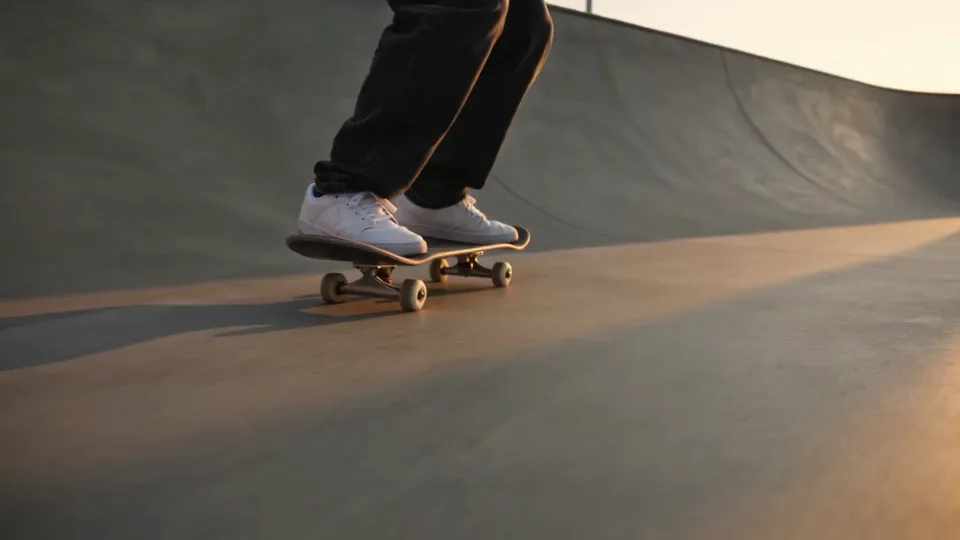
New world
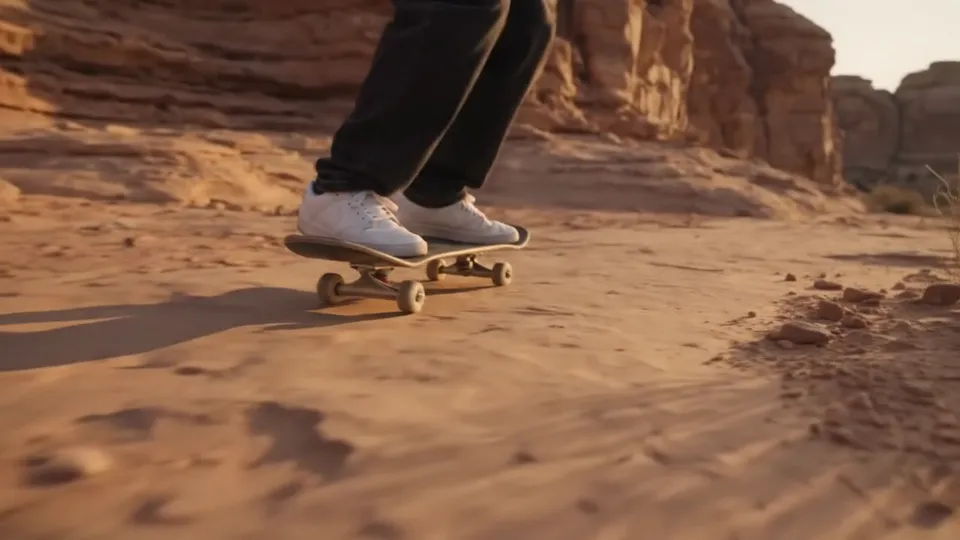
Keep the subject, change the world around it has the prompt order that held in our tests, and where it breaks: we have tested it on small subjects with no face in frame.
Clean up a soft or noisy picture
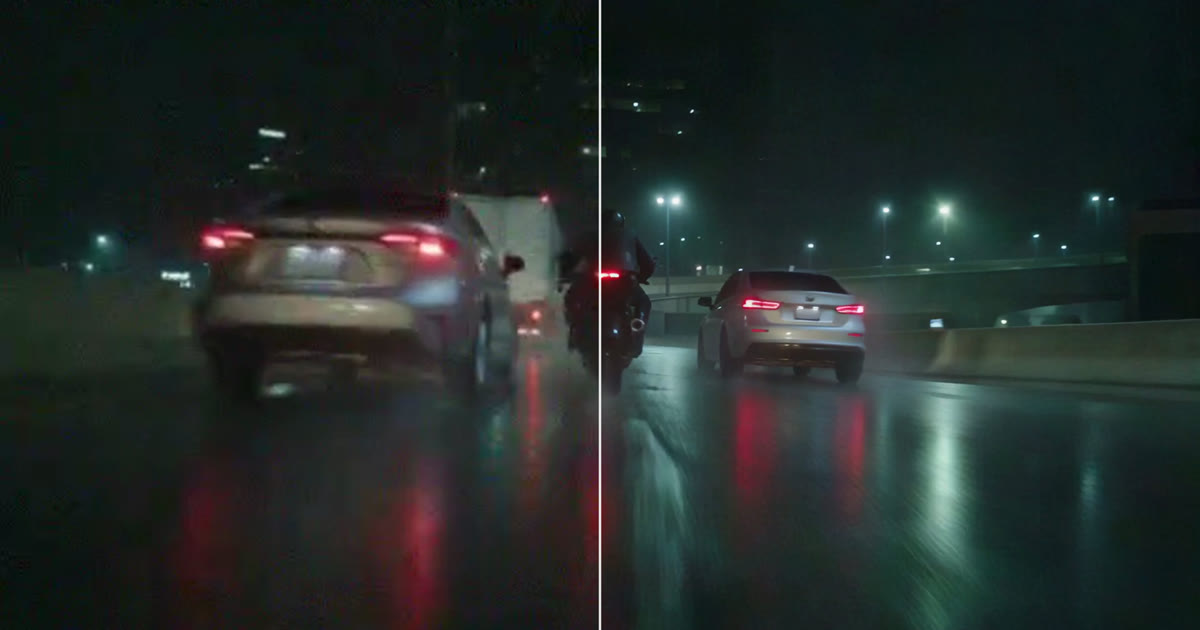
When the shot is right but the picture is not, Restore Video renders the clip again at the resolution you pick, with the grain, compression and softness cleaned up. There is no prompt: you pick the engine by what is wrong.
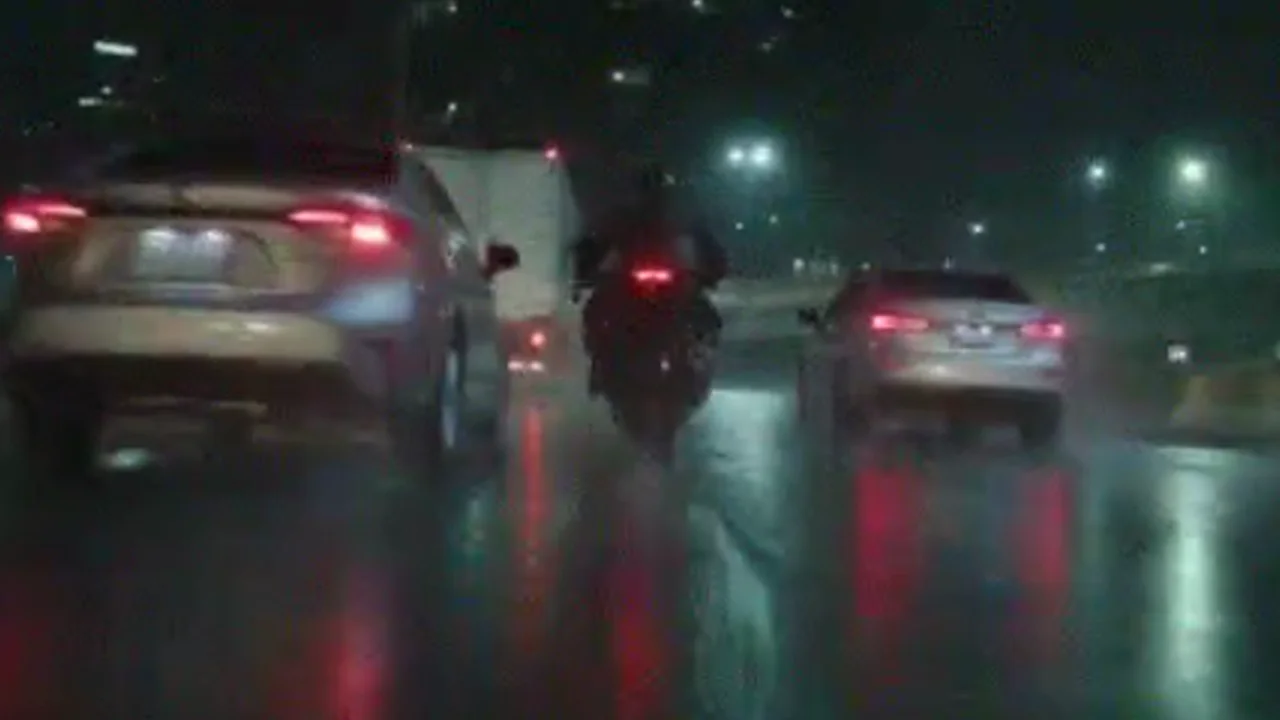
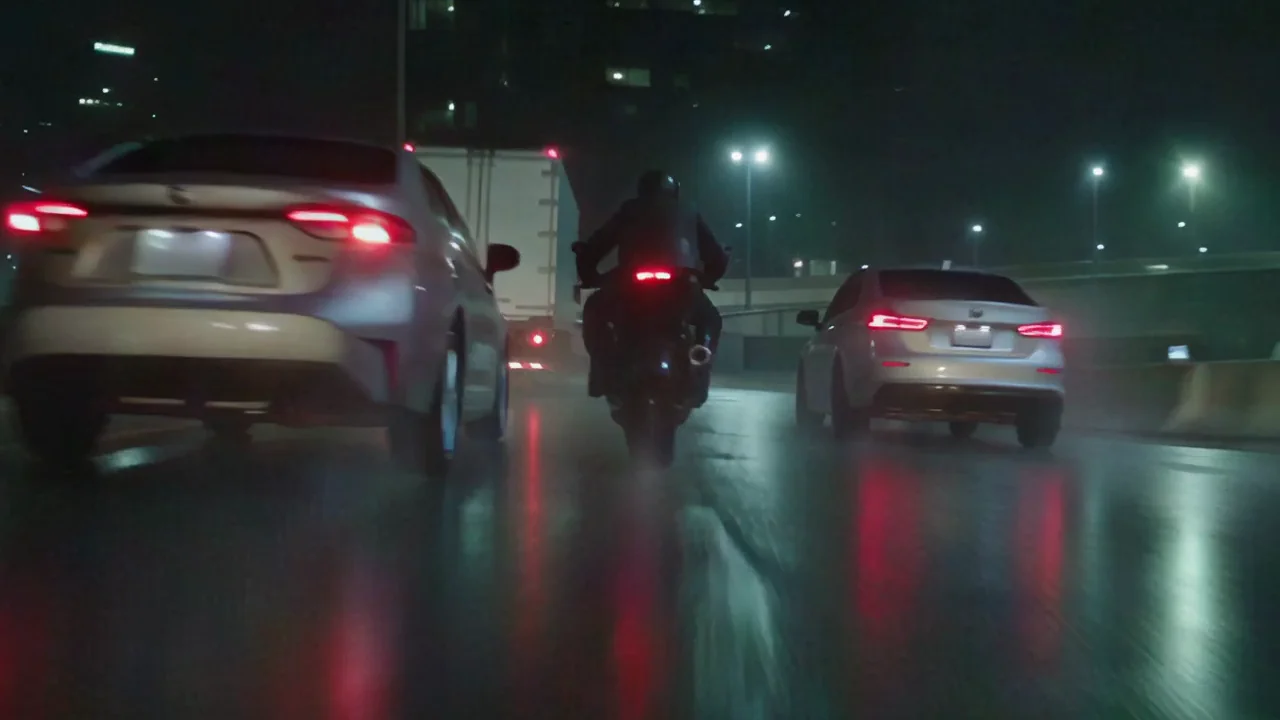 DamagedRestored
Make it longer instead of making it again
A clip that ends too soon does not need a new render. Open it in your Library and press Extend clip: the video composer opens with the clip's last frame as the start frame, so the new clip carries on from where yours stops. Start it from a clip on a Studio timeline instead, and the finished clip lands right after the old one.
Make it again, one change at a time
When the camera move, the framing or the idea is wrong, fixing a piece will not help. Make it again, and change one thing at a time so you know which change worked.
- Wrong camera move: pick a move from the camera move row in the video composer instead of describing it, and choose how strong it should be.
- Too much going on: give the shot one job. One subject, one action, one move.
- Stray text or logos: say what must not appear, for example no signage and no lettering on any surface.
- Refused by a content filter: press Edit prompt on the card, change the prompt or the reference, and try again. A refused render is refunded unless the provider billed for it, and the card says which.
A prompt library has eight prompts that worked, exactly as they were sent, with the lines in each that do the work.
What it costs
Every fix is a new render, priced on its Generate button before you start, and a render that fails is refunded. A fix that keeps your clip's length is priced on that length. Live published rates for the two models Miroge starts on:
Seedance 2.5Pro and up
Per 5s clip
480p 26 credits · 720p 56 credits · 1080p 137 credits
1080p renders at 16:9 and 9:16
Gemini Omni 1.1Pro and up
Per 5s clip
Standard 50 credits
Read live from the catalog when this page loads. Every price is shown before you generate. See every rate.
Questions and answers
- Is a fix cheaper than a new render?
- Not always. A fix is a render too, priced on its Generate button. It saves you the tries it would take to get the same move and timing again.
- Can I fix a face?
- We have not measured how faces come through Miroge or a restore, so we make no promise about them. Check people in any result against your clip.
- Which plan do I need?
- Miroge and video generation need Pro or above. Restore Video runs on Starter and above.
Fix the part that is wrong
Open MirogeRelated guides
Video editing
Restore soft, noisy or old footage
Restore Video re-renders a clip from your Library at up to 8K, cleaning noise, compression and softness. Pick the engine by what is wrong with the clip, and know what it cannot bring back.
· 6 min read
Video editing
Keep the subject, change the world around it
Keep the legs, hands or product in a clip and redraw the place around them. The prompt order that held in 6 of 6 tests, and where it breaks.
· 9 min read
Prompting
A prompt library: the exact prompts behind eight NOLGIA examples
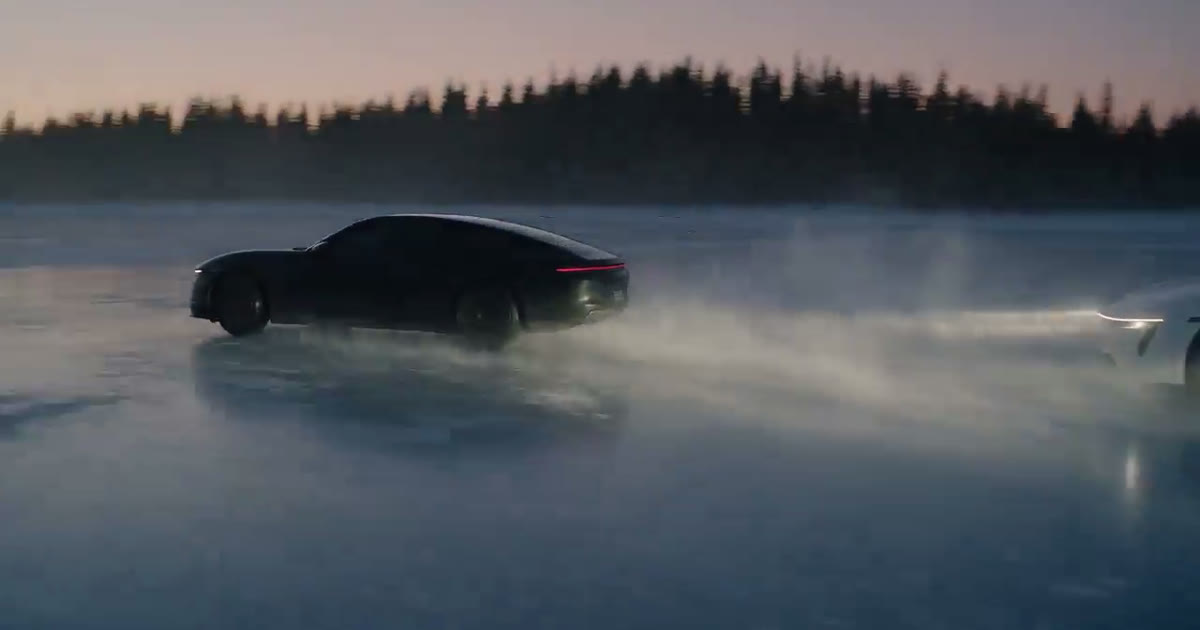
Eight prompts copied from real NOLGIA renders, a film scene, a game trailer, a product film, a logo sting and more, each with the result and what makes it work.
· 8 min read