NOLGIA does your DIT: copy, check and name your camera cards
At the end of a shoot day, NOLGIA copies every card to your drives, reads every copy back to prove it matches the card, lists what was shot, names the files and writes the DIT report. The cards are only read.
- 8 min read
DIT (data wrangling) is the last job of a shoot day: copy every card to two drives, make sure each copy is identical to the card, and keep a record before anyone formats a card. NOLGIA does it with one command, nolgia dit, on your own computer. It is free, needs no account and uploads nothing.
Every screenshot here is a real run: one card of nine clips copied to two drives on a Windows PC.
Before you start
- The NOLGIA command line tool, version 0.3.1 or later:
npm install -g @nolgia/clion Windows or a Mac with Node,brew install nolgiainc/nolgia/nolgiaon a Mac with Homebrew, or the one-line installer on the CLI page. - Your camera cards in a card reader, and one to three drives with room for them.
- Optional: NOLGIA for Premiere Pro or DaVinci Resolve, to have your AI agent do all of this from inside your editing app (the last step).
Step 1: see the plan first
Start with --dry-run. It copies nothing: it counts the files on the card, checks the room on each drive and looks for anything already in the way. Name the shoot with --shoot: it becomes the folder on each drive. --card names the card's folder inside it.
nolgia dit offload D:\A001_CARD --to D:\SHUTTLE_1 --to D:\SHUTTLE_2 --shoot SHOOT_DAY1 --card A001 --dry-run

Tip:Card paths. On Windows a card is a drive letter like E:\. On a Mac it is /Volumes/A001. Copy two or more cards at once by listing them all before --to.
Step 2: copy the card and check every copy
Run the same command without --dry-run. NOLGIA reads each file from the card once, writes it to every drive at the same time, then reads each copy back from the drive and compares it with the card. Only a copy that matches counts as done.
nolgia dit offload D:\A001_CARD --to D:\SHUTTLE_1 --to D:\SHUTTLE_2 --shoot SHOOT_DAY1 --card A001
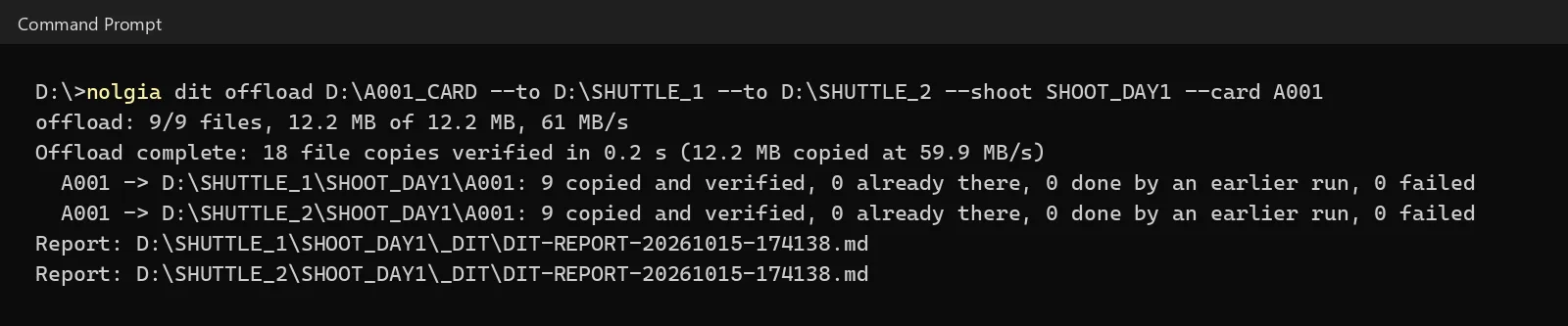
Each card folder on each drive gets an ascmhl folder: an ASC MHL manifest, the industry format Silverstack, ShotPut and Hedge read too, with an xxh64 checksum for every file. A spreadsheet-friendly copy and the DIT report go in _DIT in the shoot folder. Add --hash xxh64,md5 when a post house asks for MD5.
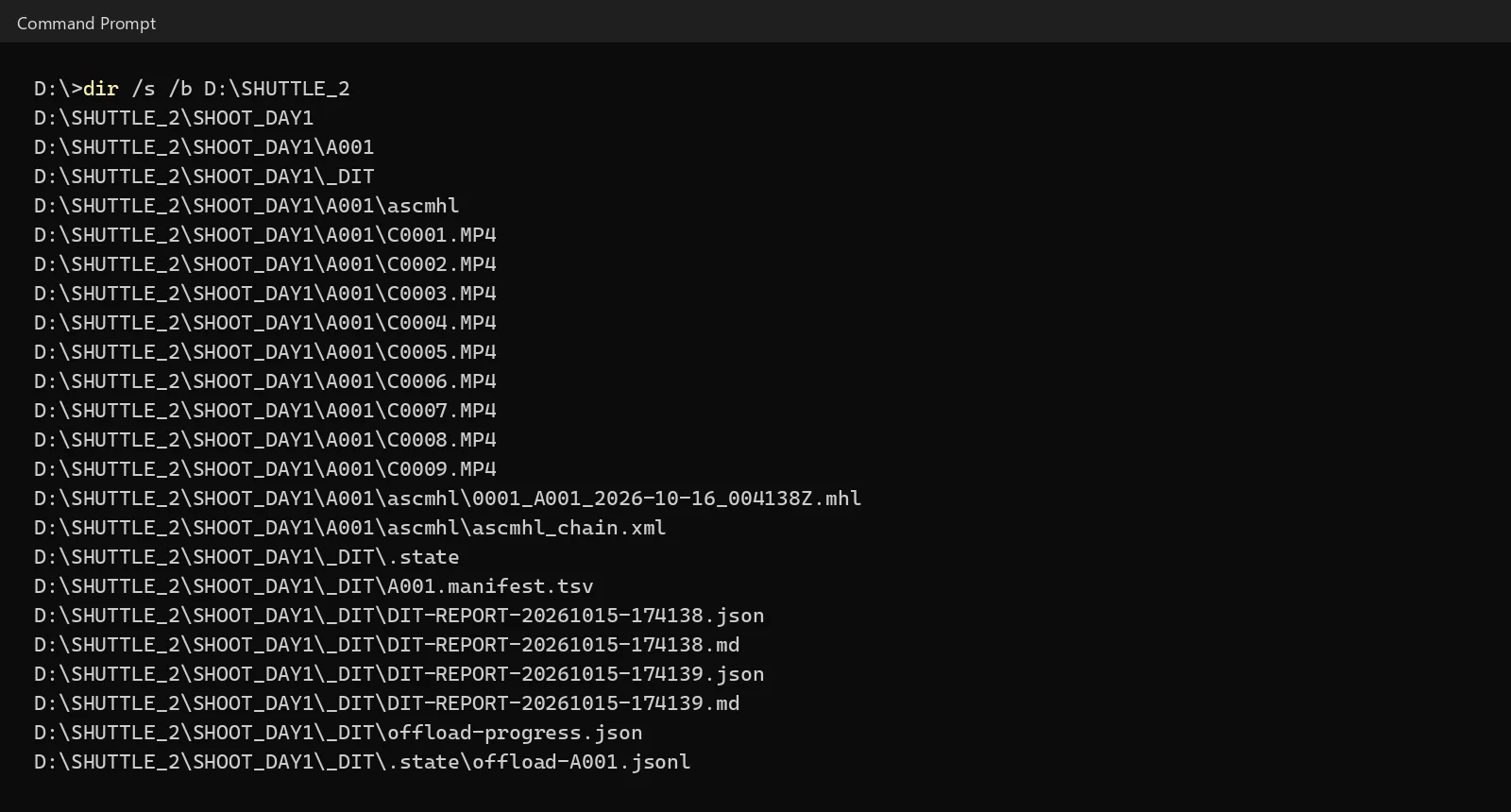
Watch for this:Nothing on a drive is ever replaced. If a file with the same name but different content is already on a drive, NOLGIA stops before copying anything and names the file. Move it aside or pick another folder, then run the command again.
Step 3: stopped halfway? Run it again
If the copy stops (a cable, a full drive, Ctrl+C), run the exact same command. It picks up where it stopped and never leaves a half-written file. Run it after a finished copy and it tells you there is nothing new to copy.
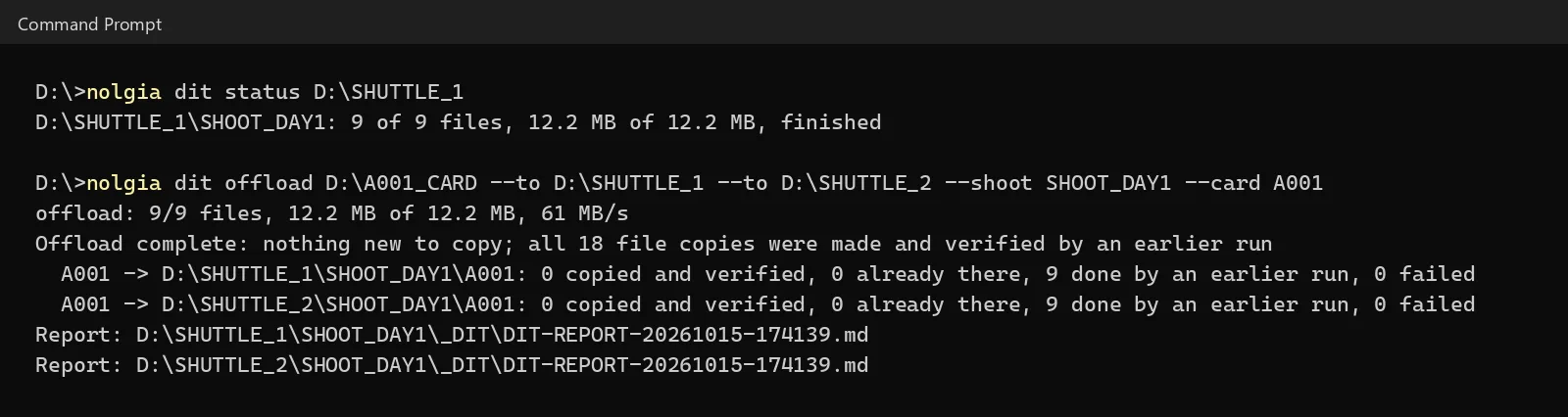
While a big copy runs, nolgia dit status D:\SHUTTLE_1 shows how far it is, from any other window.
Step 4: check a copy any time
Before you format a card, or weeks later, re-read a copy and compare it with its manifest. Point it at a card folder, or at the shoot folder to check every card in it.
nolgia dit verify D:\SHUTTLE_2\SHOOT_DAY1\A001

Step 5: see what was shot
The inventory lists the media by camera: how many clips, how much footage, the dates, frame rates, frame sizes and codecs, and for cameras that record them, the log profile (S-Log3 ...) and the lens. It warns when two cameras' clocks look hours apart, a time zone or AM/PM mistake that would put clips on the wrong day.
nolgia dit inventory D:\SHUTTLE_1\SHOOT_DAY1 --files
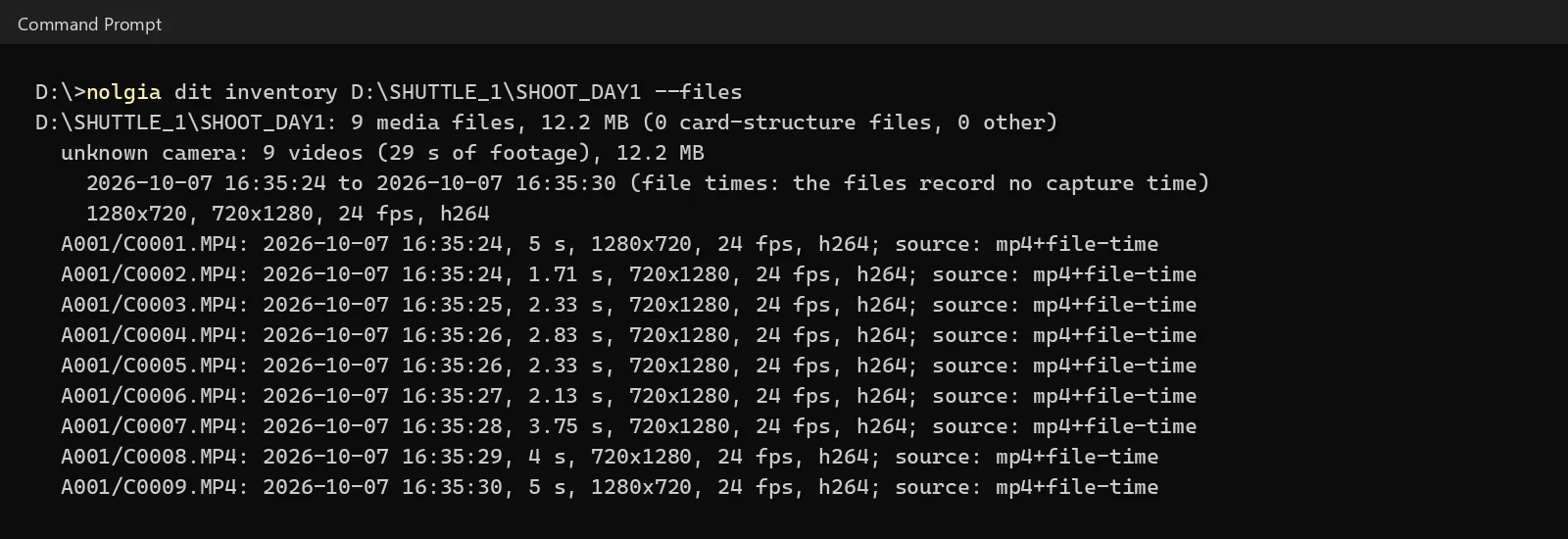
source: mp4+file-time).Step 6: name the files
Rename by shoot, date, time and camera with a pattern. It is a dry run until you add --apply. Every new name keeps the camera's own name, card files like thumbnails keep theirs, and each rename is written to a lookup sheet first, so nolgia dit undo puts every name back.
The command for the names below: nolgia dit rename D:\SHUTTLE_1\SHOOT_DAY1 --shoot SHOOT_DAY1 --pattern "{shoot}_{date}_{time}_{orig}". Leave out --pattern to get the camera in the name too.
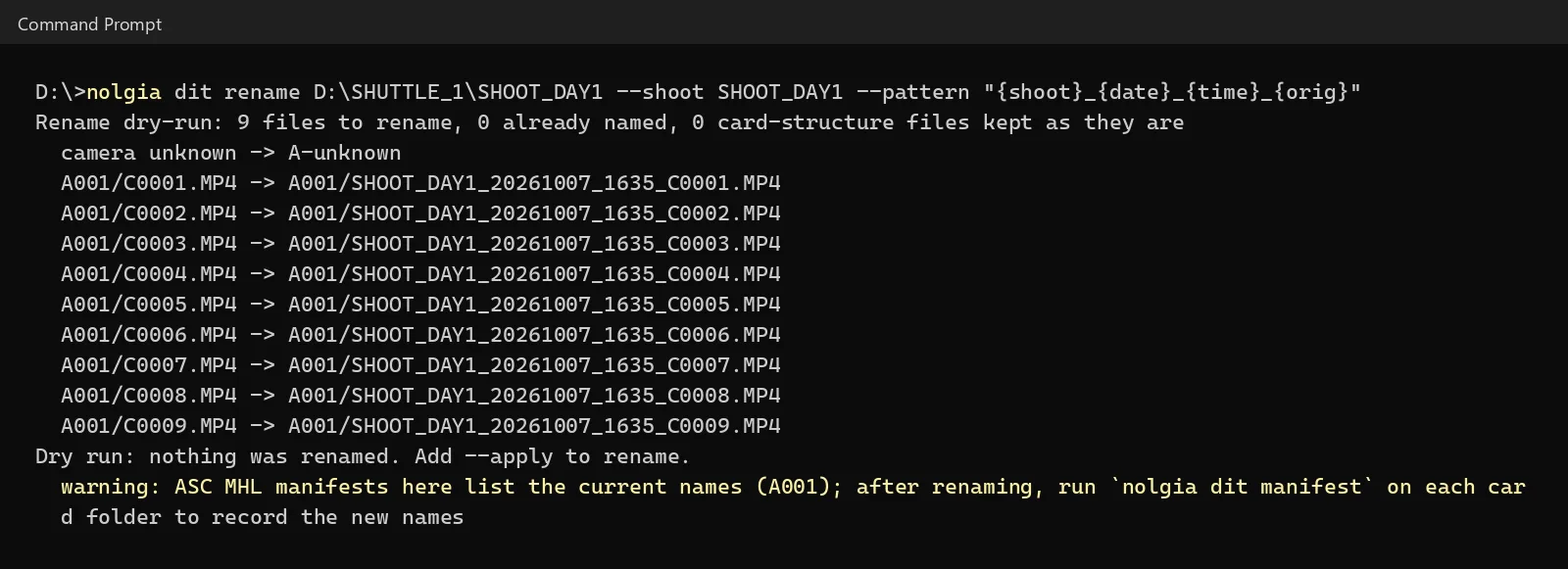
--apply to rename.Tip:After a rename. Run nolgia dit manifest on each card folder you renamed. It records the new names in the card's ASC MHL as renames, so the copy still checks out.
Step 7: the DIT report
The report re-reads every file against its manifest and writes what was shot and what was checked, as Markdown and JSON, into _DIT. Send it to production with the drives.
nolgia dit report D:\SHUTTLE_1\SHOOT_DAY1 --verify
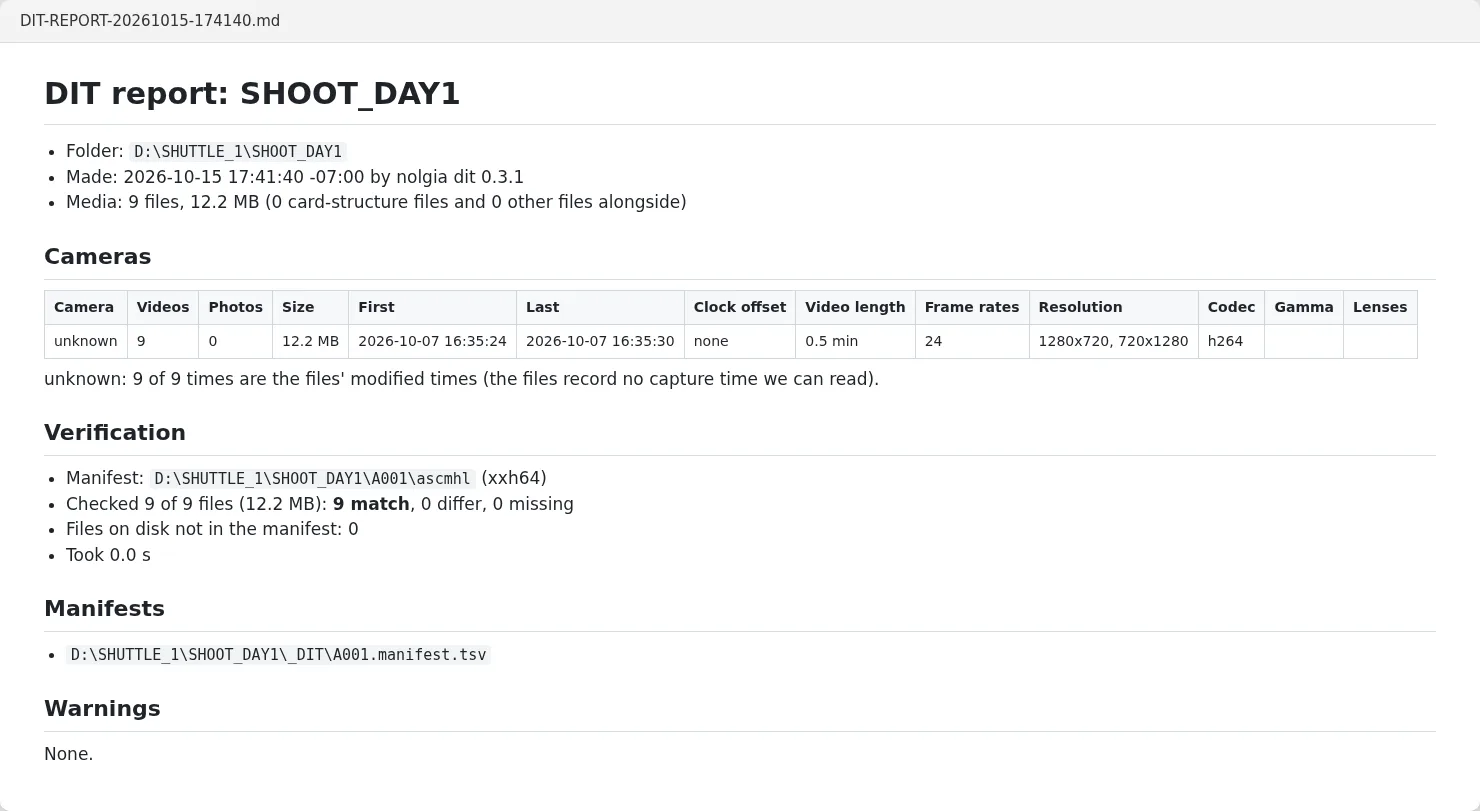
Step 8: or ask your agent from Premiere Pro or DaVinci Resolve
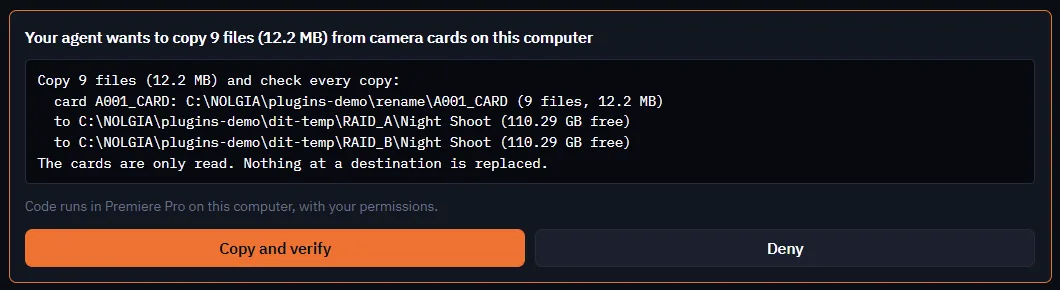
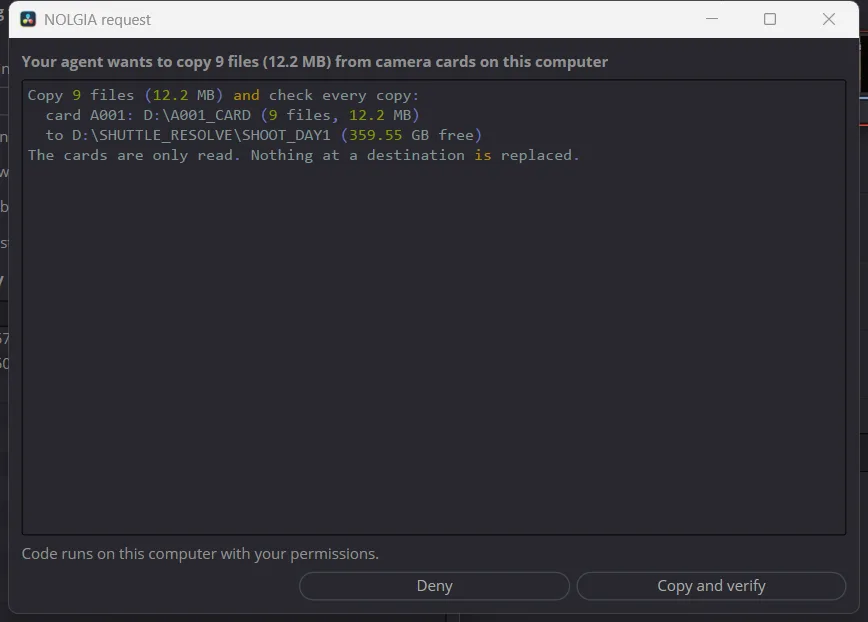
With NOLGIA for Premiere Pro or DaVinci Resolve installed, ask your AI agent to do your DIT. It runs the same steps through the plugin and shows you the plan. Nothing is copied or renamed until you approve it in the NOLGIA panel (in DaVinci Resolve, the NOLGIA window). Then it brings the footage into your project.
Use NOLGIA to do my DIT: copy my camera cards to my drives, check every copy, name the files by shoot, day and camera, and give me the DIT report. Then bring the footage into Premiere Pro, organized by day.
What goes wrong
| What you see | What it means | What to do |
|---|---|---|
| CONFLICT and "Nothing was copied" | A different file with the same name is already on a drive | Move that file aside or pick another folder, then run the command again |
| Exit code 68 and a file named | A copy does not match the card, or a file is missing | Do not format the card. Copy that file again, then verify |
| "Interrupted" and exit code 130 | The copy was stopped | Run the same command again; it resumes |
| "no manifest found" on a shoot folder | Your NOLGIA CLI is older than 0.3.1 | Update it: npm install -g @nolgia/cli or brew upgrade nolgia |
| Times marked file-time | The files carry no capture time | Check the dates; a rename by date uses the file's time |
What it costs
Nothing. nolgia dit runs on your computer, needs no account and uses no credits. Through Premiere Pro or DaVinci Resolve with your own agent (Claude, Cursor), the work in the app is free too. With the NOLGIA Agent, its chat turns are billed at the Agent's usual rate.
Checklist
- Dry run first: right cards, right drives, enough room, nothing in the way.
- Copy to two drives, and wait for the summary to say every copy matched.
- Verify before you format a card.
- Check the inventory for a camera whose clock was off.
- Rename only with a dry run first; run
manifeston each renamed card folder. - Send the DIT report with the drives.
Questions and answers
- Does NOLGIA upload my footage?
- No. The DIT command runs on your own computer and reads and writes only your cards and drives. It needs no account.
- Why read every copy back?
- A copy can be written wrong without any error: a bad cable, a failing drive or a full disk. Reading each copy back from the drive and comparing it with the card is the only way to know it is identical.
- xxh64 or MD5?
- xxh64 is the fast checksum DIT tools use today, and NOLGIA always makes it. Add MD5 or SHA-1 with the hash option (xxh64,md5) when a post house asks; the card is still read only once.
- Can other DIT tools read the manifests?
- Yes. The manifests are ASC MHL, the format Silverstack, ShotPut, Hedge and the reference ascmhl tool read.
- Does it work on a Mac?
- Yes. The same commands run on macOS and Linux, with card paths like /Volumes/A001. Version 0.3.1 is tested on Windows, Linux and macOS (Apple silicon).
Do your next DIT from Premiere Pro
See the workflowRelated guides
MCP
Generate from Claude Code or Cursor with MCP
Connect NOLGIA to Claude Code or Cursor with one token and one command or config entry, then ask for images, video and audio in plain words.
· 5 min read
Blog · Product
Export a Studio timeline to Premiere Pro, DaVinci Resolve or After Effects
Studio's Export menu hands your cut to Premiere Pro, DaVinci Resolve or After Effects as one ZIP with its media. Unzip it first, then import the project.
· 5 min read
Filmmaking
Focal length for AI video: 24mm, 70mm, 135mm and 200mm
What 24mm, 70mm, 135mm and 200mm do to a frame, how to prompt each in Seedance 2.5, and how the focal length reel was made, with every prompt as it was sent.
· 15 min read