Remove unwanted things from a video with Miroge
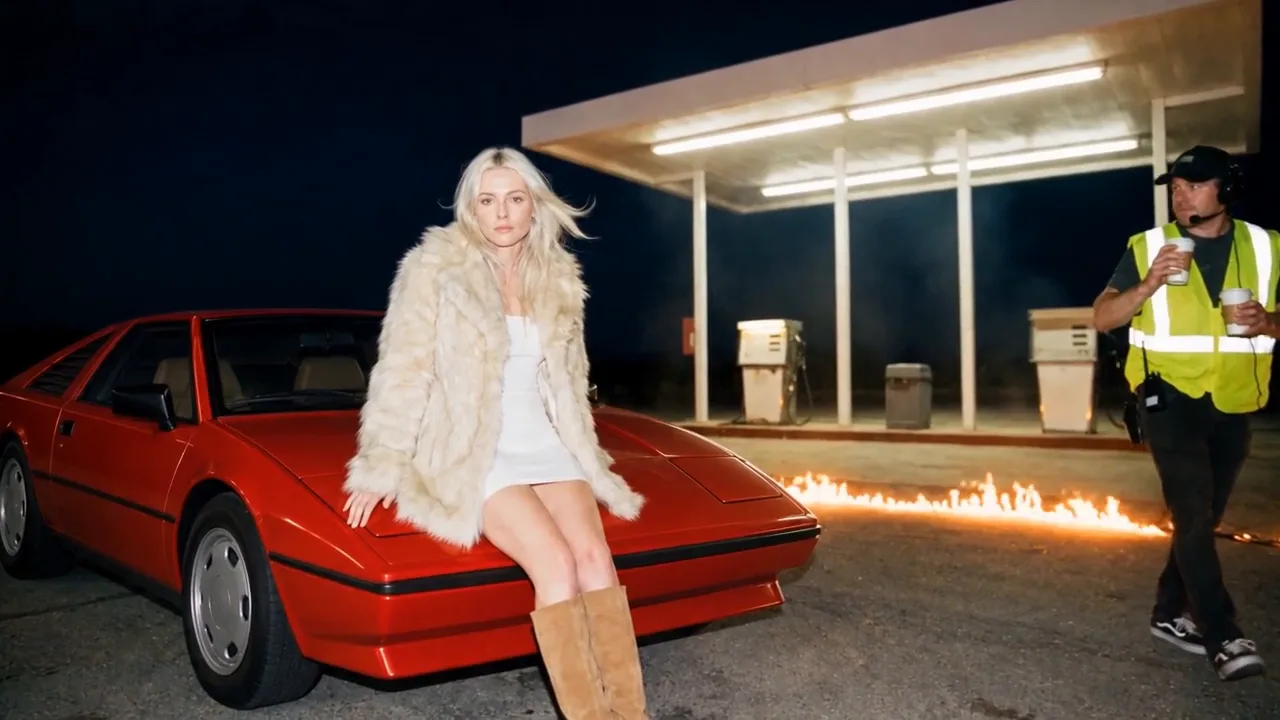
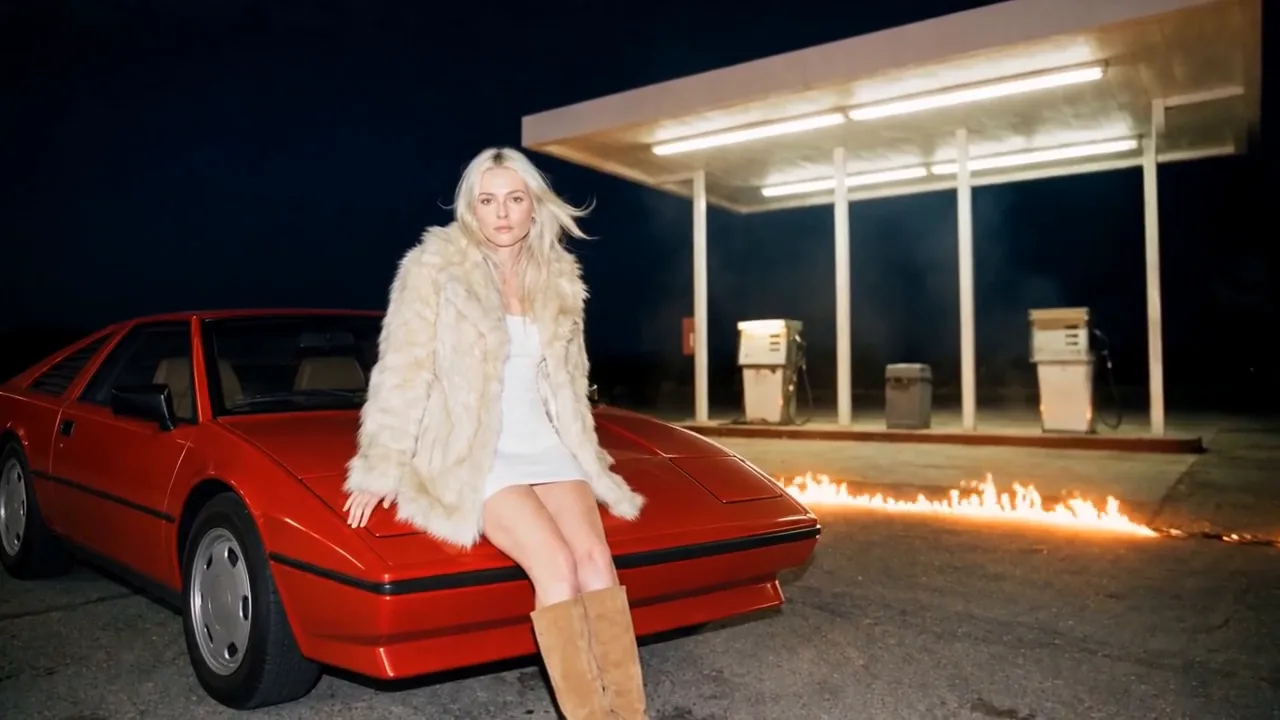
A crew member walked through the take. Choose Remove, say what has to go, and the take comes back without him: her face, the light and the sound untouched.
- 8 min read
- Updated
- Preset: Miroge: recast your clip
Someone walked through the back of your best take: a crew member, a passer by, a boom mic that dipped into frame. Miroge's Swap mode has a Remove choice for this. You name the thing, Miroge finds it in your clip frame by frame, and only that spot is redrawn: the rest of the shot comes back exactly as you filmed it, faces and sound included.
This guide follows one take from a short film: a crew member in a hi vis vest crosses a gas station at night behind the actress. Every clip here is real output, and what did not work is said plainly.
The take, and the fix
Your clip
Removed
Open Miroge and choose Swap
Open Miroge from the Tools menu, choose Swap at the top, then Remove just under it. Recast on a video in your Library, or Miroge in the Studio timeline toolbar with a Library clip selected, opens Miroge with that clip already in place.
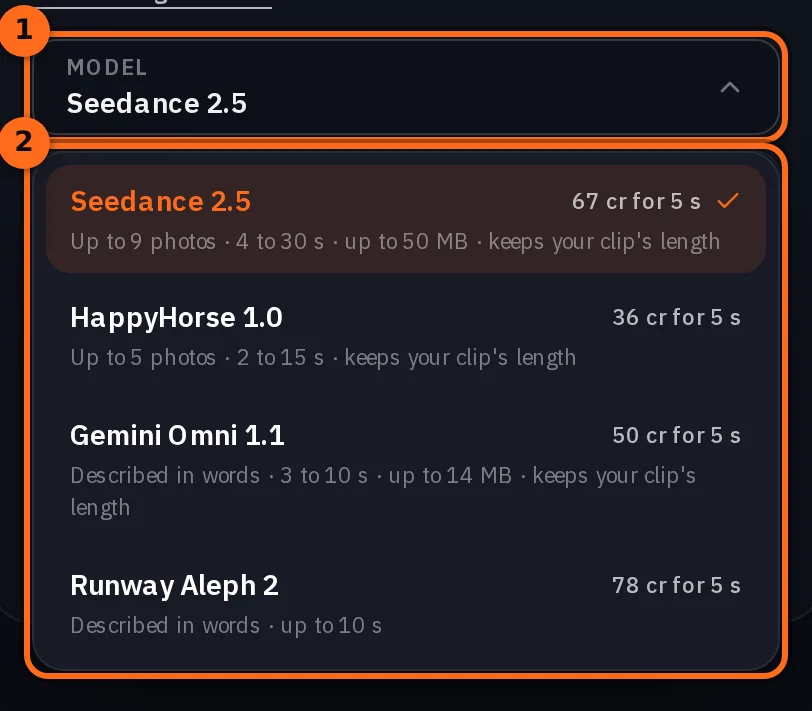
Remove starts on Seedance 2.5, and the Model menu under the prompt lists the other models that can run it. Miroge runs on Pro and Studio plans.
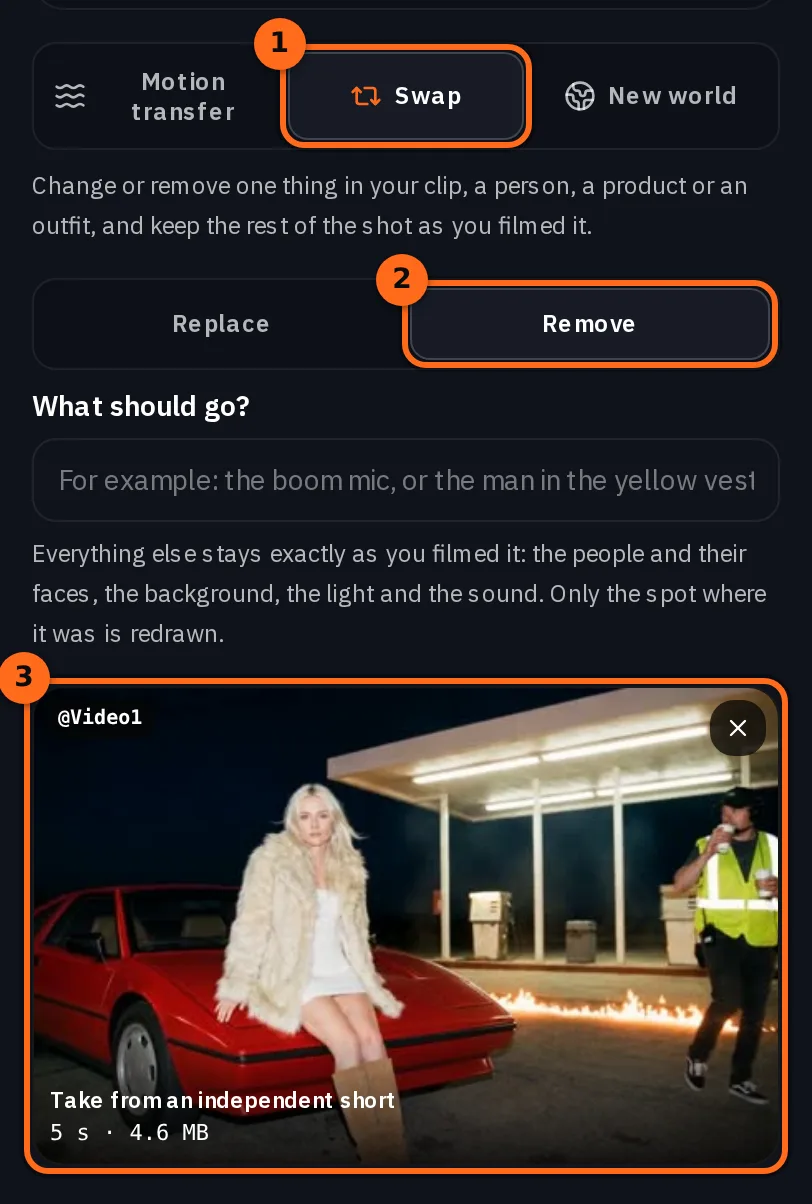
Add the take
The Your clip tile takes one MP4 or MOV: Upload a file or pick one from your Library. If a clip does not fit the model, the composer says so and Generate stays off, so nothing is charged.
| Model | Your clip | Result |
|---|---|---|
| Seedance 2.5 | 4 to 30 s, up to 50 MB | Same length as your clip |
| HappyHorse 1.0 (Video Edit) | 2 to 15 s | Same length as your clip |
| Gemini Omni 1.1 (Video Edit) | 3 to 10 s, up to 14 MB | Same length as your clip |
| Runway Aleph 2 | Up to 10 s | Same length as your clip |
Choose Remove and say what has to go
With Remove chosen, the photo tile steps aside, since nothing goes in, and What should go? appears. Name the thing in a few plain words, the way anyone would see it.
the man in the yellow vest walking in the background
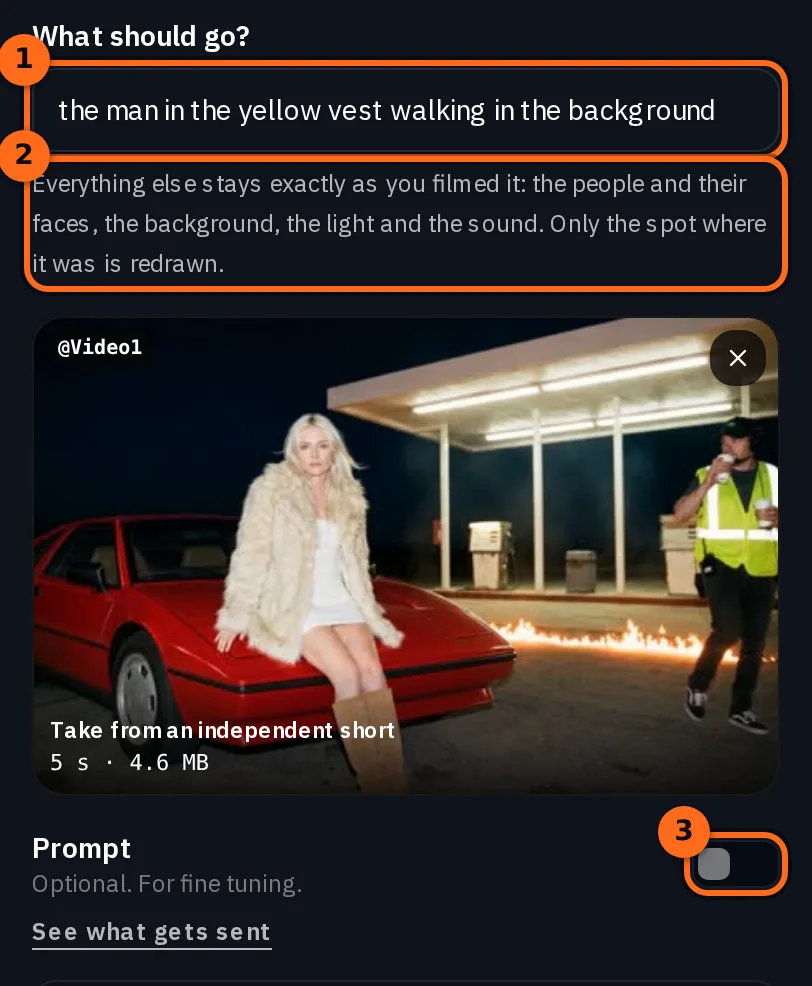
Miroge finds that in your clip, in every frame, together with what belongs to it, like a boom mic's pole or the cup someone carries. The model then redraws the shot, and Miroge keeps its work only where the thing was: everywhere else you get your own frames back, at the same length and frame rate, with your clip's own sound. See what gets sent, under the prompt, shows the instruction the model gets.
Tip:Plain words work best. A color and a thing are enough: the boom mic, the coffee cup, the man in the yellow vest. If Miroge cannot find it in your clip, nothing is changed, your credits come back, and the message says what it looked for.
The Prompt toggle is still there for fine tuning, for example to say what should show where it was.
Run it
Generate. The result plays next to the form and lands in your Library.
Your clip
Seedance 2.5
We measured her face frame by frame against the take: on Seedance 2.5 and on HappyHorse 1.0 (Video Edit) alike, it matched the take more closely than a copy of the take saved again does. Before Remove, the same request on HappyHorse visibly changed her face.
Watch for this:The filled spot is still the model's work. Only the spot where he walked is redrawn, so how well it is filled depends on the model. In our runs Seedance 2.5 filled it cleanly every time, while HappyHorse 1.0 (Video Edit) once left a dark smudge where a person had been and once painted a new sign where a boom mic had hung. If the spot looks wrong, run it again or pick another model.
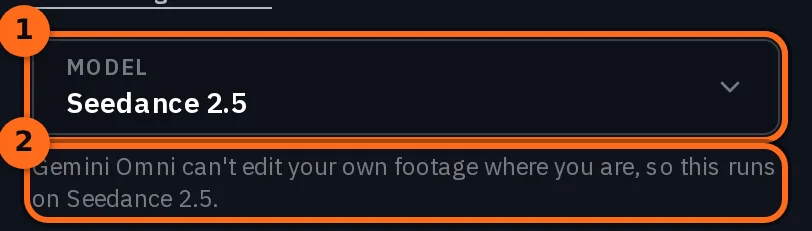
Watch for this:Gemini Omni 1.1 is not offered everywhere. Gemini Omni 1.1 (Video Edit) does not edit uploaded footage in every region. Where it can't, Miroge leaves it out of the Model menu, and a line under the menu says which model runs instead.
Check every frame before you use it
Compare plays your clip and the result side by side. Scrub through both, then check three things:
- It is gone in every frame. Step through the moments where it was largest or nearest the edge of frame, not only the first frame.
- Everything attached to it went too. A boom mic hangs from a pole, a sign stands on a post. If a part stayed, run it again and name that part too, for example: the boom mic and its pole.
- The spot is filled with the right things. Here that meant the pumps, the bin, the canopy lights and the haze, where he had walked in front of them.
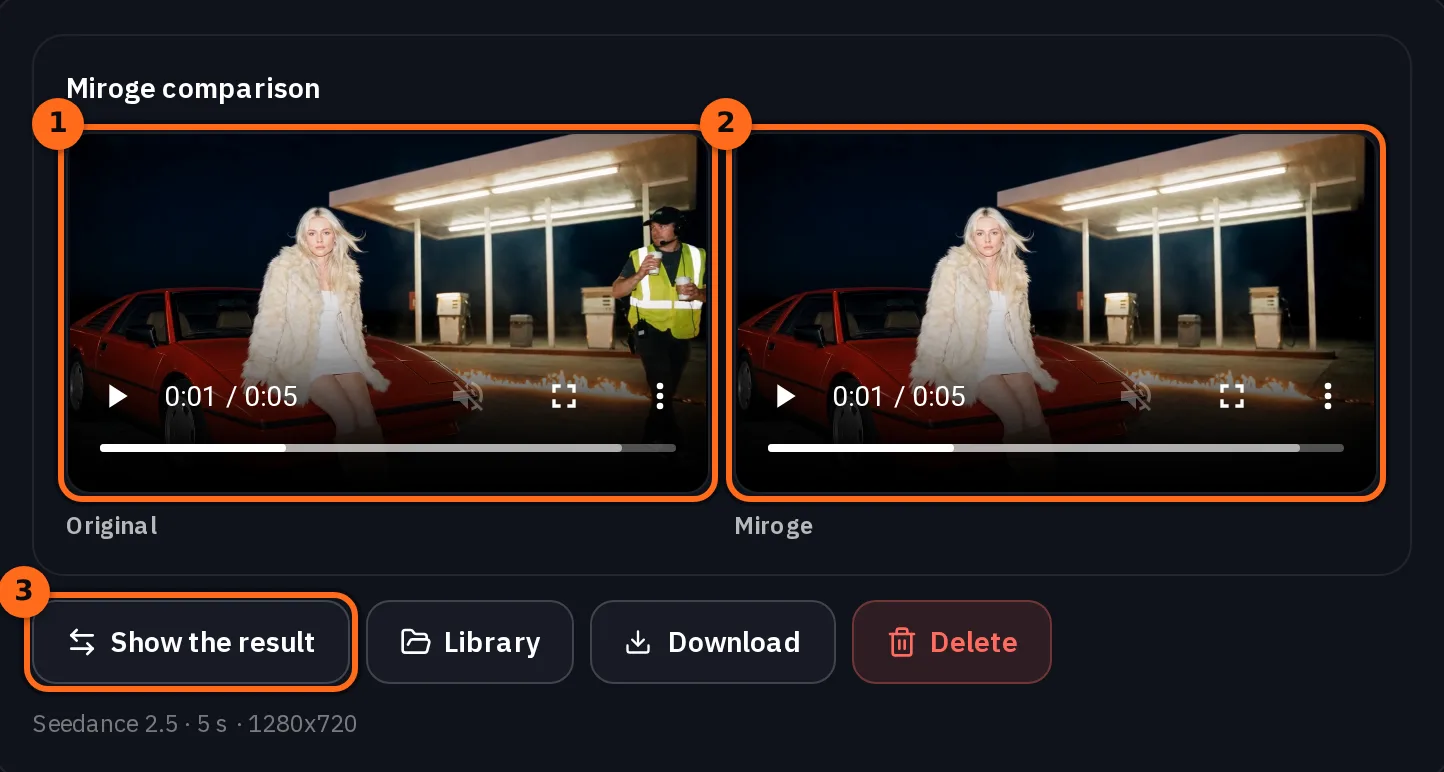
Outside that spot every frame is your own, so the rest of the shot, the faces in it and its sound cannot drift.
What it costs
A model that keeps your clip's length is priced on that length, and the exact price is on the Generate button before you run it. Remove costs the same as the edit itself. Every Swap model needs Pro or above, and a run that cannot find what you named gives its credits back.
Seedance 2.5Pro and up
Per 5s clip
480p 26 credits · 720p 56 credits · 1080p 137 credits
1080p renders at 16:9 and 9:16
HappyHorse 1.0 (Video Edit)Pro and up
Per 5s clip
720p 36 credits · 1080p 64 credits
Gemini Omni 1.1Pro and up
Per 5s clip
Standard 50 credits
Runway Aleph 2Pro and up
Per 5s clip
Standard 78 credits
Read live from the catalog when this page loads. Every price is shown before you generate. See every rate.
Questions and answers
- Can Miroge remove a person from a video?
- Yes. In Swap, choose Remove and describe the person, for example the man in the yellow vest. The rest of the shot, other people included, comes back exactly as you filmed it.
- Will it change my actor's face?
- No. Only the spot where the thing was is redrawn. Every other pixel is your own frame, so faces, hair, wardrobe and the grade stay exactly as you filmed them.
- Do I need a photo?
- No. Nothing goes in when you remove something, so Remove has no photo tile. You name what has to go in words.
- Does it work when the camera moves?
- Yes. In our take the camera pushed in slowly and the crew member walked across the frame and out of it, and Miroge followed him in every frame. Faster moves were not part of this test, so check those results closely.
- What happens to the sound?
- You get your clip's own sound back, untouched, whichever model you pick.
- Which model should I use?
- Start with Seedance 2.5, Remove's default. It filled the gap cleanly in our runs. If the filled spot looks off, run it again or try HappyHorse 1.0 (Video Edit).
Clean up your own take
Open Miroge RemoveRelated guides
Video editing
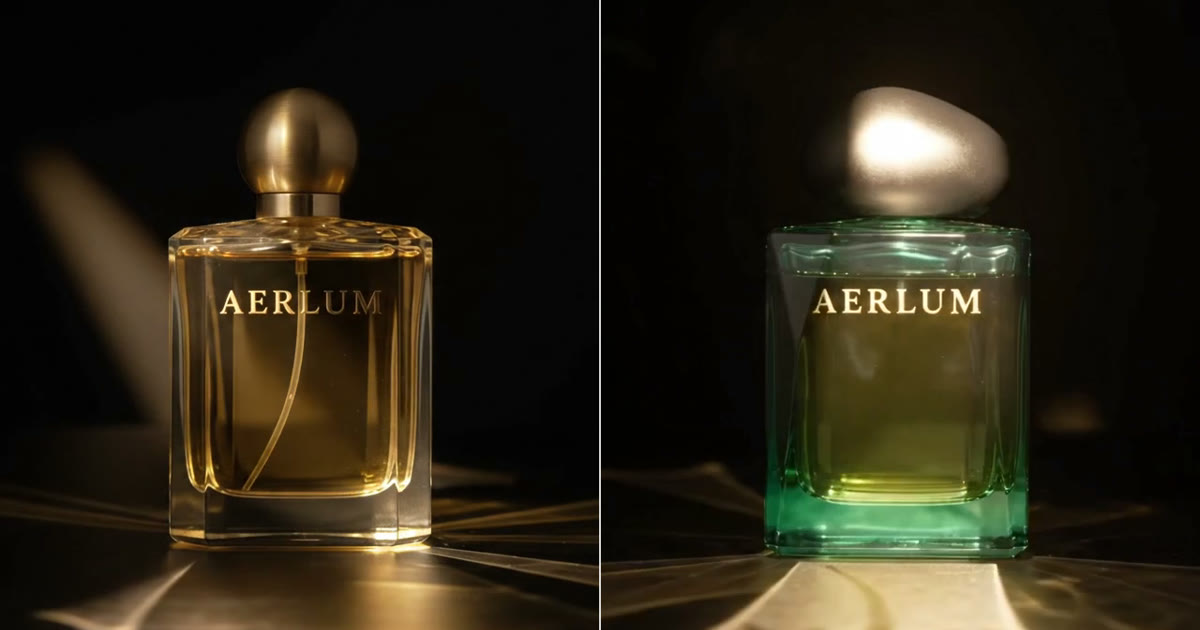
Swap one product in a clip with Miroge
Replace one product or prop in a clip you already shot: add the clip and a photo of the new one to Miroge's Swap mode, then check what carried over and what did not.
· 7 min read
Video editing
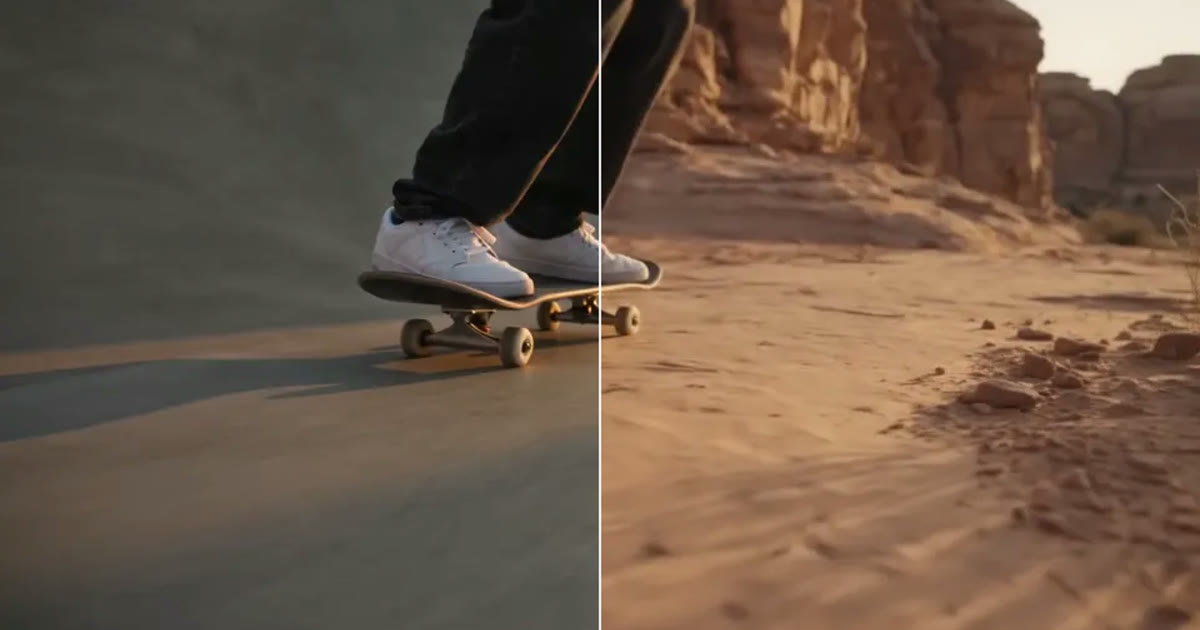
A clip came out wrong: fix it or make it again
Most wrong clips do not need a new render. Swap the one thing that is off, move the scene, clean up the picture or extend it, and make it again only when the shot itself is wrong.
· 6 min read
Video editing
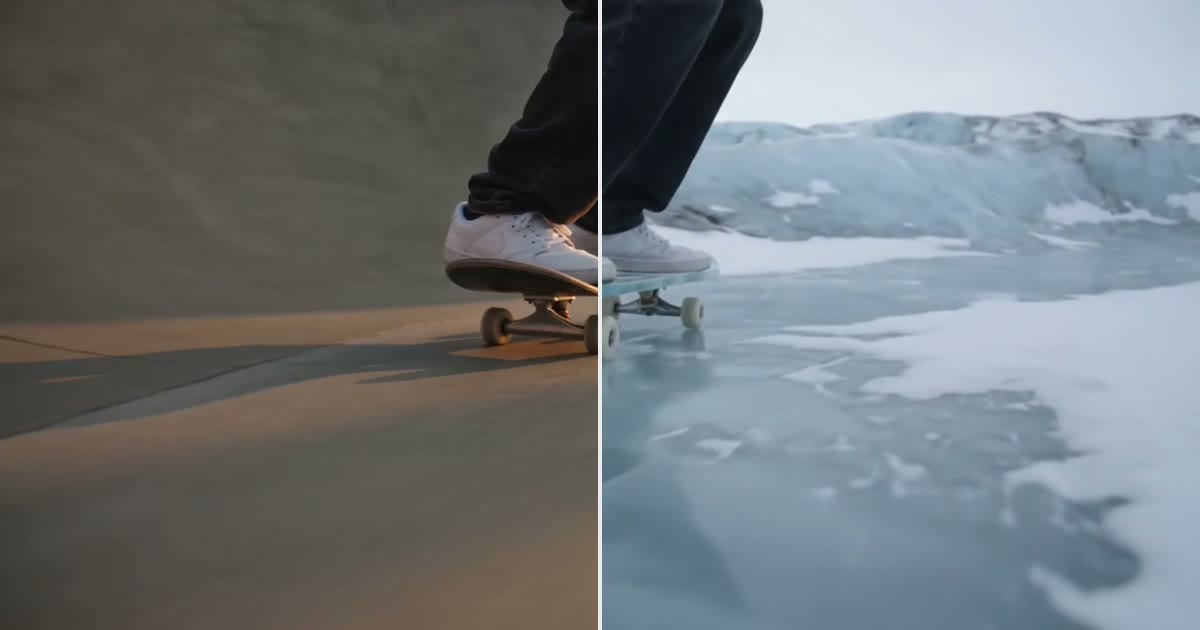
Keep the subject, change the world around it
Keep the legs, hands or product in a clip and redraw the place around them. The prompt order that held in 6 of 6 tests, and where it breaks.
· 9 min read