
Swap one product in a clip with Miroge
One thing in the shot is wrong. Show Miroge the new one in a photo, keep everything else, and read the result against your clip before you use it.
- 7 min read
- Preset: Miroge: recast your clip
You shot a clip you like, but one thing in it is wrong: last season's bottle, a placeholder prop, the old colourway. Miroge's Swap mode replaces that one thing and asks the model to keep the rest of the shot as you filmed it.
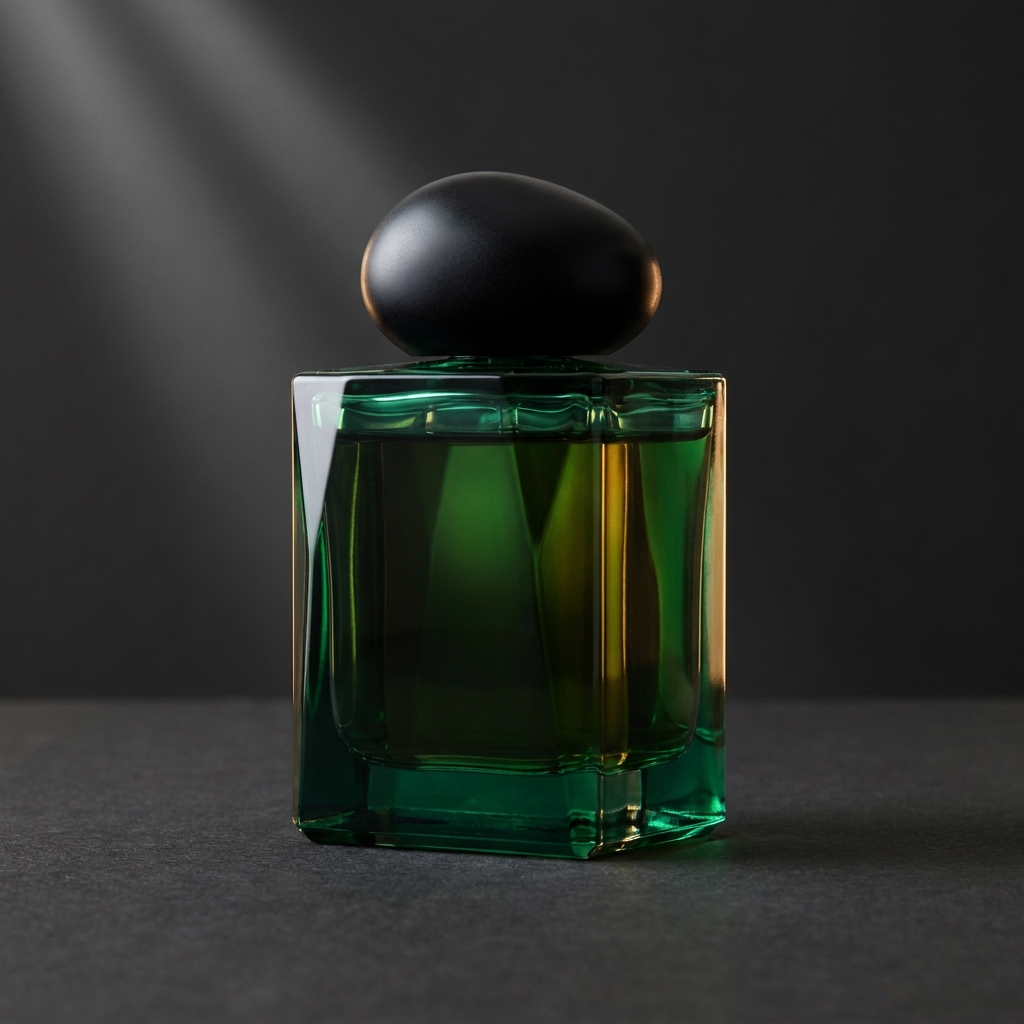
This guide follows one run from start to finish: a gold perfume flacon on a dark set becomes an emerald bottle from a single photo. Every clip here is real output, and the parts that did not change are said plainly.
Open Miroge and choose Swap
Open Miroge from the Create menu and choose Swap at the top. Recast on a video in your Library, or Miroge in the Studio timeline toolbar with a Library clip selected, opens Swap with that clip already in place.
Swap starts on Seedance 2.5. The Model menu under the prompt lists the other models that can run it. Miroge runs on Pro and Studio plans.
Add one clip that fits the model
The left tile, Your clip, takes one MP4 or MOV: Upload a file or pick one from your Library. Choose a shot where the product is clearly in view. If a clip does not fit the model, the composer says so and Generate stays off, so nothing is charged.
| Model | Photos of the new product | Your clip | Result length |
|---|---|---|---|
| Seedance 2.5 | Up to 9 | 4 to 30 s, up to 50 MB | Same as your clip |
| HappyHorse 1.0 (Video Edit) | Up to 5 | Up to 15 s | You pick it |
| Gemini Omni 1.1 (Video Edit) | None, words only | 3 to 10 s, up to 14 MB | Same as your clip |
| Runway Aleph 2 | None, words only | Up to 10 s | You pick it |
Show the new product with a photo
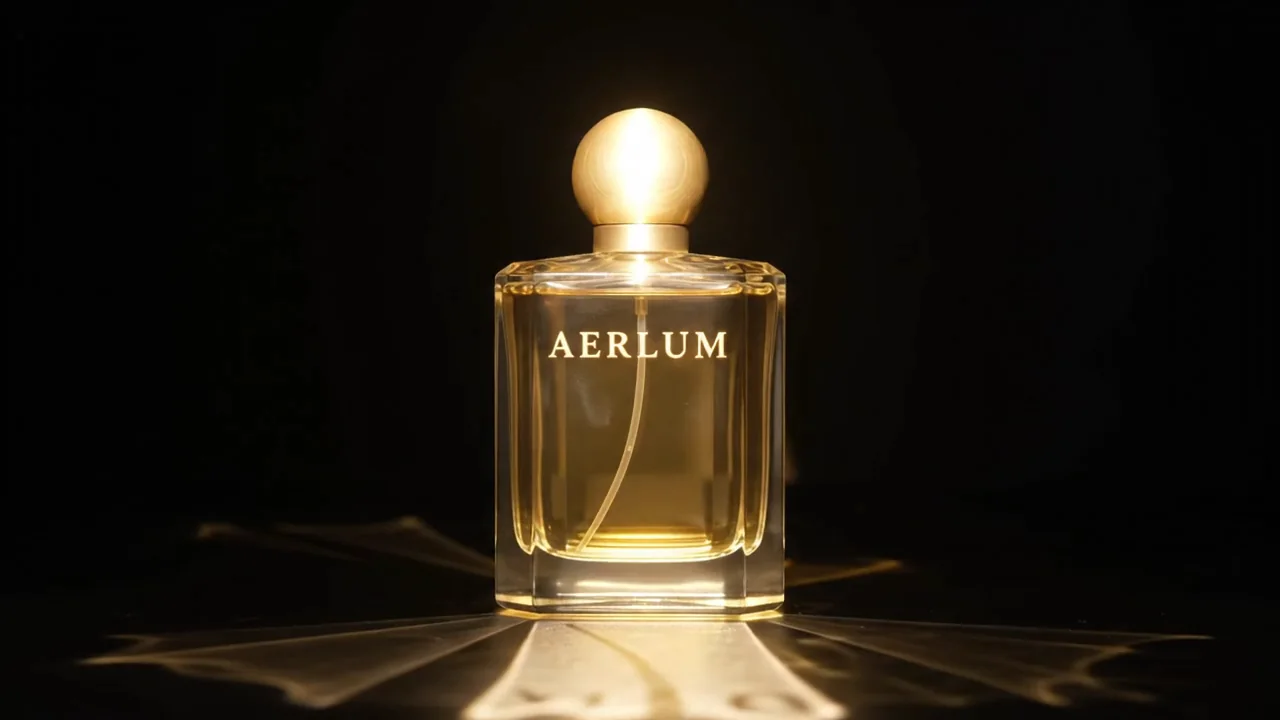
On Seedance 2.5 or HappyHorse, press Add in the What goes in tile and choose Upload photos or From your Library. For a product you have saved, press Product instead: up to three of its photos and its description go with the clip.
With a photo in, the prompt is optional. Miroge's own instruction asks for the matching product to be replaced with the one in your photo, at the same position and scale, and for everything else to stay. See what gets sent, under the prompt, shows the whole instruction.
The Swap example
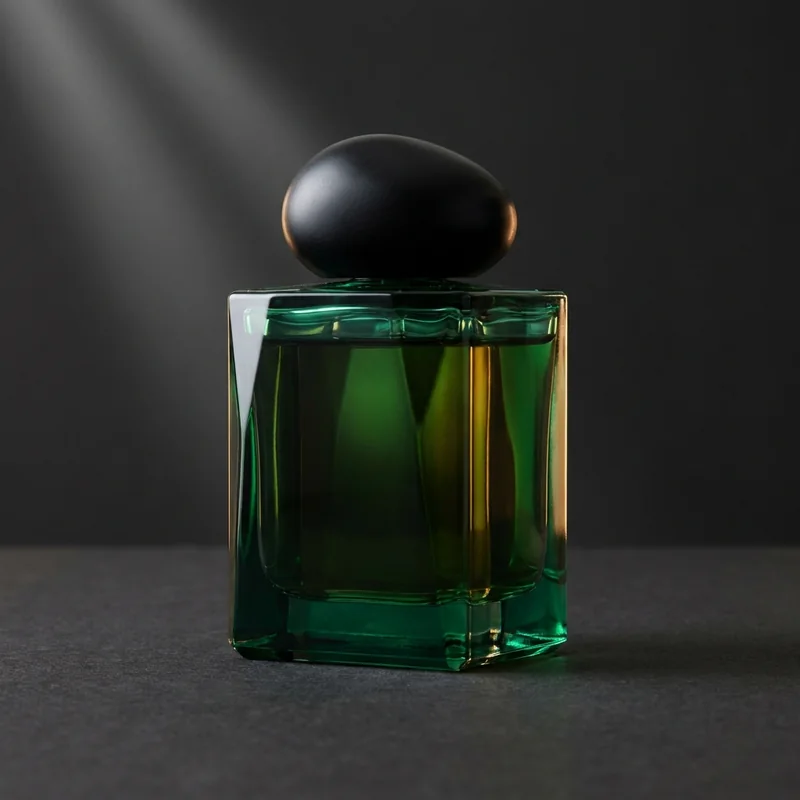
- The perfume clip: a gold flacon in a burst of light, 5 secondsMP4 video · 1280x720 · 1 MBDownload
- The photo of the emerald bottleJPEG photo · 1024x1024 · 514 KBDownload
| Setting | What we used |
|---|---|
| Mode | Swap |
| Your clip | The perfume clip |
| What goes in | The photo of the emerald bottle |
| Model | Seedance 2.5 |
| Quality | 720p |
| Length | 5 s, the clip's own length |
| Prompt | Off |
Your clip
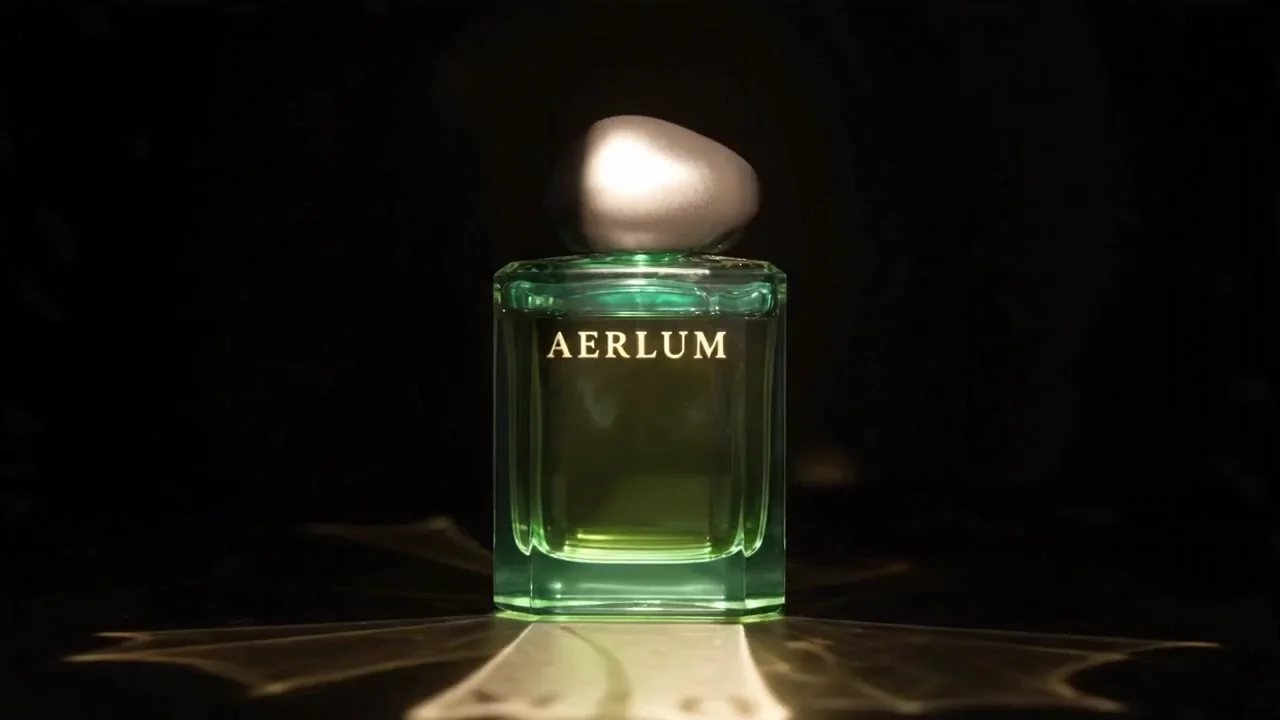
Swap, no words
Say more when the first run misses
Switch Prompt on and name what the photo should bring: the material, the colour, the shape, the cap, and what must not appear. Type @ to insert your photo as a chip. Your words lead, and Miroge's instruction follows them.
Replace the gold perfume bottle with the emerald bottle in @Image1: thick deep green glass cut into sharp angular gemstone facets, a smooth matte black pebble cap, dark green liquid inside, and no lettering, label or logo anywhere on it.
Your clip
Swap, with words
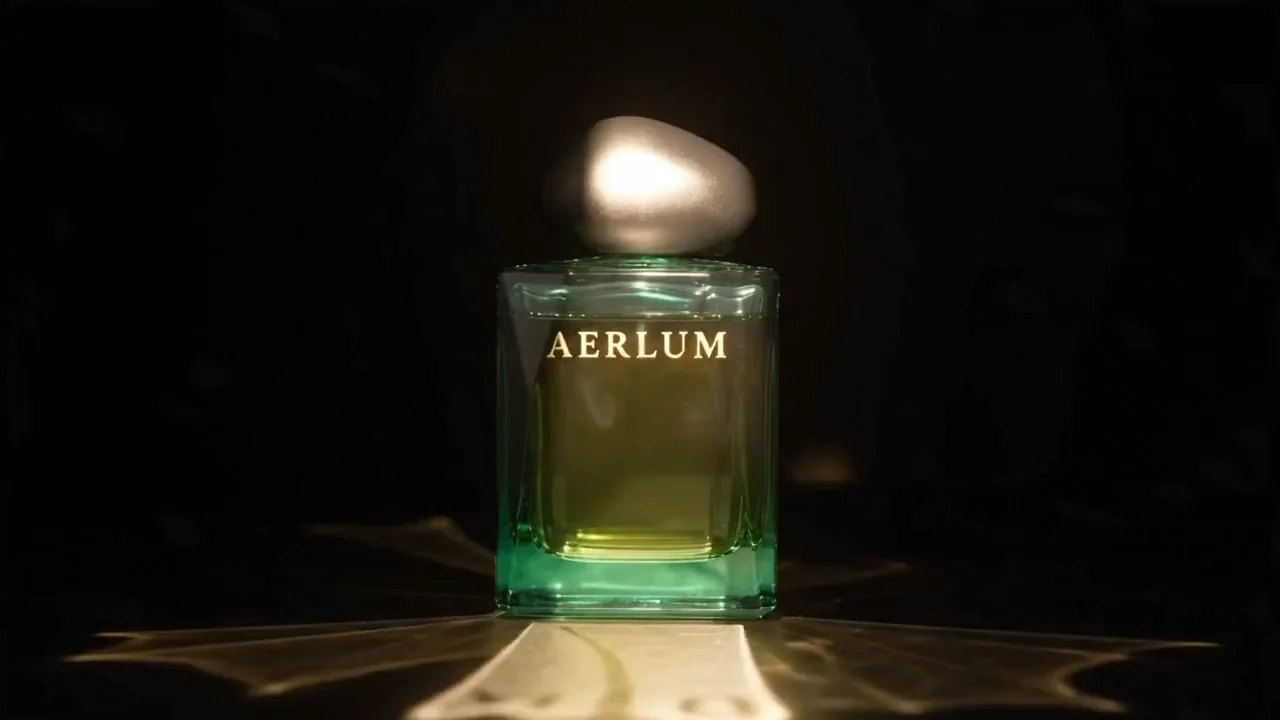
Watch for this:Lettering in the clip tends to stay. In both runs the name on the original bottle stayed on the new one, even though the photo has none and the words asked for none. If a label must go, shoot the product with the label turned away, or plan to remove it in Studio.
Read the result against your clip
Compare plays your clip and the result side by side. Check three things in this order:
- The shot. Position, scale, the camera move, the light and the length should all match your clip. In our two runs they did: the bottle stayed centred, the light burst swept behind it at the same moment, and the clip came back at its own length.
- The new product. Material and colour follow the photo well. Shape follows it less: the bottle kept the clip's silhouette in both runs. When the exact shape matters, pick a replacement with a similar silhouette, or expect to run it more than once.
- Anything that should not be there. Lettering, logos and marks from the original can carry over. Look for them before you use the clip.
These are two runs on one clip, not a measurement. Every run is a new render, so read yours the same way.
Or describe it in words
Gemini Omni 1.1 (Video Edit) and Runway Aleph 2 take no photos, so the change is in words and the prompt is required. Words work on the other models too: leave the photo tile empty. Name the product that goes and where it is, then describe the new one by its material, colour and shape. The composer's example is replace the red mug with a matte black steel bottle.
Watch for this:Plan the sound. Gemini Omni 1.1 (Video Edit) makes a new soundtrack, and Runway Aleph 2 returns none. If your clip's sound matters, lay the original back under the result. For a longer film, swap one shot at a time.
What it costs
A model that keeps your clip's length is priced on that length, rounded up to the second, and the exact price is on the Generate button. Every Swap model needs Pro or above, and topping up does not unlock them on a lower plan. Clips of well known people and copyrighted material are refused, and a refused run gets its credits back.
Seedance 2.5Pro and up
Per 5s clip
480p 26 credits · 720p 56 credits · 1080p 137 credits
1080p renders at 16:9 and 9:16
HappyHorse 1.0 (Video Edit)Pro and up
Per 5s clip
720p 36 credits · 1080p 64 credits
Gemini Omni 1.1Pro and up
Per 5s clip
Standard 50 credits
Runway Aleph 2Pro and up
Per 5s clip
Standard 78 credits
Read live from the catalog when this page loads. Every price is shown before you generate. See every rate.
Questions and answers
- Can I add a photo of the new product?
- Yes, on Seedance 2.5 and HappyHorse 1.0 (Video Edit). Gemini Omni 1.1 (Video Edit) and Runway Aleph 2 take words only.
- How long can my clip be?
- It depends on the model: 4 to 30 seconds on Seedance 2.5, and 3 to 10 seconds on Gemini Omni 1.1 (Video Edit). The clip tile shows the limit for the model you pick.
- Do I have to write a prompt?
- Not when a photo is in. Without one, or on a model that takes none, you describe the change in words. Words also help when the first run misses a detail.
- Will the new product look exactly like my photo?
- Material and colour followed the photo in our runs. The shape stayed close to the product already in the clip, and lettering on the original carried over. Check every result against the photo.
Swap one product in your own clip
Open MirogeRelated guides
Blog · Launch
Miroge: recast, swap or move a clip you already shot
Miroge has its own composer: Motion transfer, Swap and New world. Add a clip you already have, then change who is in it, one thing in it, or its place.
· 6 min read
Video editing
Put your own character and your dog into any video
Pick a video, add a photo of a person and one of a dog, and Miroge recasts the clip with them: the same moves, the same set, the same camera. Every step, on a computer and a phone.
· 9 min read
Video editing
A clip came out wrong: fix it or make it again
Most wrong clips do not need a new render. Swap the one thing that is off, move the scene, clean up the picture or extend it, and make it again only when the shot itself is wrong.
· 5 min read